


What is a Sim Pass?
A Sim Pass is a 5-digit, single-use code that gets a learner into a simulation without a username and password. Where the pass was generated decides where the learner lands: on the classroom's simulation menu, or straight inside one career's sim.
For: Instructors, facilitators, and learners
A Sim Pass is a 5-digit code that gets a learner into a Transfr simulation without a username and password. It works in Transfr Trek and in Transfr Train, it can be used once, and it expires 3 days after it's generated.
A Sim Pass can come from two places: an instructor or admin generates one from a classroom's Sim Pass tab on the Dashboard, or a learner generates their own — from Trek Mobile or from their My Work page. Both are valid passes.
One thing about Sim Passes surprises almost everyone, and it is the reason this article exists: two learners can each hold a valid Sim Pass and end up in two different places. Where the pass was generated decides which. See Why did two learners with a Sim Pass end up in different places?
What is a Sim Pass, exactly?
- Five digits. Every Sim Pass is a 5-digit number. It is not a password, and it is not a classroom code.
- One named learner. Each pass belongs to one learner, so the session captures data for that learner.
- Single use. Once a learner signs in with a pass, that code is no longer valid. The next session needs a new one.
- Three days from generation. The clock starts when the pass is created, not when someone uses it. A pass made on Friday afternoon has already expired by Monday morning.
A Sim Pass replaces the sign-in step and nothing else. It doesn't create an account, and it doesn't change what a learner is allowed to see.
For every other code and credential Transfr uses, side by side, see Codes, logins, and PINs explained.
Why did two learners with a Sim Pass end up in different places?
Because a Sim Pass either carries a career with it or it doesn't, and that decides where the headset puts the learner.
- No career attached — the headset shows the learner their classroom's menu of simulations, and they choose one to open.
- One career attached — the learner goes straight into that career's simulation, past the menu.
Where the pass came from is what decides it:
| Generated from | By | Carries a career? | The learner lands on |
|---|---|---|---|
| The Sim Pass tab on a classroom in the Dashboard | An instructor or admin | No | The simulation menu for that classroom |
| The Sim Pass panel on a learner's My Work page (on the learner's own dashboard view) | The learner | No | The simulation menu for that classroom |
| A single career on a learner's careers list, in Trek Mobile or on My Work | The learner | Yes, that one career | That career's simulation |
You can see why the Dashboard route can't point at one simulation. The Sim Pass tab lists learners and nothing else — there is no career or simulation picker anywhere on it. A pass generated there has no career to carry.
The tab describes itself as a way to "skip login and go directly into their simulations with a temporary keycode." Read "skip login" literally: the pass carries a learner past the sign-in screen. It doesn't pick a simulation for them.
Transfr Train has only the one route. Train has no careers list, so a Train Sim Pass can only come from the Dashboard, and it always lands the learner on their classroom's simulation menu.
How do I generate Sim Passes for my learners?
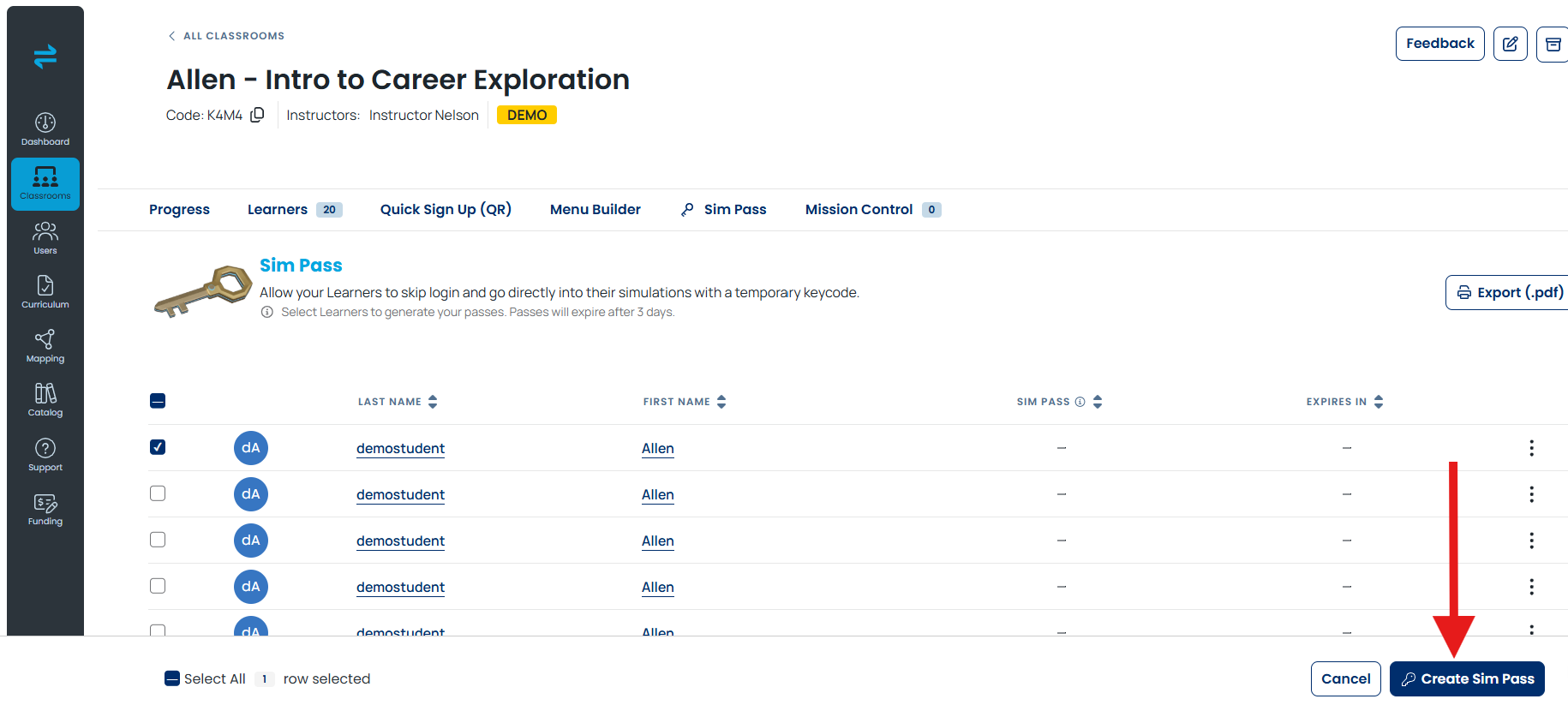
Instructors and admins do this from the classroom, and you can cover a whole group in one go.
- In the Dashboard's left navigation, select Classrooms.
- In the classrooms list, select the classroom you're teaching.
- On the classroom page, select the Sim Pass tab.
- In the learner list, select the checkbox beside each learner who needs a pass.
- On the bar that appears across the bottom, select Create Sim Pass.
Success looks like a code in the SIM PASS column for every learner you selected, with the time remaining beside it in EXPIRES IN.
Two more things on this tab are worth a look before a lab session:
- The tab states the expiry on screen: "Select Learners to generate your passes. Passes will expire after 3 days."
- Export (.pdf) saves the whole list as a PDF, which is the practical way to hand codes out to a class.
A Program classroom — a classroom whose Product is Programs; see the Transfr Programs Guide — carries the same Sim Pass tab, and it behaves the same way.
Can a learner get their own Sim Pass?
Yes. Learners who sign in on the web get a dashboard view of their own, and its My Work page is where their Sim Passes live (for a tour of it, see the Trek Learner Dashboard Guide). Two places there produce different kinds of pass.
- The Sim Pass panel on My Work shows the learner's current code, how much time is left on it, and View Details. The panel's own instruction is "Enter this code into your headset." A pass from here carries no career.
- The careers list ends each career row with a small unlabeled + icon in the SIM PASS column. That control makes a pass for that one career. Trek Mobile offers the same thing on a favorited career.
A learner and their instructor see the same pass. A code a learner generates on My Work appears in that learner's row on the classroom's Sim Pass tab, and a code an instructor generates appears on the learner's My Work page.
For the rest of the learner dashboard, see Learner Dashboard Guide. For the Trek Mobile side, see Trek Mobile Learner Experience and Transfr Trek: Learner Quick Start Guide.
Does a Sim Pass work in both Trek and Train?
Yes. It is the one login method the two products share.
- Transfr Trek takes three: a personal account, a classroom code, or a Sim Pass.
- Transfr Train takes two: a username and password, or a Sim Pass. Train doesn't accept classroom codes at all. If a learner keeps typing a classroom code into Train and it keeps failing, that's why.
For the in-headset steps, see How do learners log in to the Transfr Trek app? and How Do Learners Log Into Transfr Train?
When is a Sim Pass the only way in?
At organizations that sign in through single sign-on, username-and-password sign-in is turned off for Train, so every learner uses a Sim Pass. The same holds at organizations rostered through Clever or ClassLink. In those cases a Sim Pass isn't one option among several — it is the route, and generating passes becomes part of running a session.
See How does rostering work with Clever and ClassLink?
A Sim Pass isn't working. What now?
Three things account for nearly every rejected pass.
- It expired. Passes last 3 days from generation. Check EXPIRES IN on the Sim Pass tab.
- It was already used. A pass works once. A learner starting a second session needs a second pass.
- The headset is offline. In Trek's Temporary Offline Mode a classroom code is the only login method that works — usernames and Sim Passes don't. See Trek Temporary Offline Mode.
All three have the same fix, so when a code is rejected, generate a fresh one rather than working out which of the three it was.
If a fresh pass is also rejected, the problem is elsewhere. See How do I log in to Transfr? for the other sign-in routes, or contact support below.
Still need help?
Contact our support team — Monday–Friday, 8am–8pm ET, 646-466-2600, technicalsupport@transfrvr.com.
Last updated: August 6, 2026
