


Transfr Programs Guide
The four Transfr Programs you can assign to a classroom, what each one contains, and how to track progress, credentials, and stuck learners.
For: Instructors and Admins running a Programs classroom
A Transfr Program is a ready-made course you attach to a classroom. Learners work through it on the Transfr Dashboard, moving between VR simulations and on-screen lessons, and earn credentials as they go. This guide covers the four Programs you can choose from, what is inside each one, and how you follow a class through it.
If you want the short definitions first, read What is a Transfr Program? and What is a Program Classroom?
Which Programs can I choose?
When you create a classroom and set Product to Programs, a Program field appears with four options, in this order:
- Build your own — an empty course you assemble yourself.
- Fundamental Skills — cross-trade safety and shop skills.
- Construction Laborer PEP — a Pre-Employment Program for entry-level construction work.
- Mechanical Industrial Maintenance Technician PEP — a Pre-Employment Program for entry-level industrial maintenance.
A classroom holds one Program at a time. If Programs is not in the Product list at all, your organization does not have a Programs package — see If you cannot find Programs.
What is the Fundamental Skills program?
Fundamental Skills is a set of VR simulations covering the skills that carry across trades, rather than one occupation. It is built as a single unit with six topics:
- Workplace Safety
- Math & Measurement
- Safe Materials Handling
- Hand Tools
- Power Tools
- Electrical Fundamentals
A learner earns one badge per topic, so six in total. Where a PEP (covered next) is one fixed sequence of units, Fundamental Skills is a single unit holding those six topics. It is aligned to Perkins V and to CCMR reporting, which is what most CTE teams need it for.
Two similar names, two different things. The Program you assign to a classroom is called Fundamental Skills. The folder of lesson plans on the Train tab of Curriculum Resources is called Foundational Skills. Neither is a typo — the Program is the thing learners work through, and the folder is the teaching material that goes with those same cross-trade skills.
What is a Pre-Employment Program (PEP)?
A Pre-Employment Program prepares a learner for one specific entry-level occupation. Both PEPs mix VR simulations with on-screen lessons and knowledge checks, and both run to roughly 20 hours of content. Construction Laborer PEP states the figure on screen — its Certificate of Completion card reads “Over the course of 20 hours.”
Each PEP is built as six units. Construction Laborer PEP holds:
- Course Overview - Construction Laborer
- Introduction to the Construction Laborer Role
- Construction Workplace Safety
- Hand Tools
- Power Tools
- Construction Laborer Resume and Interview Preparation
Mechanical Industrial Maintenance Technician PEP holds:
- Course Overview
- Introduction to the Role
- Industrial Workplace Safety
- Maintenance Basics
- Introduction to Industrial Components
- Resume and Interview Preparation
Two things about PEPs surprise people:
- The order is fixed. A learner works the activities in sequence and cannot skip ahead to a later one. That is why the Gradebook carries an override — see What if a learner is stuck?
- No subject-matter expert is needed to run one. A PEP is designed to be handed to a learner as-is. Your job is to enroll them and watch progress, not to teach the content.
What does "Build your own" do?
Choose Build your own when you want to assemble a course yourself instead of using a Transfr-built one. The classroom starts empty and you add units, lessons, and activities in Course Builder, pulling in Transfr simulations and curriculum resources as you go. The full walkthrough is in How do I create a course in Course Builder?
How do I set up a Program classroom?
A Program is chosen while the classroom is being created.
- In the left menu, select Classrooms.
- At the top right of the Classrooms list, select the Create Classroom control — a plus icon that opens the Create a Classroom window.
- Under Product, choose Programs — a Program field appears underneath.
- Under Program, choose the Program you want — the Program name replaces the placeholder text in the field.
- Under Classroom Details, enter a name for the classroom.
- Select Create Classroom — the new classroom appears in your Classrooms list.
If you're a super admin: the window asks you to pick an Organization first, before Product. Choose the organization this classroom belongs to, and the remaining fields appear. Instructors and admins managing a single organization won't see this field — Product is the first thing they set.
Give the classroom a name you will recognize months later — the Program name plus a term, for example. Full step detail, including instructors and learners, is in Creating a Classroom.
Where do I see progress and credentials?
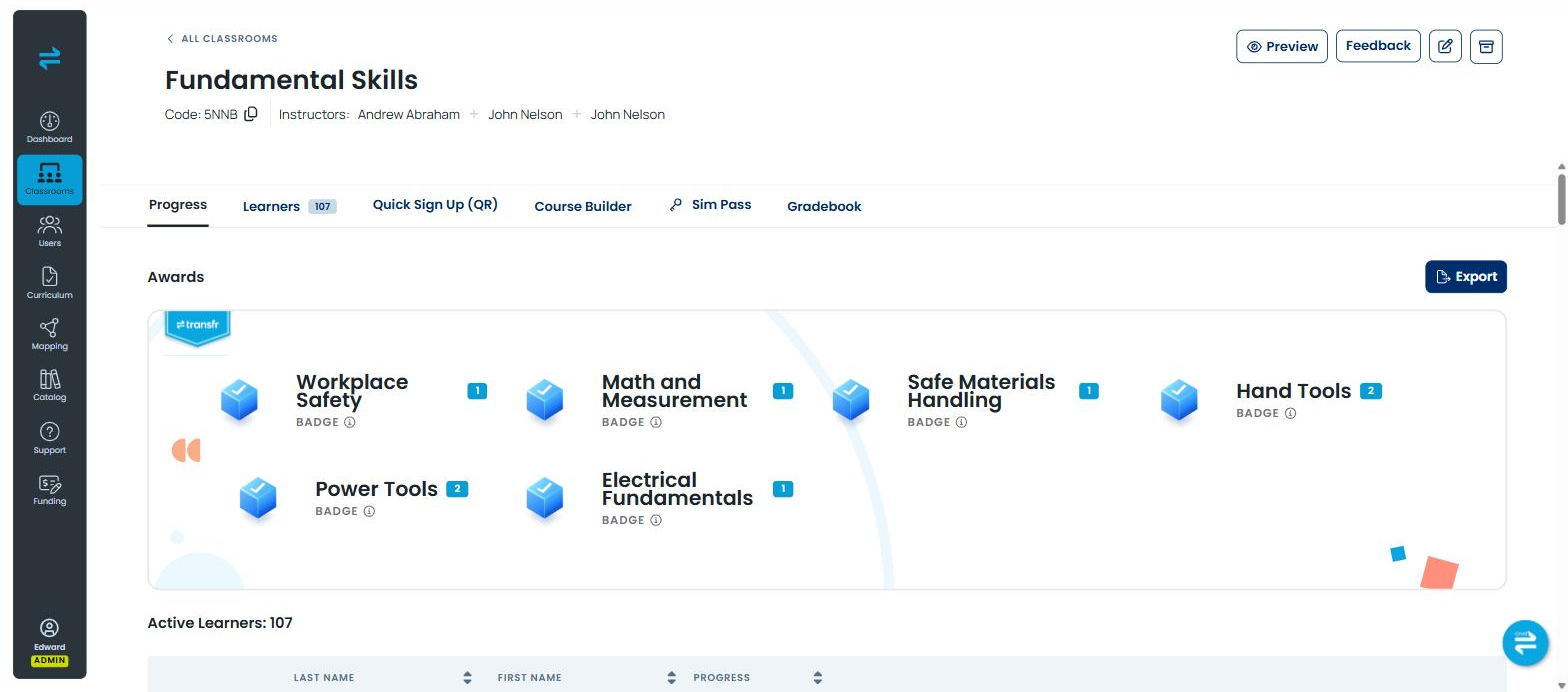
A Program classroom has its own tab set: Progress, Learners, Quick Sign Up (QR), Course Builder, Sim Pass, and Gradebook.
Open the Progress tab. It has two halves.
- Awards, at the top. Each credential in the Program gets a card, and the number on the card is how many learners in this classroom have earned it. A PEP shows one CERTIFICATE OF COMPLETION card plus a MICROCREDENTIAL cards for its three assessed milestones. Fundamental Skills shows a BADGE card for each of its six topics. An Export control sits beside the section.
- The class list, below it. It opens with Active Learners and a count, then a table with LAST NAME, FIRST NAME, and PROGRESS columns, sorted from most to least progress. Success looks like a percentage against each learner who has started.
For the whole organization rather than one classroom, open Dashboard in the left menu and select the PROG product tab. It carries ACTIVE LEARNERS, CERTIFICATES OF COMPLETION, MICROCREDENTIALS, and BADGES tiles across whatever date range you set.
The three award types recognize different scopes of learning, and they are not earned the same way:
- A badge recognizes completion of every simulation in one Fundamental Skills topic. Fundamental Skills has no assessments attached to it, so there is no test to sit and no score to clear — completing the sims is what earns the badge.
- A microcredential recognizes an assessed milestone in a PEP. The learner completes the required e-learning and VR practice, then passes the associated summative Knowledge Check at 80% or higher. Each PEP offers three stackable microcredentials — they mark assessed milestones rather than one per unit.
- A Certificate of Completion covers a whole PEP — all of its units, simulations, assessments, and knowledge checks.
Credentials are issued through Accredible, the credentialing service Transfr uses, and either you or the learner can retrieve them.
How do I read the Gradebook?
The Gradebook tab shows one unit at a time. The unit is named above the grid as Unit: followed by its name, with the learner names down the side and one column per activity.
- On the classroom, select the Gradebook tab.
- Select Filters to switch to the unit you want — the unit name above the grid changes.
- Read across a learner's row — a finished activity shows Pass or a percentage score, and anything not attempted shows No Value.
- To take the grid away with you, select Export.
A grid that looks empty is usually the unit filter rather than missing data. Check which unit is selected before you go looking for a problem.
What if a learner is stuck?
Because a PEP runs in a fixed order, one activity a learner cannot finish blocks everything after it. You clear that from the Gradebook.
- On the classroom, select the Gradebook tab.
- Select Filters and choose the unit holding the activity.
- Select the cell where that learner's row meets that activity's column — the Edit Score window opens, naming the unit, the lesson, and the activity so you can confirm you have the right one.
- Set Exempt to YES.
- Select Apply — the learner can now move on to the next activity.
Exempting a learner from one activity does not remove them from the rest of the Program, and it does not change anyone else's record. Select Cancel if you open the window and decide against it.
Can I change a Transfr-built Program?
No — and this is the detail that surprises people most, because the Course Builder tab appears on every Program classroom.
On Fundamental Skills and on either PEP, Course Builder is a read-only view of what Transfr built. You can expand Units to see the Lessons inside them and the Activities inside those, and you can open Activity Log — but there are no controls to add, reorder, rename, or remove anything. Use it to see exactly what a learner will be asked to do, and in what order.
On a Build your own classroom the same tab is the full authoring tool, with controls to create lessons, add activities, and reset the course.
So if you need a course shaped around your own scheme of work, create a Build your own classroom rather than trying to edit a Transfr-built Program. A Program also cannot be swapped for a different one after the classroom exists — see What is a Program Classroom? for what can and cannot be changed later.
Where are the lesson plans for a Program?
In the left menu, select Curriculum, then select the Programs tab on the Curriculum Resources page. Downloading works the way it does on the other tabs, but the filters are not identical: Programs offers Activity Type, Simulations, and Estimated Time, with no Industry filter. For the whole page, see Curriculum Resources.
If you cannot find Programs
Programs is not an item in the left menu, so there is nothing to look for in the sidebar. It shows up in three places instead: as the PROG tab on the Dashboard page, as an option in the Product list when you create a classroom, and as a tab on the Curriculum Resources page.
If Programs is missing from the Product list, or the Programs tab is missing from Curriculum Resources, your organization is not licensed for a Programs package. Contact us below and we will confirm what your organization has.
To see a Program the way a learner sees it before you assign it, use preview mode — see How do I preview what learners see?
Still need help?
Contact our support team — Monday–Friday, 8am–8pm ET, 646-466-2600, technicalsupport@transfrvr.com.
Last updated: August 6, 2026
