


How do learners log in to the Transfr Trek app?
Three ways into Trek VR: a personal account, a classroom code, or a Sim Pass, and when to use each.
For: Learners and instructors
When you open the Transfr Trek app in a VR headset, the login screen gives you three ways in: your personal account, a classroom code, or a Sim Pass. Which one you use depends on how your class is set up. This article covers all three. To sign in to Trek Mobile on the web, see How do I access Trek using SSO?
The three login options
On the Trek app's login screen you'll see three choices. Point at one with your controller and press the trigger button to select it. To go back and pick a different option, select the back arrow in the upper-left corner.
| Method | What it is | Whose data it tracks | Best for |
|---|---|---|---|
| Username and password | The same credentials the learner uses for the Transfr Dashboard | Each learner individually | Regular classroom use |
| Classroom code | A code from a Trek classroom in the Dashboard | Nobody — usage is anonymous | Career fairs and events |
| Sim Pass | A 5-digit, single-use code for one named learner; expires 3 days after it's generated | That one learner | SSO or rostered organizations, quick sessions |
Where a Sim Pass was generated decides where the learner lands — a pass made in the Dashboard opens the classroom's simulation menu, and a pass made from one career opens that career's simulation. For the full picture, see What is a Sim Pass?
Log in with a username and password
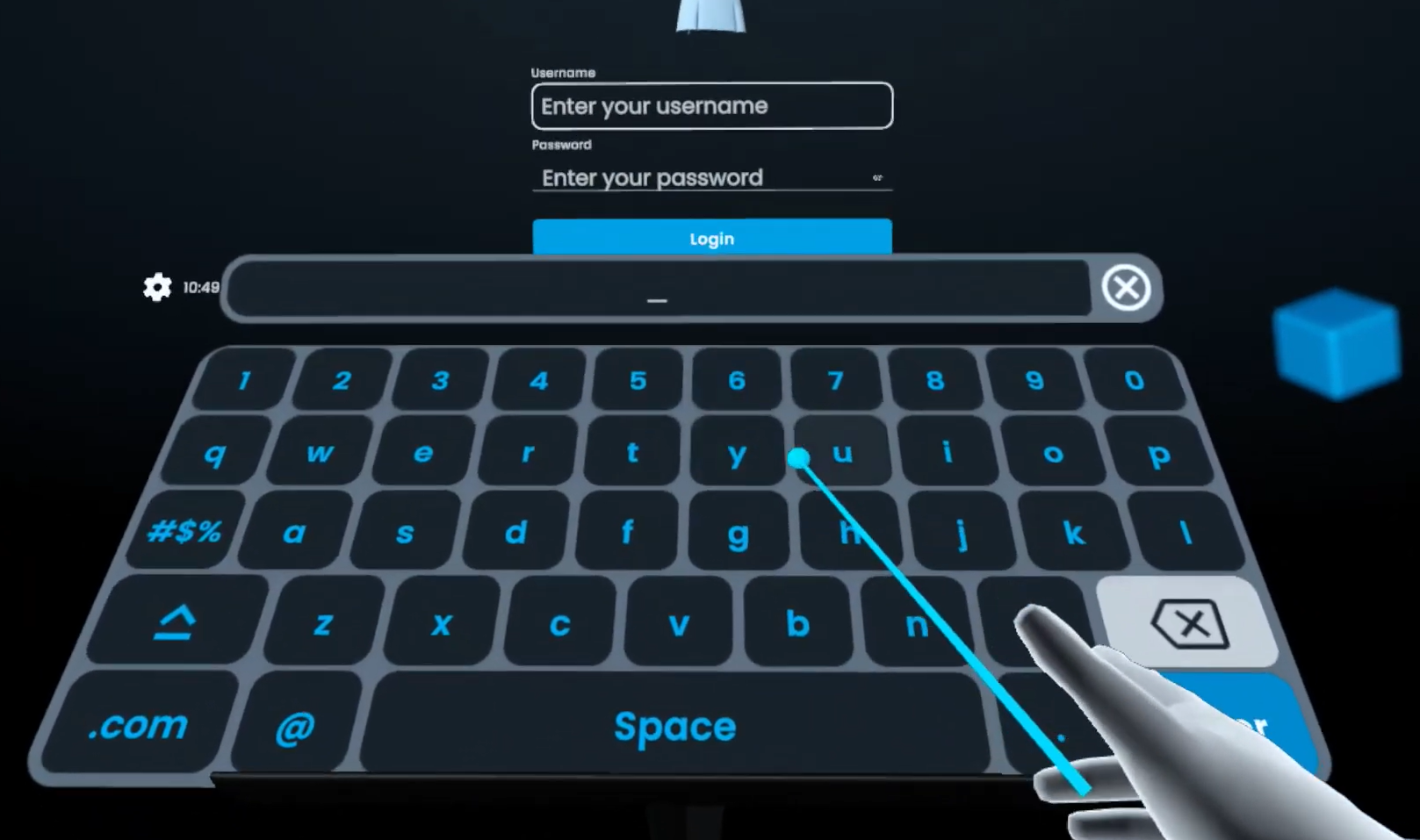
- On the login screen, select the username and password fields — a keyboard appears so you can type in VR.
- Enter the same username and password you use for the Transfr Dashboard.
- Select Sign In.
What success looks like: Your assigned Trek classroom and simulations load automatically.
Note: If a learner belongs to more than one classroom, they'll be asked which classroom to log activity to.
Log in with a classroom code
First, find the classroom code on your Career Exploration (Trek) classroom in the Transfr Dashboard — the code already exists; creating a classroom generates one automatically. For where it lives, see Creating a Classroom.
- On the login screen, select Classroom Code.
- Enter the code with your controller.
What success looks like: The classroom's simulations load and you can begin a session.
To switch to a different classroom code later, select the X next to the current code. If the code doesn't work, confirm it's current and matches the classroom in the Dashboard.
Good to know: Classroom-code sessions are anonymous — activity isn't saved to an individual learner's record, which makes them best for career fairs, events, and other short sessions. Use a personal account or Sim Pass when you need per-learner data.
Log in with a Sim Pass
A Sim Pass is generated in the Dashboard, on the learner's My Work page, or in Trek Mobile, then entered in the headset. It's the same kind of code whichever route you use — what differs is whether it carries a career, and so where the learner lands. See What is a Sim Pass?
Instructor: generate a pass in the Dashboard
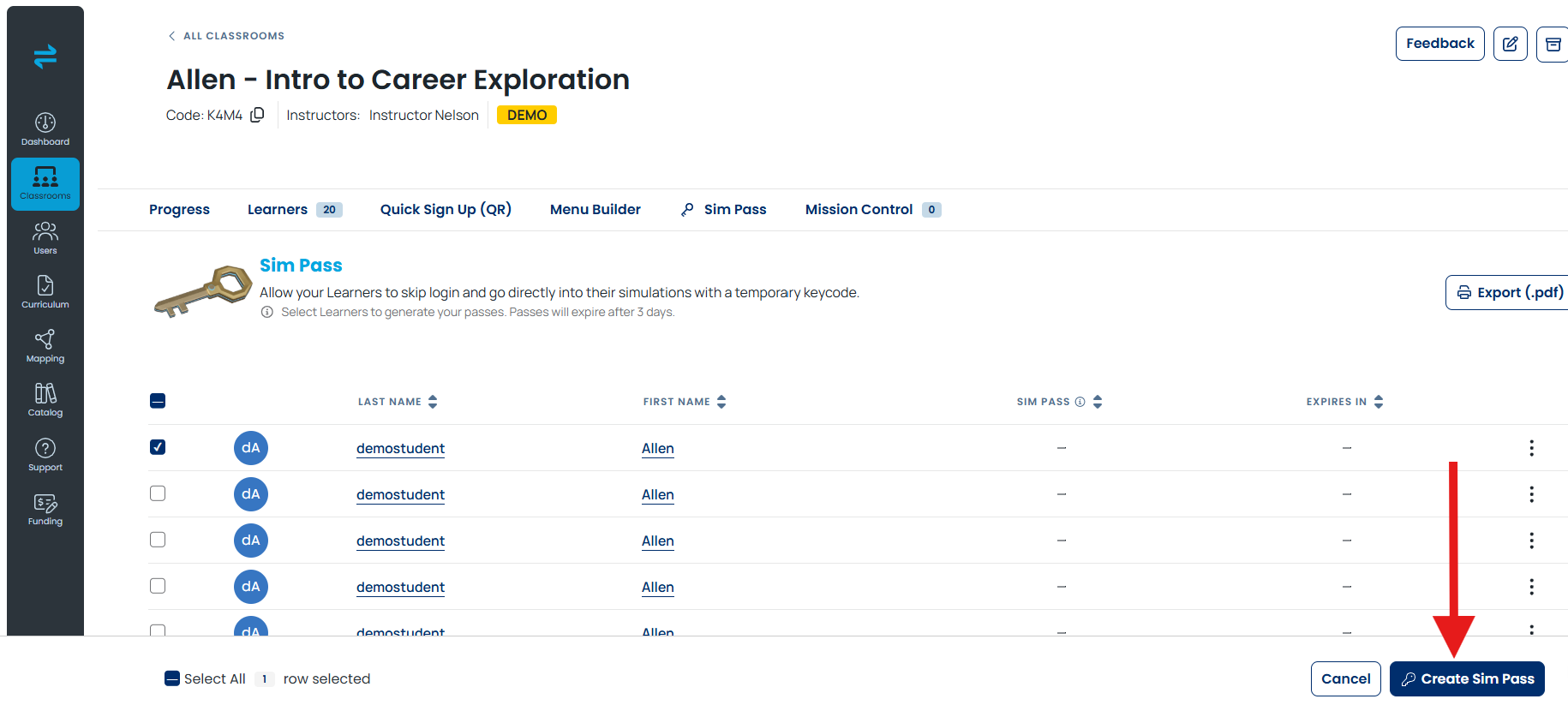
- Open your Trek classroom in the Transfr Dashboard.
- Select the Sim Pass tab.
- Select the checkbox beside each learner who needs a pass.
- On the bar that appears across the bottom, select Create Sim Pass.
- Share the code with your learners.
Learner: generate a pass in Trek Mobile
- Open a favorited career in Trek Mobile.
- Select Sim Pass (or the plus button next to the career).
Enter the pass in the headset
- On the login screen, select Sim Pass.
- Enter the 5-digit code with your controller.
- Select Submit.
What success looks like: A pass generated from a single career opens that career's simulation, and you can select Play. A pass generated in the Dashboard or on My Work opens the simulation menu for the classroom instead, so the learner picks what to open.
Note: Sim Passes expire after 3 days and are single-use, but a new one can be generated at any time.
When a login doesn't work
- The Sim Pass is rejected. It may have expired (passes last 3 days) or already been used. Generate a new one and try again.
- The wrong classroom loads. If a learner is in more than one classroom, they'll be asked which one to use — pick the right classroom, or check the code.
- Username and password won't sign in. Confirm they match the learner's Transfr Dashboard login, and that the account is added to a Trek classroom.
- The connection keeps dropping. Trek needs Wi-Fi to sign in and to load content, so an unstable network can look like a login failure. Check the headset's Wi-Fi from the settings bar in the headset view — see VR Wi-Fi Setup.
Still need help? Contact our support team — Monday–Friday, 8am–8pm ET, 646-466-2600, technicalsupport@transfrvr.com.
Last updated: August 6, 2026
