


Codes, logins, and PINs explained
Transfr's codes and credentials look alike. What each opens, how long it lasts, and where to find it.
For: Instructors, Dashboard admins, and IT staff
Transfr uses several different codes and credentials, and they are often confused with each other because most are short strings of letters or numbers. This article lists every one, what it opens, how long it lasts, and where to find it — so you can look at what you're holding and know exactly what to do with it.
Codes and logins at a glance
| Credential | What it opens | How long it lasts | Where to find it |
|---|---|---|---|
| Classroom code | Trek only | Stays active as long as the classroom does | Classroom header (Code:) or the CODE column in the Classrooms list |
| Sim Pass | Trek and Train | Single-use; expires 3 days after it's generated | Classroom's Sim Pass tab, or the learner's Get SIM PASS tile |
| Learner username and password | Train and Trek | Doesn't expire, but Train doesn't remember it between sessions | Created in the Roster panel |
| Staff email/username and password | Transfr Dashboard | Password itself doesn't expire; a password reset link lasts 30 minutes; a new-user invitation link lasts 7 days | Dashboard sign-in page |
| SSO (Clever, ClassLink, or NYC DOE) | Dashboard, per your district's setup | Managed by your school or district's identity provider | The matching sign-in button on the Dashboard sign-in page |
| Quick Sign Up (QR) code | Trek | Not published — contact support to confirm how long a QR code stays valid | Classroom's Quick Sign Up (QR) tab |
Classroom code
The classroom code is a short, uppercase alphanumeric string. Codes vary in length — you'll see both shorter and longer codes in production, so don't assume every code is the same length. Codes never include the digit 0 or the letter O, so if a code looks ambiguous, it isn't one of those.
You'll find the code two places: at the top of the classroom page, labeled Code: with a copy icon next to it, and in the CODE column of the Classrooms list.
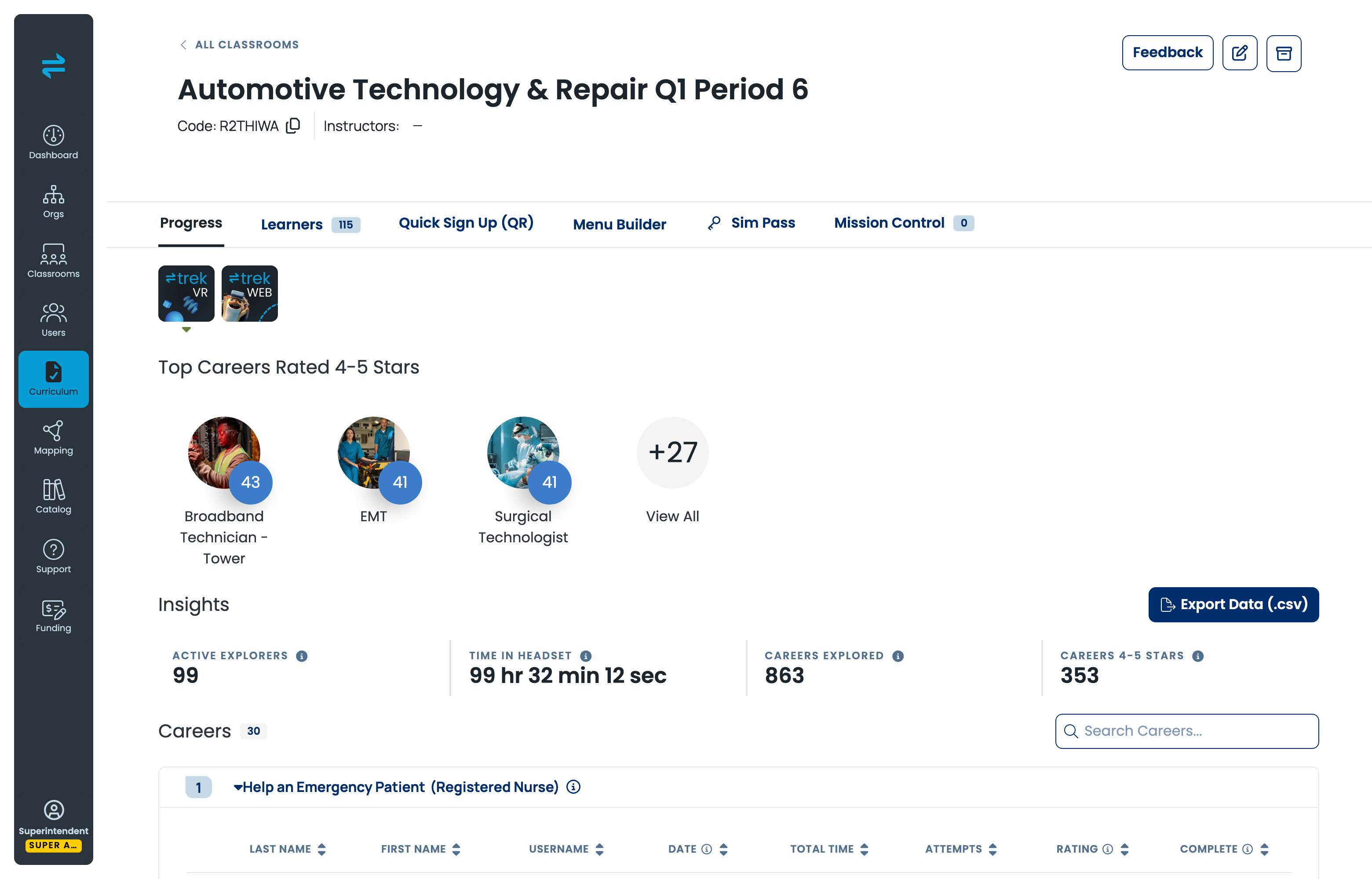
The classroom code is a Trek-only login method — it does not work for signing in to Train. It has a second job, too: when you create learners in the Roster panel, the CLASSROOM CODE column is where you assign each new learner to a classroom.
Sim Pass
A Sim Pass is a 5-digit code that works for both Trek and Train. It's single-use and expires 3 days after it's generated, so a pass a learner didn't use over the weekend won't work on Monday — generate a new one.
Instructors find the current Sim Pass on the classroom's Sim Pass tab. Learners can also generate their own from their dashboard, using the Get SIM PASS tile.
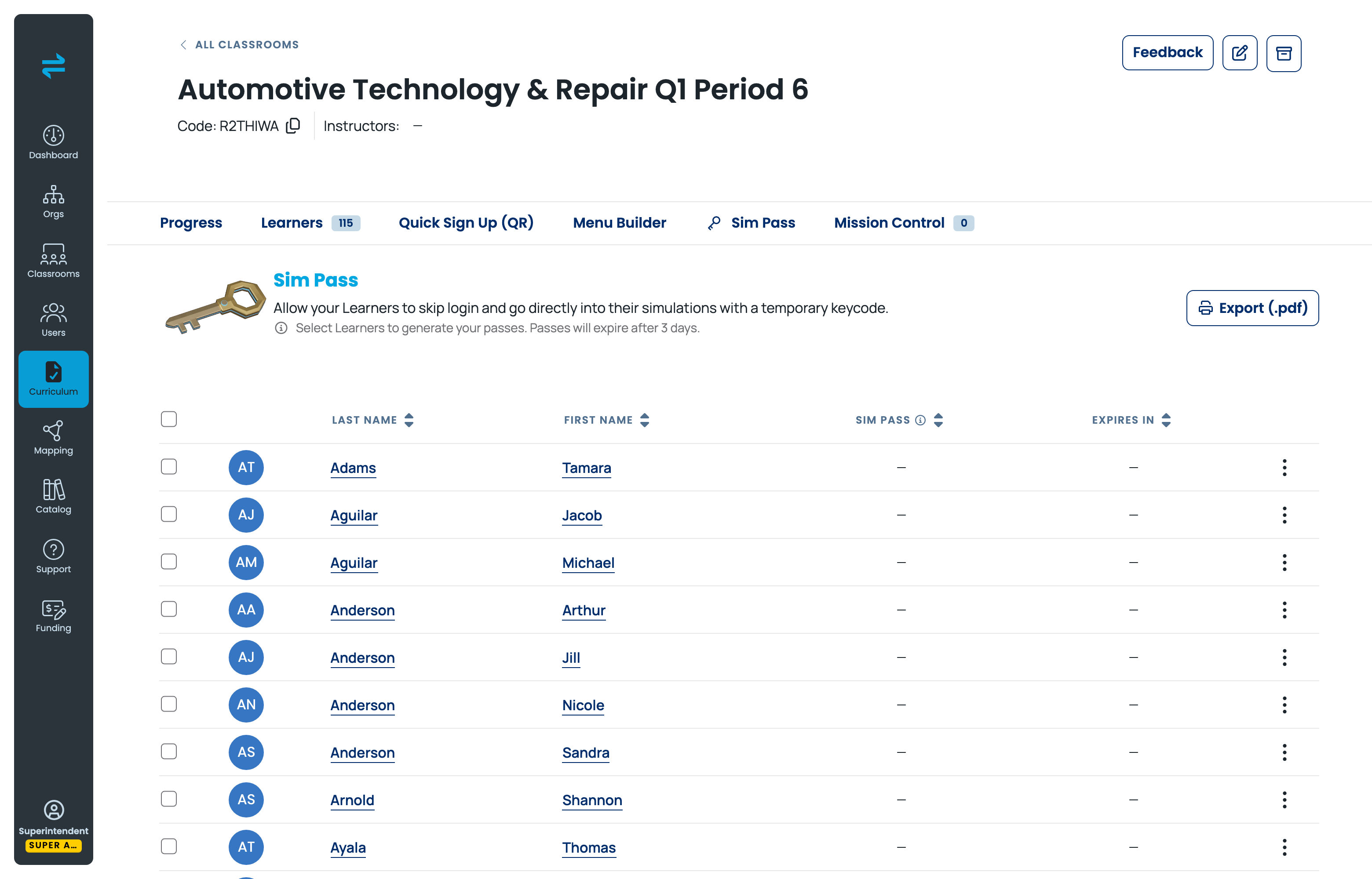
If your organization uses SSO, the Sim Pass isn't just an option — it's mandatory. SSO organizations have username-and-password sign-in disabled, so the Sim Pass is the only way learners get into a sim without going through the full SSO flow.
Learner username and password
Learner usernames and passwords are set up in the Roster panel on the Dashboard — not on the Users page, which is for staff accounts. Each row in the Roster covers one learner's first name, last name, classroom code, username, email, and password.
Keep in mind that Train doesn't remember a learner's sign-in between sessions. Nothing persists, so learners retype their username and password every time they start Train, even on the same headset.
Staff sign-in (email, username, and password)
Staff sign in to the Dashboard with an email or username plus a password. Passwords need at least 8 characters, including one letter, one number, and one special character.
Two links matter here, and they last very different amounts of time:
- A password reset link is valid for 30 minutes.
- A new-user invitation link is valid for 7 days and lands on the account-creation page.
There's no account lockout on staff sign-in. Repeated failed attempts are rate-limited instead — you'll see a message asking you to wait and try again, rather than being locked out entirely.
Single sign-on (SSO)
Transfr supports exactly three SSO providers: Clever, ClassLink, and NYC DOE. If your school or district uses one of these, you'll see a matching button on the sign-in page. SSO sign-in is managed entirely by your identity provider, so session length and password rules follow your district's own policy, not Transfr's.
Quick Sign Up (QR)
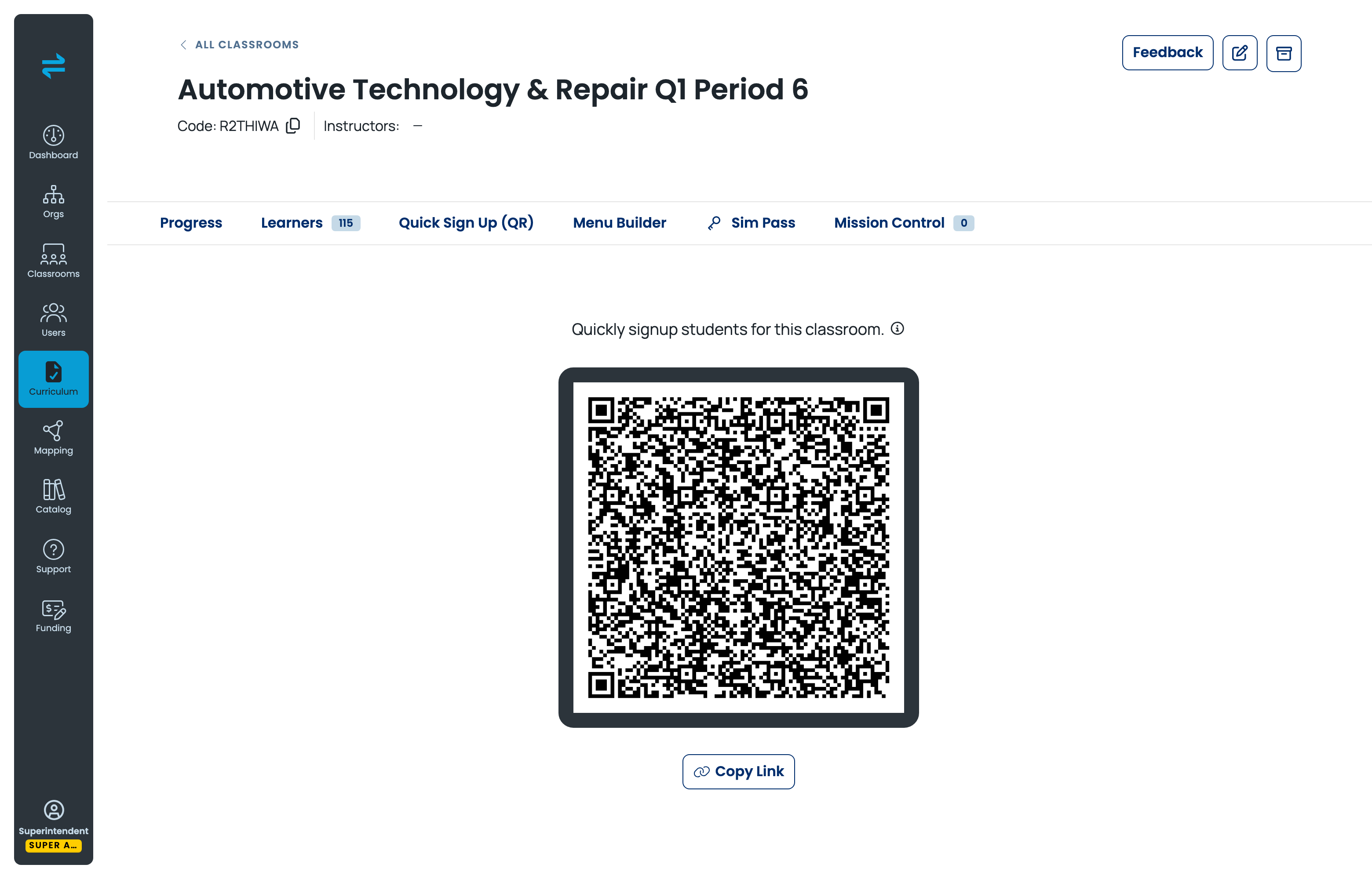
Every classroom has a Quick Sign Up (QR) tab that displays a QR code learners can scan to sign in, without typing a username or code by hand.
Is there an admin PIN or passcode?
No. The Transfr Dashboard doesn't have a separate admin PIN or passcode. Admins sign in the same way every other staff member does — with an email or username and a password, as described above.
If you're thinking of a PIN or passcode you enter directly on a headset rather than the Dashboard, that's a device-level setting, not a Transfr account credential. Check the headset guide for your device model for that.
Related articles
- How do I log in to Transfr?
- How Do Learners Log Into Transfr Train?
- How do learners log in to the Transfr Trek app?
- Creating a Classroom
Still need help?
Contact our support team — Monday–Friday, 8am–8pm ET, 646-466-2600, technicalsupport@transfrvr.com.
Last updated: August 7, 2026
