


Transfr Trek : Learner Quick Start Guide
For: Learners, and the instructors guiding them
This guide runs in the order learners should work: start in Trek Mobile on a computer or phone (Steps 1–4), move to the VR headset (Steps 5–6), then come back to Trek Mobile to compare careers and make a plan (Steps 7–9).
Plan for about 60 to 90 minutes to do everything in one sitting, or split it across sessions — each step shows its own time.
Note: Steps 5–6 are the only ones that need a headset.
Step 1: Launch Trek Mobile (2 min)
There are two ways in, depending on how your organization is set up:
- With single sign-on (SSO): go to your organization's sign-on portal (Clever, ClassLink, etc.), log in, and select the Transfr icon.
- With a username and password: go to trek.transfrinc.com and sign in with the same username and password you use for the Transfr Dashboard.
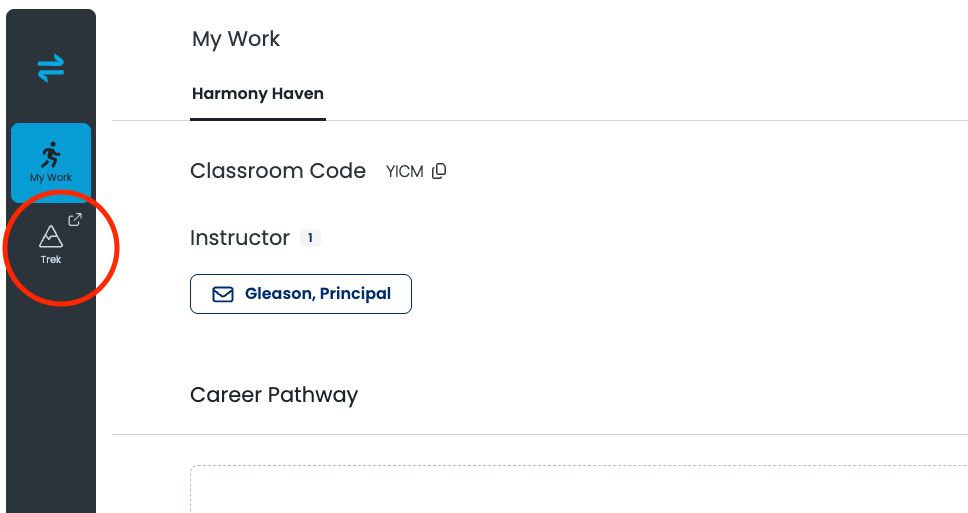
Either way you land on the Learner Dashboard. On the left-hand side, select the Trek icon.
Step 2: Complete Interest Inventory (5-10 min)
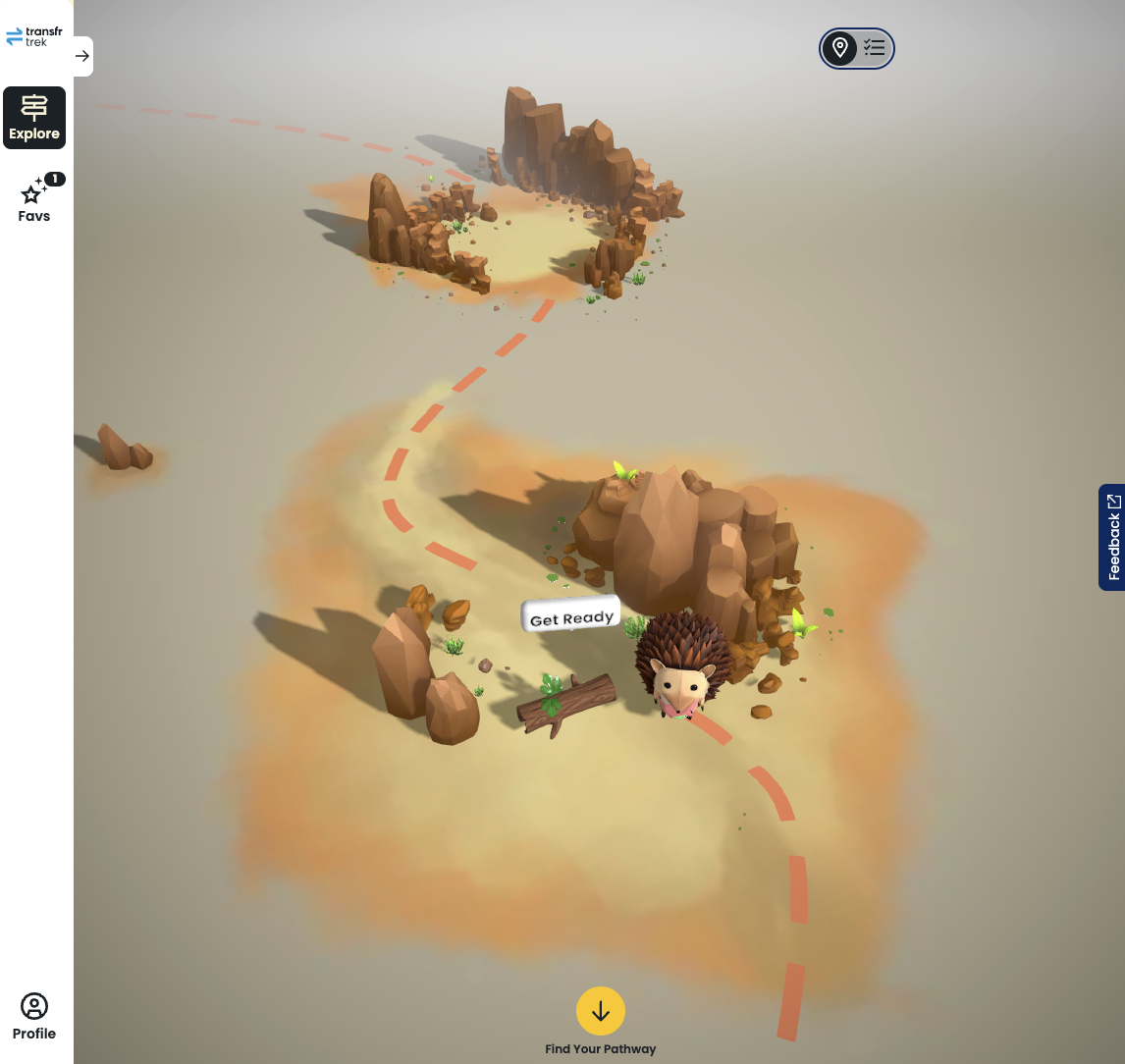
- Select "Get Ready" to answer 23 questions about your interests and preferences.
- Select "Matches" to see your career matches — they are ranked from top to bottom by how well they fit your interests.
- Click on a career to go to its page.
Step 3: Explore and Favorite Careers (10-15 min)
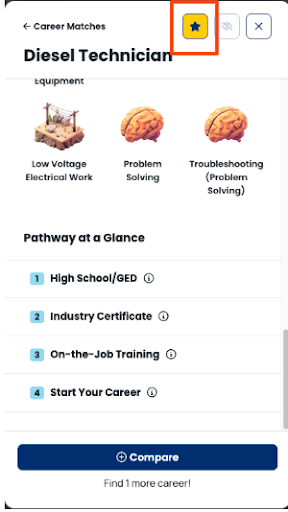
- Look through your "Best Match" careers to see more details, including the average pay, skills, and the pathway to get there.
- Favorite 2-4 careers that interest you:
- Select the heart icon to favorite a career — it is saved to your Favorites list, which follows you into the headset.
- Try to pick different types of careers, not only the ones that pay the most.
Step 4: Generate a Sim Pass (2 min)
- Get a Sim Pass for your favorite career:
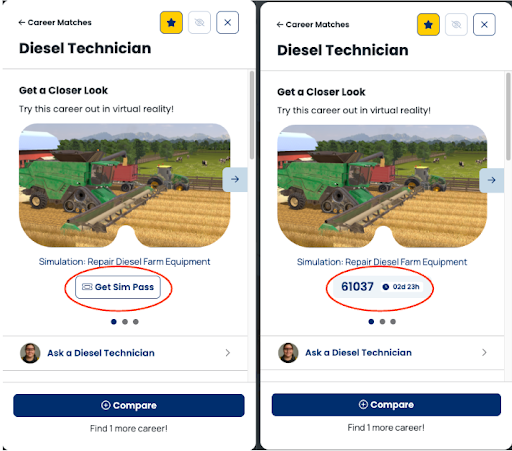
- For one of your favorite careers in Trek Mobile, click "Sim Pass".
- A 5-digit code will appear (write it down or take a screenshot).
- Remember: Sim Passes expire after 3 days.
Step 5: Explore Career in VR Headset (5-10 min)
- Put on your VR headset and open Transfr Trek.
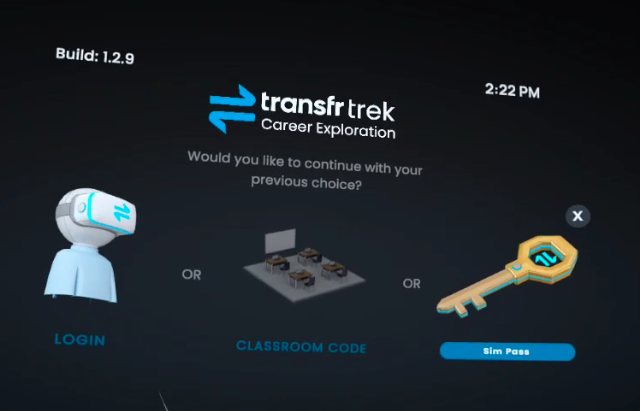
- Enter your Sim Pass:
- On the login screen, select Sim Pass.
- With the VR controller, enter the 5-digit code.
- Select Submit.
- Select "Play" and complete the VR simulation — at the end, you'll rate the career one to five stars on how interested you are.
A Sim Pass is not the only way in — a learner can also sign in with their account or a classroom code. See How do learners log in to the Transfr Trek app?
Step 6: Explore 1-3 Additional Careers (10-20 min)
- After you rate a career, head back to the main menu and select "Favorites" to see the careers you saved — complete as many as you have time for.
- Anything you rate 4 or 5 stars is added to your Favorites in Trek Mobile automatically.
Tip for instructors: when moving from one learner to the next, use the Log Out option inside the Trek app rather than closing the app — that way the next learner doesn't wait for simulations to reload.
Step 7: Compare Careers (5-10 min)
- Go back to Trek Mobile (on your computer or phone) — your favorites are on the left-hand side.
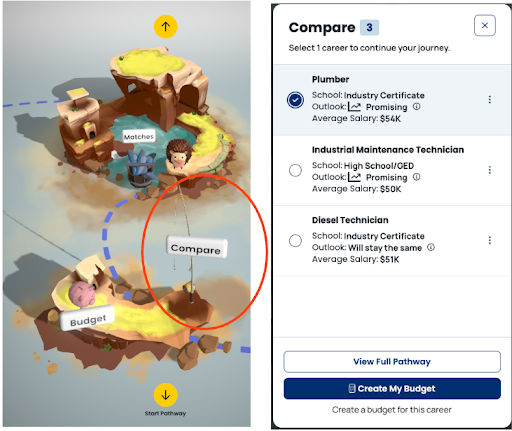
- Add careers to Compare by selecting a career and selecting "Compare". Compare is built to hold three careers side by side, so add three if time allows — one is enough to move on.
- (Optional) If time allows, pick one of the careers you compared and play the Monthly Budgeting Game to explore earning a paycheck in that career while handling common expenses, savings, and emergency costs.
- Compare your top options.
- Select one to view the full pathway.
Step 8: Make Your Career Plan (15-20 min)
- Review the full pathway, including:
- High School: elective courses you might consider taking.
- Skills: skills that employers in your local area are looking for in future employees.
- Extended Learning: local opportunities to pursue certification or 2- and 4-year degrees in your area.
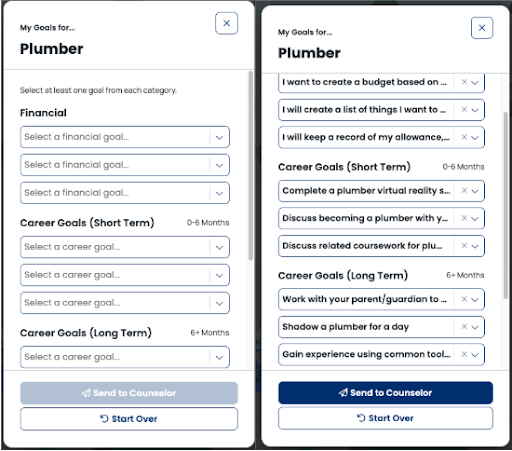
- On the pathway page, select "Set up Goals" to begin planning.
- Enter at least one financial, short-term, and long-term goal:
- Choose from the dropdown or add your own thoughts in the text box at the bottom.
- If you are not sure where to start, a good first goal is trying a career in VR.
Step 9: Send and Share Your Career Plan (2 min)
- Select "Send to Counselor" to submit your goals and career choice. This sends your chosen career pathways to your instructor of record (listed on your dashboard).
- You can also enter email addresses yourself to send your plan to someone else — a parent or family member, or your own address so you have a copy.
- Download it as a PDF to save it or share it later.
Doing This Again
You can use this guide anytime to:
- Explore new careers
- Make more career plans
- Compare different careers
- Update your goals as your interests change
Each time you finish, you'll make a new career plan that you can save and share.
Still need help?
Contact our support team — Monday–Friday, 8am–8pm ET, 646-466-2600, technicalsupport@transfrvr.com.
Last updated: August 6, 2026
