


How does Transfr Trek Temporary Offline Mode work?
Career exploration without Wi-Fi for 3 days (7 if extended), using a classroom code. Syncs on reconnect.
For: Instructors and facilitators
Temporary Offline Mode lets learners keep using Transfr Trek when a headset has no Wi-Fi — handy for spotty networks, shared spaces, or outdoor and mobile programming. You turn it on ahead of losing connection, run any sims you’ve already downloaded, and your data syncs back to the Transfr Dashboard once you reconnect.
Key things to know: Temporary Offline Mode lasts 3 days (72 hours) by default before the headset must reconnect to Wi-Fi, and Transfr can extend that to 7 days for your account; only sims you’ve downloaded are available offline; you must log in with a Classroom Code — usernames and Sim Passes don’t work offline; and Mission Control and casting don’t work offline, since both need an internet connection.
Before you go offline
Set the headset up while you still have Wi-Fi:
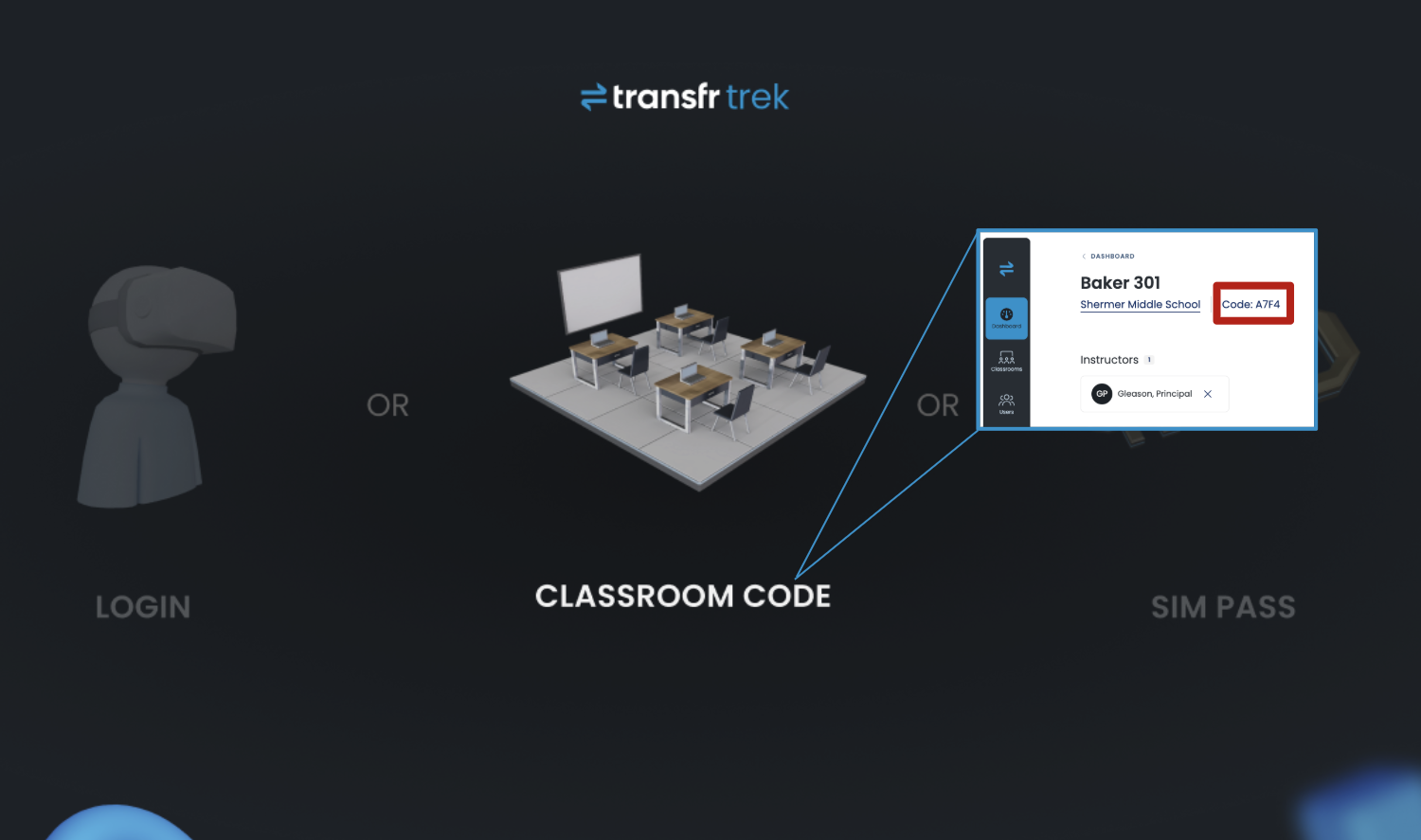
Log into Trek with your Classroom Code. You’ll find the code in the upper-left corner of the Classroom page on your Transfr Dashboard.
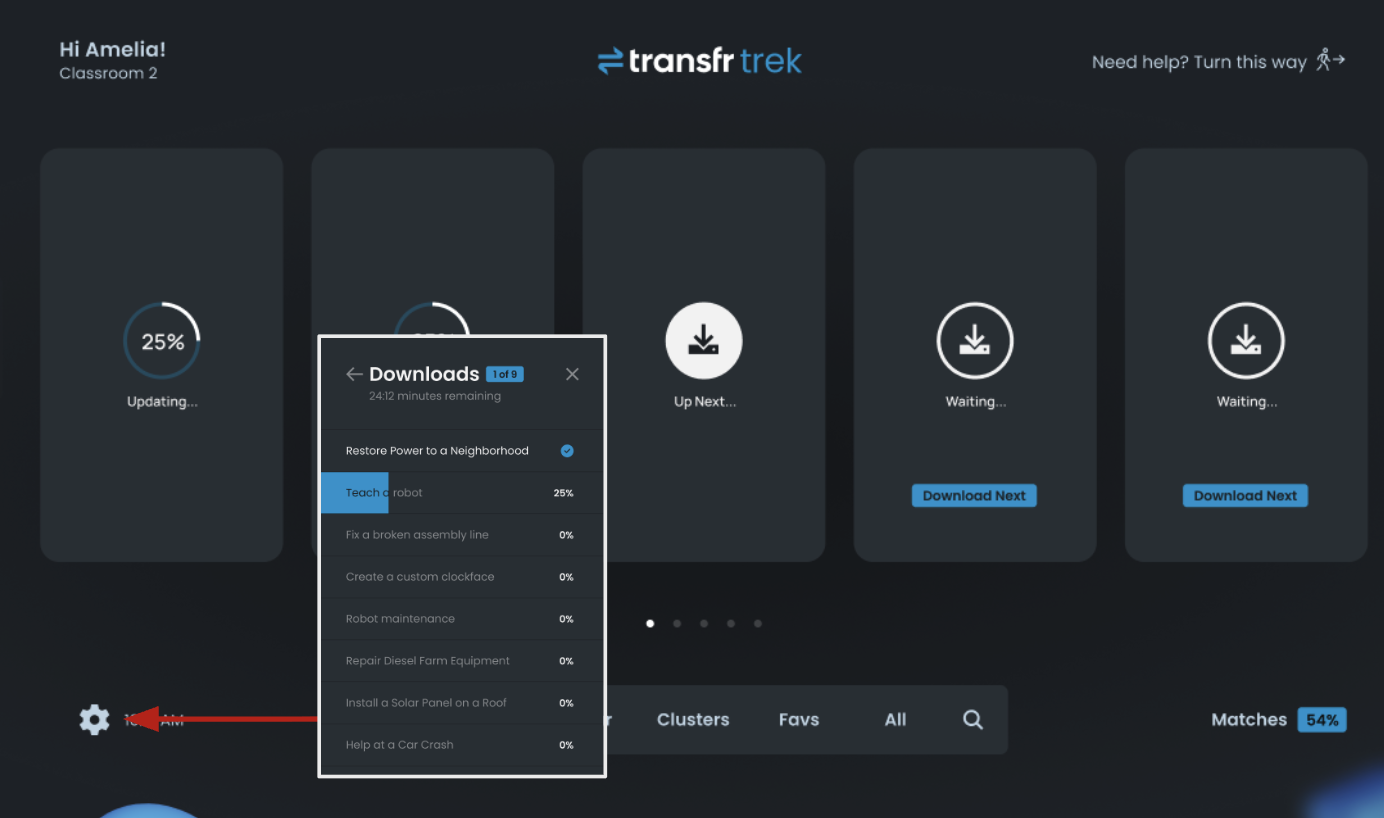
Verify all Trek content has finished downloading. Open the Settings menu in the lower-left of the Trek screen and check the download status. When the download list shows zero remaining, everything is downloaded.
Turn on Temporary Offline Mode
There are two ways to enter Temporary Offline Mode.
Proactively, before you lose Wi-Fi
From the Trek login screen, exit Trek to the headset’s main menu: press the home button on the right controller (the bottom button under the joystick, marked with the headset maker’s logo — Oculus, Meta, or Pico), then choose to Exit and go home.
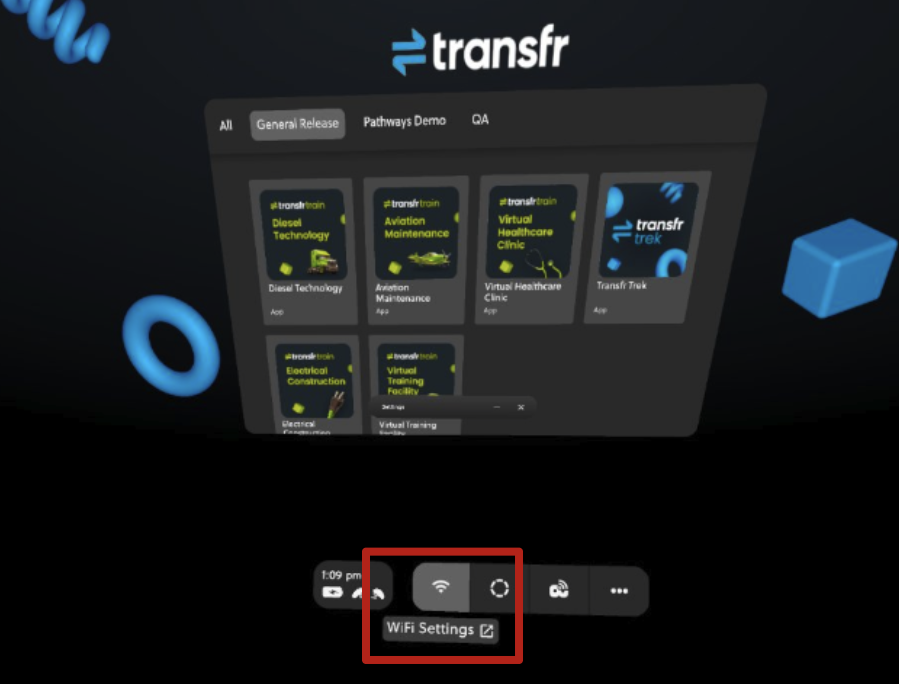
On the headset home screen, open Wi-Fi Settings and toggle Wi-Fi Off.
Return to the home screen and launch the Transfr Trek app again.
Log in with the same Classroom Code you used before.
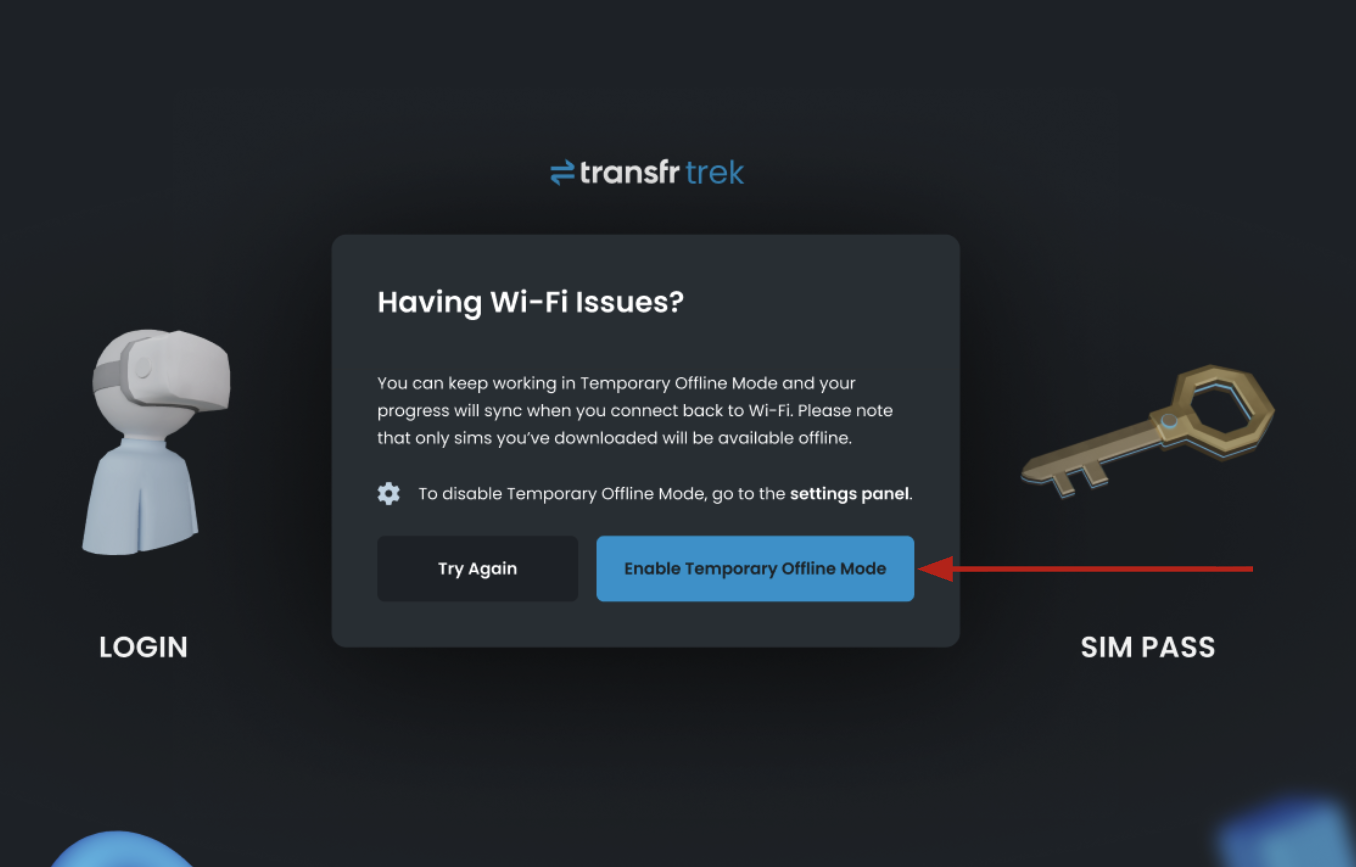
On the pop-up, select Enable Temporary Offline Mode.
When you hit a Wi-Fi problem mid-use
If Trek can’t reach the network, a “Having Wi-Fi Issues?” pop-up appears with two choices: Try Again or Enable Temporary Offline Mode. Choose Enable Temporary Offline Mode to keep working — your progress will sync when you reconnect, and only downloaded sims will be available.
If you land back on the login screen without Wi-Fi, the username and Sim Pass options are disabled — log in with your Classroom Code and select Enable Temporary Offline Mode on the pop-up.
How long an offline session lasts
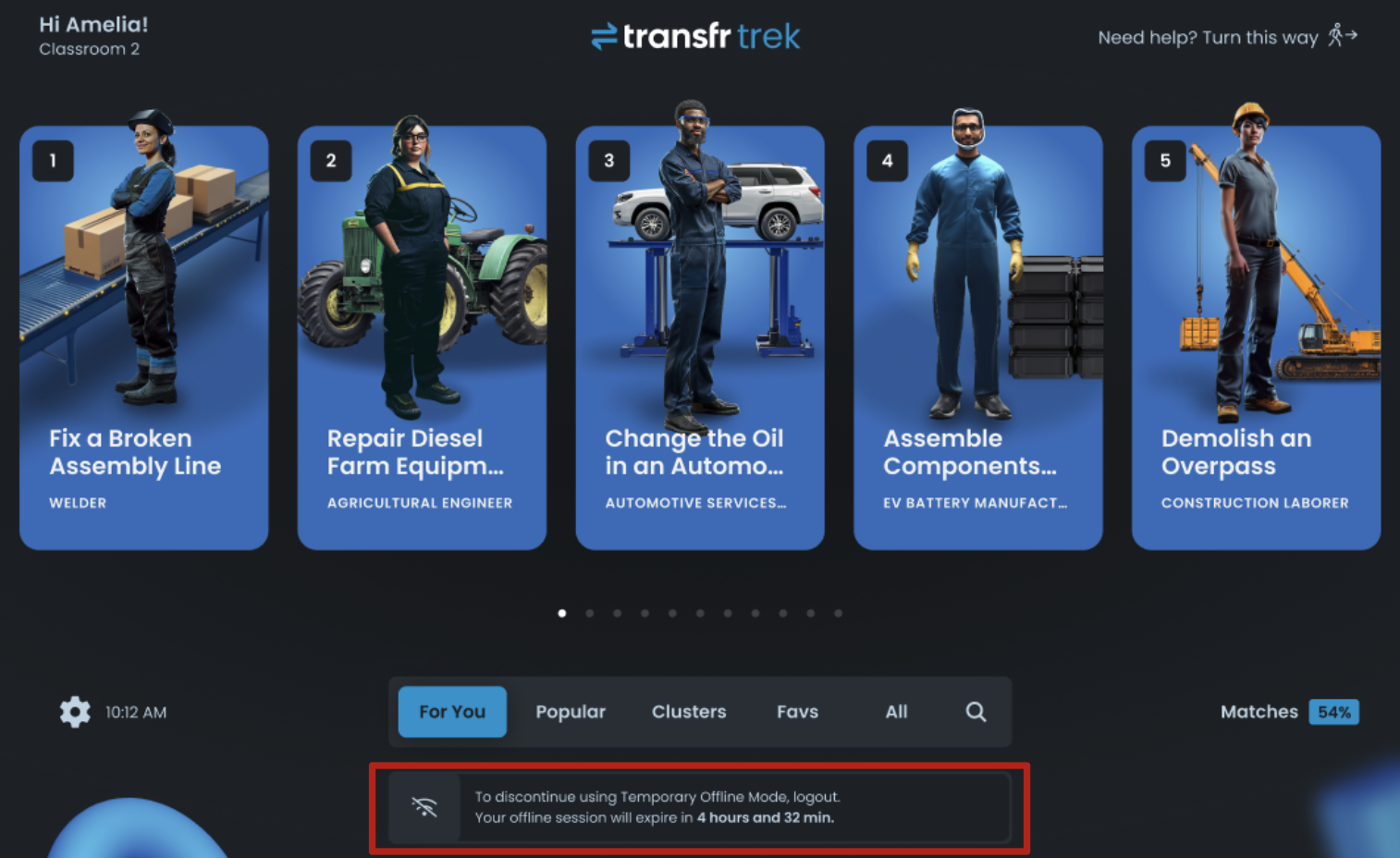
Once offline mode is on, use Trek as normal to explore its 50+ career simulations. A banner shows how much time is left in your offline session (for example, “Your offline session will expire in 4 hours and 32 min”).
By default, an offline session lasts 3 days (72 hours). After that, you must reconnect the headset to Wi-Fi before you can keep using Trek. You can use Temporary Offline Mode as many times as you need — the only requirement is reconnecting to Wi-Fi after each session expires.
This length is a setting on your account, not a fixed limit. Transfr can extend it to 7 days if your program needs longer stretches without Wi-Fi. To request the extension, contact your Customer Success Manager, or Tech Support at technicalsupport@transfrvr.com, and ask for the offline window to be extended for your account.
Get your offline data back to the Dashboard
When you’re done, toggle Wi-Fi back on — ideally before you power the headset off, so it reconnects automatically next time.
Open the Transfr Trek app while connected and leave the headset online for about 10 minutes so all offline data finishes uploading.
Your offline session data is saved and sent to the Transfr Dashboard once you reconnect and reopen Trek.
Note: Because Temporary Offline Mode logs in with a Classroom Code, offline-session data appears on the Transfr Dashboard as “anonymous user” data.
Still need help?
Last updated: August 6, 2026
