


Trek Learner Dashboard Guide
For learners: sign in, find your classroom code, open Trek, get a Sim Pass, and track your careers.
For: Learners
The Learner Dashboard is your home base in Transfr. It's where you sign in, find your classroom code, open Trek, get a Sim Pass for the headset, and see the careers you've explored.
This guide is written for learners. Instructors: you can send this link to a class as-is.
Signing in
Go to dashboard.transfrinc.com. How you sign in depends on your school:
- Through your school's portal. If your school uses Clever, ClassLink, or NYC DOE, select that button and sign in the way you normally do for school apps. You won't need a separate Transfr password.
- With a username and password. Select Sign in with Username or Email, then fill in Email or Username and Password and select Sign In. Your instructor creates these and can give them to you.
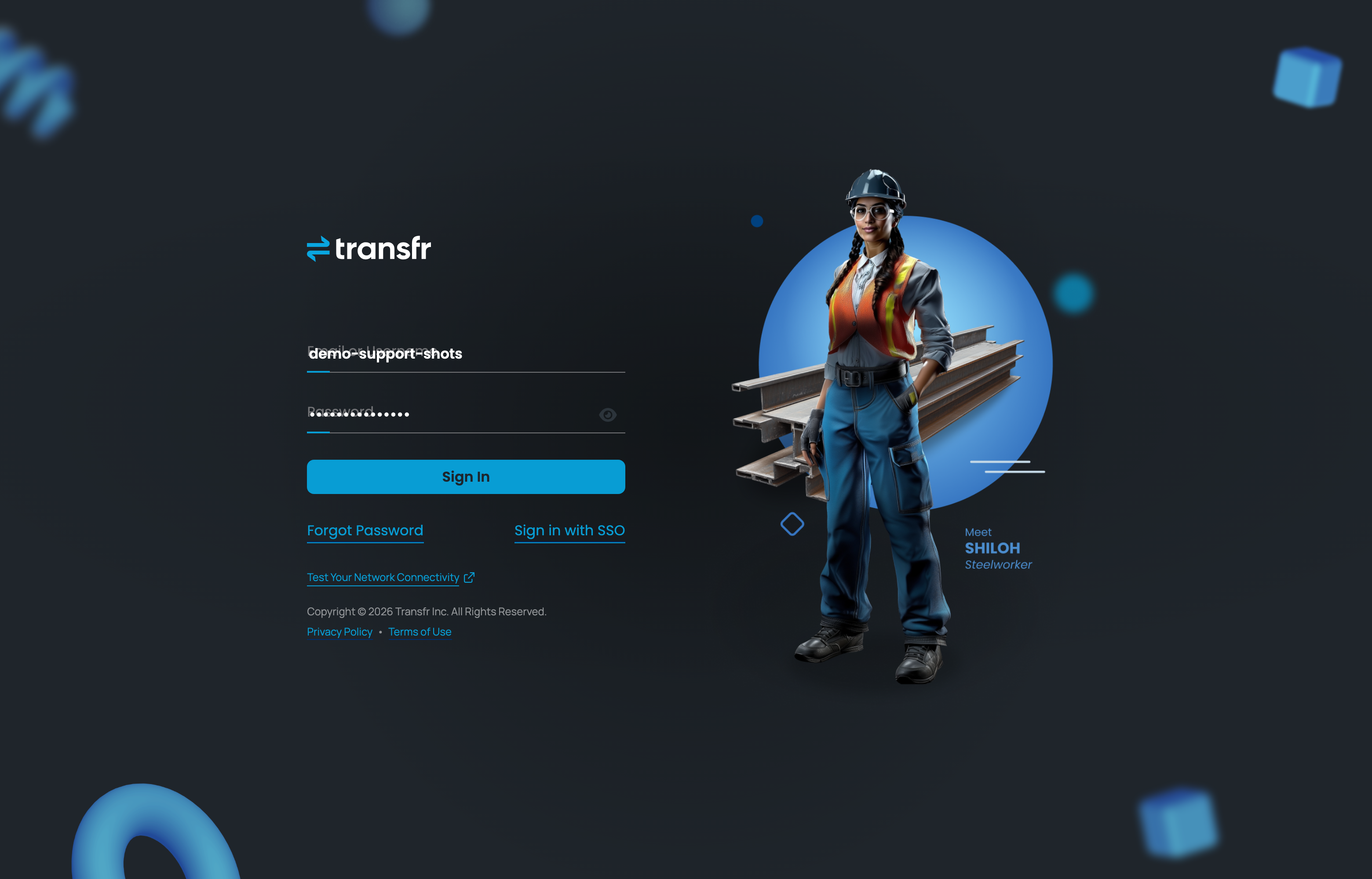
Forgotten your password? Select Forgot Password on the sign-in page. The reset link is only good for 30 minutes, so use it right away. If you don't get the email, ask your instructor to reset it for you.
What's on My Work
After you sign in you land on My Work. That's your main page, and it's the first item in the menu on the left.
If you're in more than one Transfr classroom, each one is a tab across the top. Select a tab to switch classrooms — everything below it changes to match.
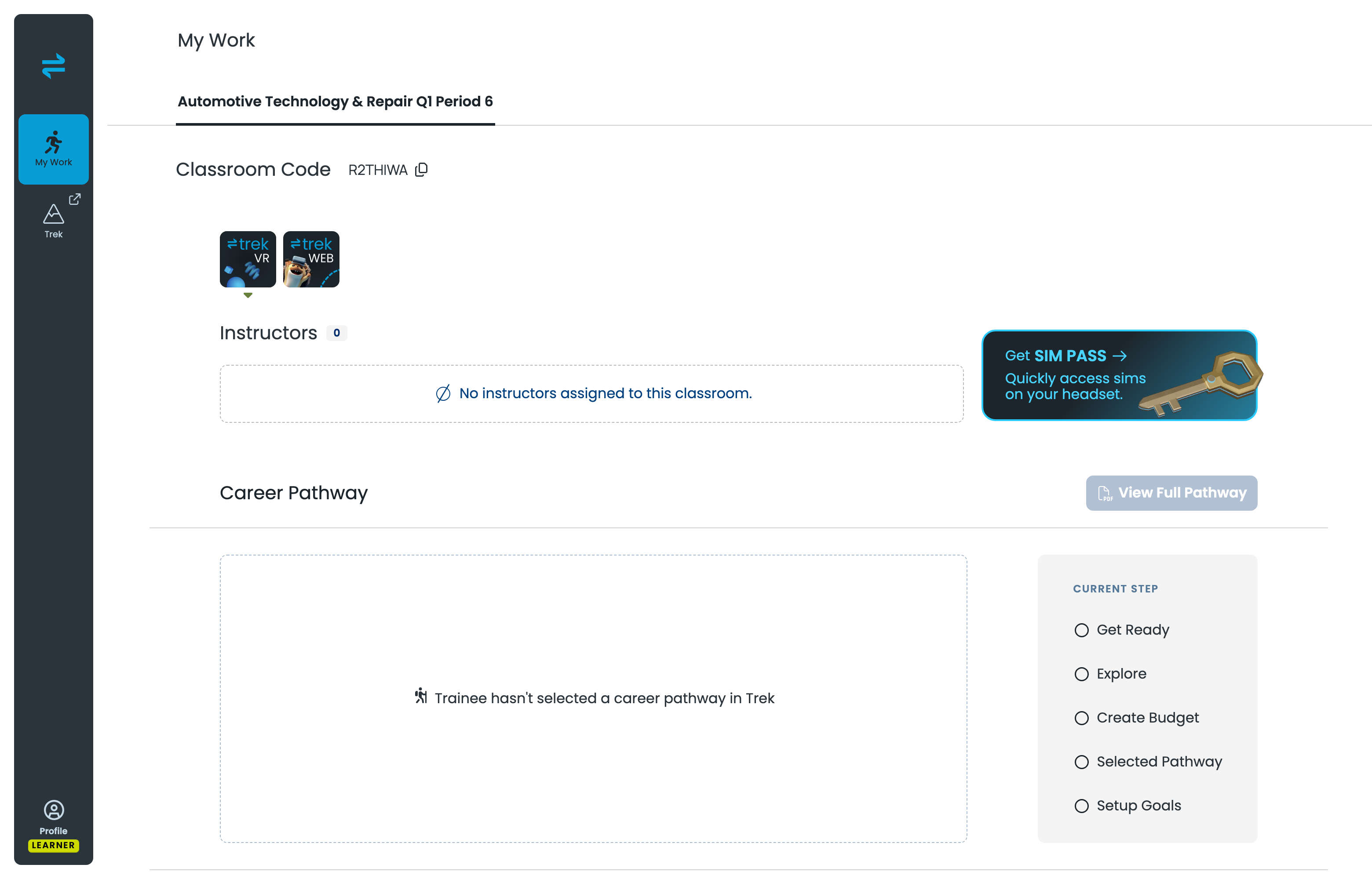
On that page you'll find:
- Classroom Code — the code for this classroom, with a copy icon next to it. You'll need this to sign in on a headset.
- App tiles for the products your classroom uses — trek VR for the headset version and trek WEB for the browser version.
- Instructors — who teaches this classroom. If it says none are assigned, that's normal for some setups.
- Career Pathway and Careers — covered below.
Opening Trek from the dashboard
There are two ways in:
- Select the trek WEB tile on My Work to open Trek in your browser.
- Or select Trek in the left-hand menu. It opens Trek in a new tab.
The trek VR tile is the headset version. You don't launch that from your browser — you open the Trek app on the headset itself and sign in there. For the three ways to do that, see How do learners log in to the Transfr Trek app?
Getting a Sim Pass for your headset
A Sim Pass is a short code that gets you into a simulation on a headset without typing a username and password.
- On My Work, select Get SIM PASS.
- A 5-digit code appears, along with how much time is left on it.
- Put on the headset, open the Transfr app, choose the Sim Pass option, and enter those 5 digits.
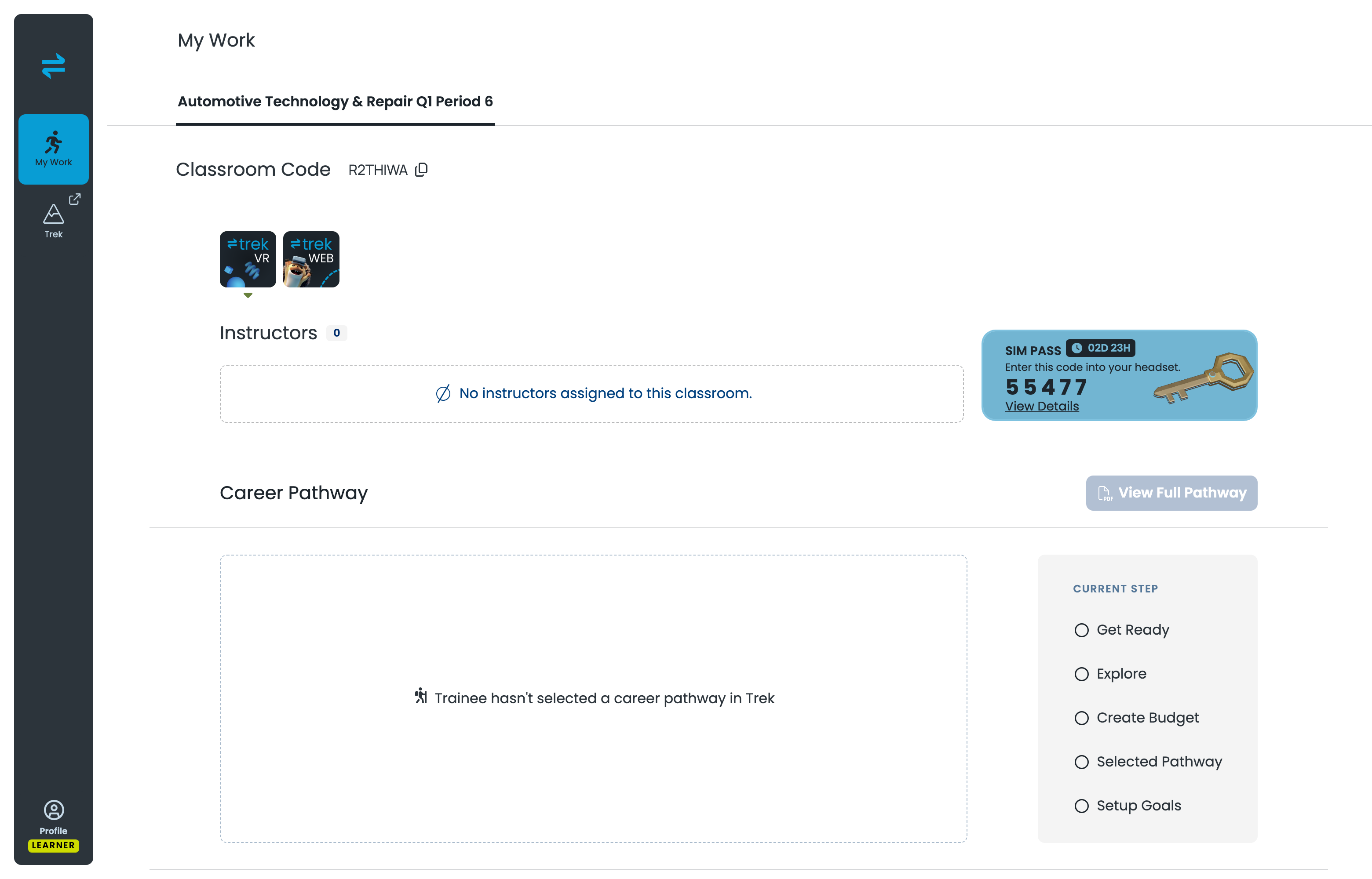
A Sim Pass is single-use, and it expires after 3 days. Once you've used a code to get into the headset, that code won't work again. A code you never used still runs out after 3 days. The tile counts down so you can see what's left, and View Details shows more about the pass.
Either way, just generate a new one. There's no limit on how many you can make.
Your Career Pathway
The Career Pathway section tracks how far you've got in Trek. On the right, CURRENT STEP lists the steps in order:
- Get Ready — answer the interest questions
- Explore — look through your career matches
- Create Budget — try the budgeting activity
- Selected Pathway — pick the career you want to plan around
- Setup Goals — set your short- and long-term goals
Until you've chosen a pathway in Trek, this section tells you so instead of showing a plan — that's expected when you're starting out, not an error. Once you've picked one, View Full Pathway gives you the whole plan as a PDF you can download or share.
Your careers list
The Careers section is a running record of what you've explored. Three counts sit at the top:
- EXPLORED — careers you've tried
- NOT EXPLORED — careers still available to you
- CAREERS WITH 4-5 STARS — the ones you rated highest
VIEW ALL opens the full list. Below the counts, a table lists every simulation available to you with the columns SIM NAME, CLUSTER, CAREER, DATE, TOTAL TIME, RATING, COMPLETE, and SIM PASS.
Empty cells just mean you haven't done that one yet. As you complete simulations and rate them, the rows fill in.
Your profile
Profile is at the bottom of the left-hand menu, with your role shown underneath as LEARNER. That's where your account details live, and where you sign out.
Signing out matters when a headset or computer is shared: if you leave yourself signed in, the next person's work can end up on your account. Sign out when you're finished.
If you can't sign in
- Wrong username or password. Usernames aren't always your email address. Ask your instructor to confirm yours.
- Your school uses a portal. If your school signs in through Clever, ClassLink, or NYC DOE, the username and password route may be turned off for you. Use the portal button instead.
- Your Sim Pass is rejected. A pass only works once, and it expires after 3 days. Generate a fresh one on My Work and try that.
- Too many tries. If you see a message about too many requests, wait a few minutes and try again. Your account isn't locked.
- Nothing in your classroom. If My Work loads but looks empty, your instructor may not have added you to a classroom yet.
Still stuck? Ask your instructor first — they can reset your password and check which classroom you're in. Instructors can find the steps in How do I add and manage learners?
