


How do learners use Transfr Train in the headset?
What learners do once signed in: the sim menu, controllers, captions, scoring, and handoffs.
For: Instructors and facilitators
Transfr Train gives learners hands-on skills training in VR. This guide covers what happens inside the headset once a learner is signed in: opening the app, choosing a simulation from the menu, working through it, and getting a score.
For the sign-in steps themselves, see How Do Learners Log Into Transfr Train?
What do learners need before they start?
- A charged headset that is connected to your network.
- A username and password, or a 5-digit Sim Pass. See How Do Learners Log Into Transfr Train?
- Clear floor space. Allow 4 to 6 ft diameter floor space per learner, and use 6 ft where the room permits.
- Headphones, if a learner wants them. Train sims play audio through the headset speakers by default, and a learner can plug headphones in instead.
One thing to plan around before the first session: a Train simulation has to be finished in one sitting. See Can a learner pause a simulation and come back to it? below.
Read VR Safety Warnings with your group before the first session.
How do the controllers work?
Three controls do almost everything in a Train simulation:
- Trigger, under your index finger — point at an item and press the trigger button to select it.
- Grip button, on the side under your middle finger — press and hold to pick up an object.
- The exit button, the bottom button under the joystick — press it to leave the app (on a Pico Neo 3 this opens a menu — select Quit and Go Home), or hold it for about 3 seconds to recenter your view. On a Quest 2 or Quest 3S this is the Oculus button on the right controller. On a Pico Neo 3 it is the Pico button.
Recentering is the fix when a learner has drifted and is now facing away from their play space. Holding that same button — Oculus or Pico, depending on the headset — turns the virtual environment to face them again, and it does not take them out of the simulation.
For the full hardware walkthrough, see Quest 3S Quick Start & Hardware Guides, Quest 2 Quick Start & Hardware Guides, or the Pico Neo 3 Headset Guide.
How do learners open Train in the headset?
A learner who puts on a Transfr headset sees the Transfr menu instead of the headset maker's app library. (This locked-down setup is called kiosk mode.) How many app tiles are on that menu depends on what your organization purchased.
Train content is delivered through more than one Transfr app. Most classrooms use Virtual Training Facility, the general Train app. Organizations that bought the discipline-specific apps see tiles for those too:
- Virtual Healthcare Clinic
- Aviation Maintenance
- Diesel Technology
- Electrical Construction
If your headsets show one tile, that is your Train app and there is nothing to choose. If they show several, open the one for the app the learner is working in that day. An admin can see which apps are installed on each headset on the Devices page in the Dashboard — see How to View and Monitor Device Status.
- Put on the headset and wait for the Transfr menu to appear.
- On the Transfr menu, point at the tile for the app you want — Virtual Training Facility unless the learner is working in one of the discipline apps above.
- With the pointer on the tile, press the trigger button to open the app.
- On the sign-in screen, enter the learner's credentials.
- On the intro screen that follows, select Start.
Success looks like a list of simulations. That list is your organization's menu for the app they opened — see What is on the simulation menu?
The bar across the bottom of the Transfr menu shows the charge level for the left controller, the charge level for the right controller, and the Wi-Fi connection. It is worth a glance before you hand a headset over.
If the Transfr menu on one headset does not look like the one your other headsets show, that headset may be running an older version of the app. There is no version number to memorize — the mismatch itself is the signal. An admin can confirm on the Devices page in the Dashboard, which lists each headset's app version side by side. Instructors do not have access to that page. For who does, and how to read it, see How to View and Monitor Device Status.
What is on the simulation menu?
The menu lists the simulations your organization purchased. That's a subset of the full Transfr catalog, set up for your organization when your account is created — it isn't built from the classroom's program or course.
By default, every Train classroom in your organization shows that same menu. From there you trim: on a classroom's Menu Builder tab, an instructor or admin can hide the categories, modules, or individual sims they don't want that classroom's learners to see. Menu Builder opens already showing the full menu, so you're always narrowing what's there rather than adding to an empty list. Reset to Default puts the organization's menu back. Menu Builder has to be turned on for your organization before the tab appears, so on most accounts nothing has been trimmed and learners see the whole purchased menu. See Using Menu Builder to Customize a Classroom's Sim Menu.
The tile a learner opens on the headset's home screen decides which Transfr app they enter. Virtual Training Facility is the general Train app; see How do learners open Train in the headset? for the others your organization may have.
Most Train sims take about 10 to 20 minutes per attempt, but length varies a lot by sim — short safety modules can be under 5 minutes, while the longest healthcare sims are built for 40 to 60 minutes. Plan from each sim's own listed duration rather than a single figure.
Can a learner choose a Program in the headset?
No. The Train menu has no Program selector — in the headset, a learner signs in and sees their classroom's menu. Programs are set up on the Dashboard, not in VR. See What is a Transfr Program?
How do learners turn on captions or turn off the music?
Two buttons sit in the lower left of the view: a CC button for captions, and a speaker button for the background music. They are per-learner choices, and neither affects anyone else’s headset.
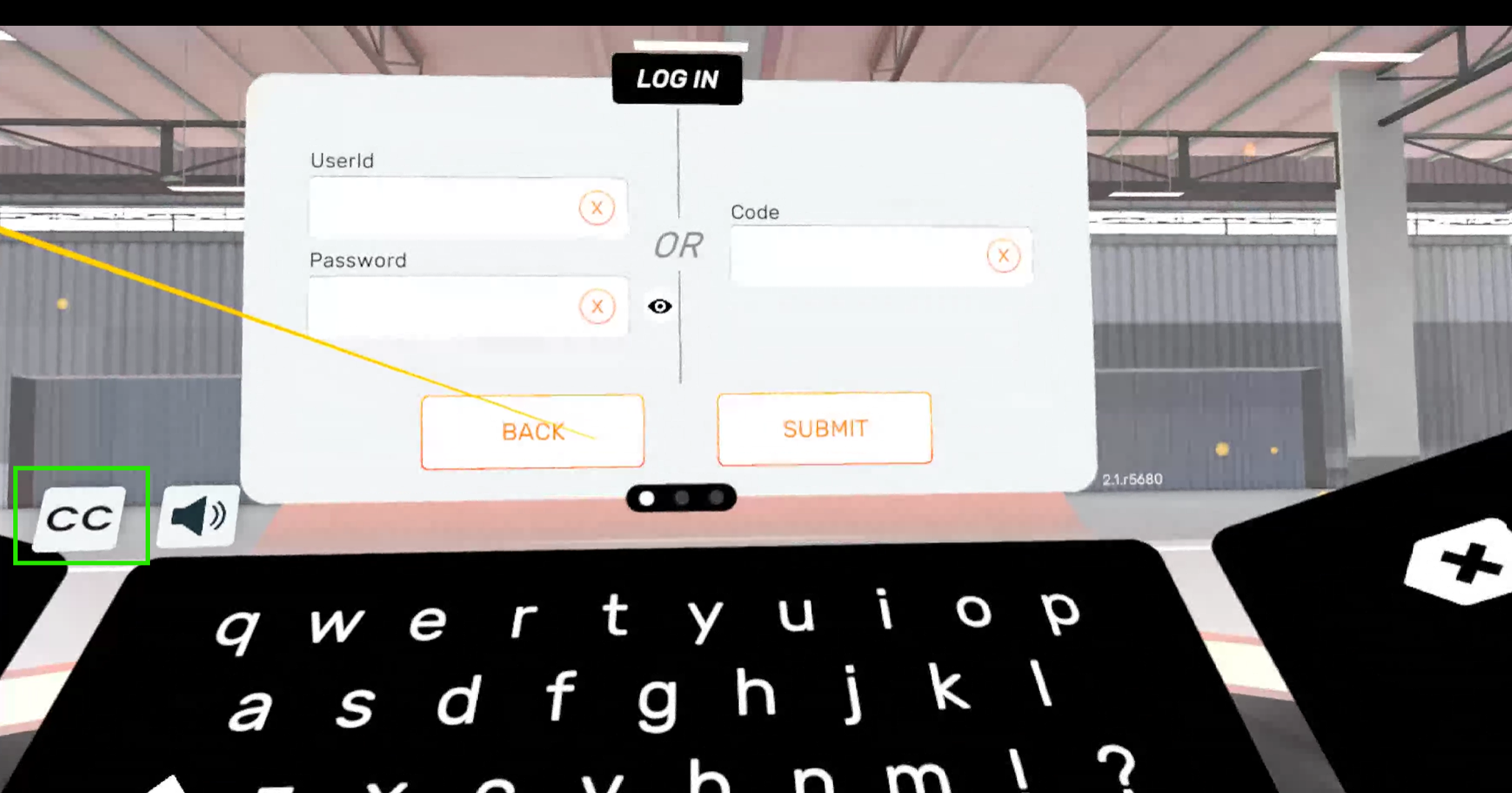
- Selecting CC turns English captions on, and selecting it again turns them off.
- The speaker button silences the background music only. The coach’s voice still comes through, and so do the simulation’s own sounds. Transfr Trek, our career exploration product, works the same way.
- Both buttons are on screen from the sign-in screen onward, so a learner can set captions before starting, and turn them on part-way through a simulation without going back to the menu.
Train captions are English only. Spanish is available in Transfr Trek and not in Train. For the difference between the two products, see What’s the difference between Transfr Trek and Transfr Train?
What happens during a simulation?
Every Train simulation has two halves, and a digital coach leads both.
- In the tutorial, the coach demonstrates the task one step at a time while the learner follows along.
- In the assessment, the learner repeats the same task without being walked through it.
A learner who gets stuck during the assessment is not left there. The coach prompts them and shows them what to do. Those prompts count against the score, so a learner who needed several of them finishes with a lower result than one who needed none.
What if a learner needs to reach something outside their play space?
Sometimes a simulation puts an object where the learner cannot physically reach it. This usually happens because they have gradually turned or drifted away from the centre of their play space while working. Recentering fixes it, but there is one extra step that most people miss:
- Have the learner turn around to face behind them — roughly a half turn.
- Hold the exit and recenter button for about 3 seconds. On a Quest 2 or Quest 3S this is the Oculus button on the right controller; on a Pico Neo 3 it is the Pico button.
The play space recenters so it sits directly in front of the learner, which brings the object back within reach. They stay in the simulation the whole time — recentering does not close the app and does not lose their progress.
Note: if recentering does not bring the object within reach, the play space itself may need setting up again. Each headset handles that differently — see Is the experience the same on every headset? below.
Can a learner pause a simulation and come back to it?
No. Train does not save partial progress. A learner who leaves a simulation before the end starts that simulation over from the beginning, and nothing is recorded for the attempt they abandoned.
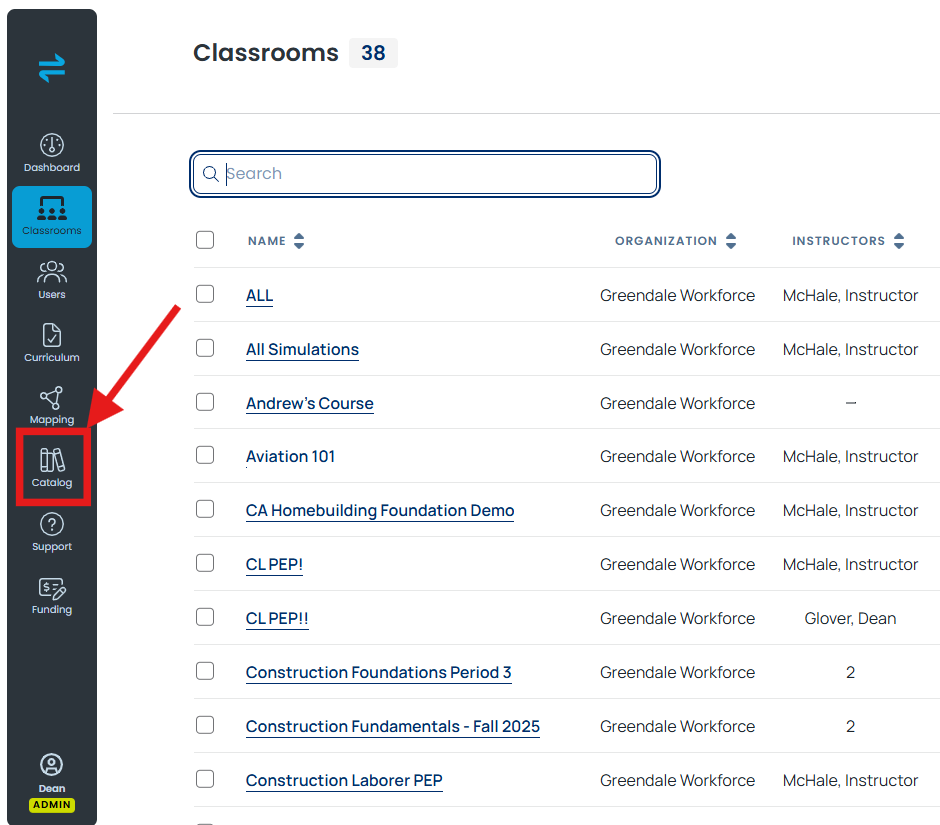
This is the single most useful thing to know when planning a lab session. Give each learner enough time to reach the end of a sim before the period runs out. Check each sim's listed duration in the Catalog, which you'll find in the left navigation of the Dashboard, and allow some margin beyond it.
How do learners exit a simulation or return to the main menu?
Press the exit button on the controller. That takes the learner out of the app and back to the Transfr menu, where they can open it again.
- On a Quest 2 or Quest 3S, press the Oculus button on the right controller.
- On a Pico Neo 3, press the Pico button, then point at Quit and Go Home and press the trigger button.
Doing this in the middle of a simulation ends that attempt, with no score and no partial credit. See Can a learner pause a simulation and come back to it? above.
How is a simulation scored?
A learner who reaches the end of a simulation gets a score, and the score earns a medal. The medal is the highest one the score reaches:
- Gold — 90% or above.
- Silver — 80% or above.
- Bronze — 70% or above.
Results report back to the Dashboard, where you can see them per learner and per simulation. For where each figure lives and what it counts, see Data & Reporting Guide.
A result can take a few minutes to appear. If one still has not shown up after that, see Completed sim isn't showing in the dashboard.
How do I hand the headset to the next learner?
- Ask the learner to confirm they have finished the simulation and seen their score before you take the headset off them.
- In the Train app, have the learner select Log Out.
- On the sign-in screen, have the next learner enter their own credentials.
Logging out inside the app is the clean handover. It leaves the app open and ready for the next learner's credentials.
If there is a gap before the next learner, press the power button once to put the headset to sleep. A short press sleeps the headset and preserves battery. Holding that button down powers the headset off instead, which means the next learner waits for a full start-up.
Train does not keep anyone signed in from one session to the next, so every learner signs in from scratch. Build a few minutes into the start of each session for it, and have a fresh Sim Pass ready for any learner using one — see How Do Learners Log Into Transfr Train?
Is the experience the same on every headset?
Yes. What a learner does inside the Train app is the same on a Quest 2, a Quest 3S, and a Pico Neo 3. Two things differ, and neither of them is inside the app:
- The exit and recenter button. Each headset maker uses their own logo on the button, and Pico has it on the left and right controllers whereas it's only on the right controller for Quest devices. See How do the controllers work? above.
- Setting up the play space. Each headset walks you through its own boundary setup, though the setup steps are very similar and the boundary system functions the same once set up.
For the hardware and setup differences, see Quest 3S Quick Start & Hardware Guides, Quest 2 Quick Start & Hardware Guides, the Pico Neo 3 Headset Guide, or the Pico guide's Resetting the Guardian Boundary section.
Still need help?
Contact our support team — Monday–Friday, 8am–8pm ET, 646-466-2600, technicalsupport@transfrvr.com.
Last updated: August 10, 2026
