


Using Menu Builder to Customize a Classroom's Sim Menu
Control which categories, modules, and sims appear in a classroom, and reset to Transfr's defaults.
For: Instructors and Admins
Menu Builder is a tab inside a classroom. It controls which categories and sims show up in that classroom's menu. It doesn't create sims, courses, or curriculum — it curates which existing sims a classroom's learners see, and in what order.
Why you might not see the Menu Builder tab
Menu Builder is off by default. Two things control whether it appears on a classroom:
- Your account setting. Menu Builder has to be turned on for your organization before any classroom can use it. Transfr sets this, so contact us below if you want it enabled.
- The classroom's product. Menu Builder appears on Transfr Trek and Transfr Train classrooms. It does not appear on every classroom type.
If you don't see the tab, it's one of these two reasons, not a problem with the classroom.
If you have view-only access to a classroom, you can open Menu Builder and the Activity Log, but the editing controls won't be available.
Open Menu Builder
- On the Classrooms page, select the classroom you want to change.
- On the classroom page, select the Menu Builder tab.
What you see in Menu Builder
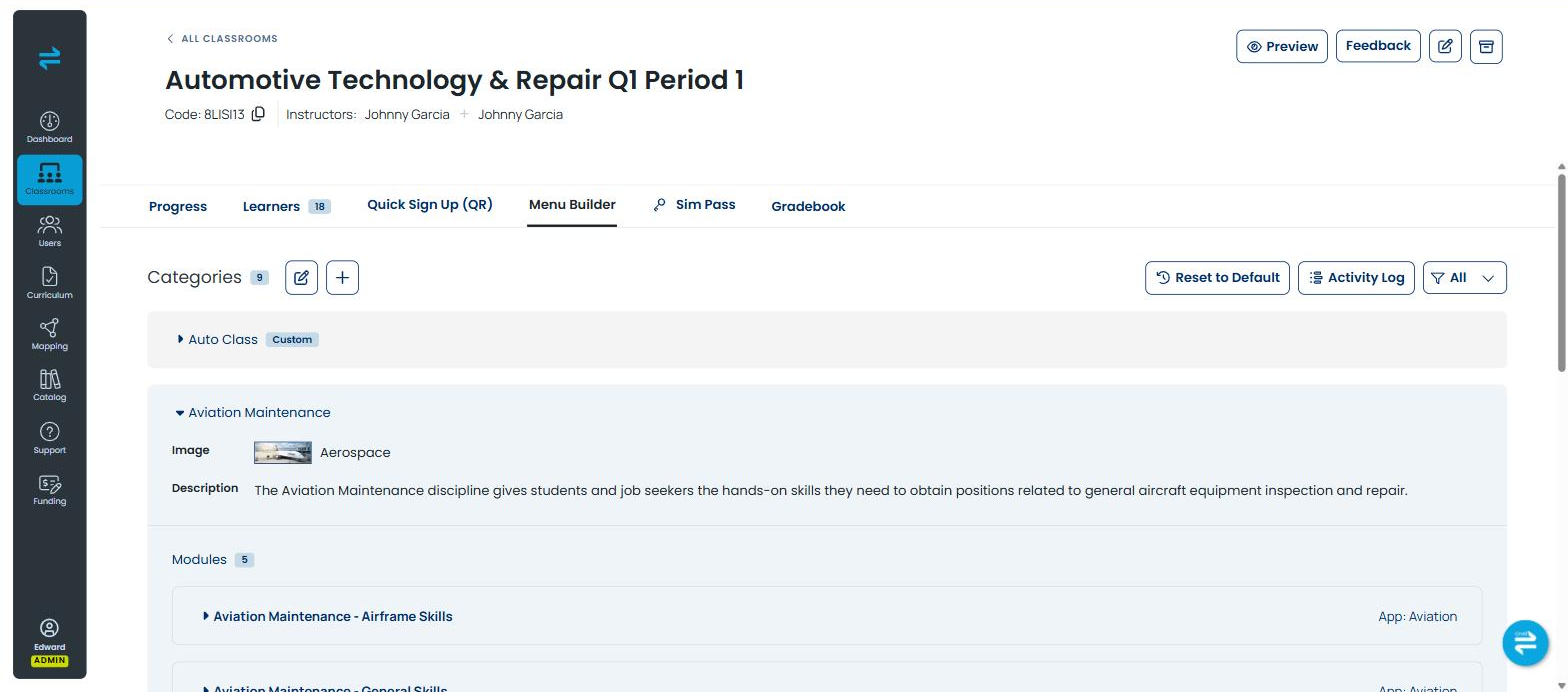
Menu Builder lists the categories in this classroom's menu. A category is a group of sims that learners see as one section — for example, a Careers category.
Each category shows how many sims it holds. Expand a category to see those sims listed in the order learners will see them.
Inside a category, sims are grouped into modules. A sim comes in as part of its module, so you work with modules to bring sims in or take them out.
Change what appears
The editing controls sit next to each category, module, and sim row. They are small icons rather than labelled buttons, so look for the icons at the end of a row.
Use them to:
- Show or hide a category, a module, or a single sim.
- Change the order things appear in the classroom menu.
- Add a category, or create a new one of your own.
Hiding something does not delete it. You can show it again later.
Transfr's own categories can be hidden and reordered, but their names come from Transfr. Categories you create yourself can be renamed and deleted.
Each change is saved when you confirm it in the window that opens. There is no separate save or publish step, so a confirmed change is live for learners right away.
Reset the menu to default
- On the Menu Builder tab, select Reset to Default.
- Confirm the reset when you are asked.
Resetting removes every change to this classroom's menu — categories you created, anything hidden, and any reordering — and puts Transfr's default menu back. This cannot be undone.
See what's changed
- On the Menu Builder tab, select Activity Log.
The log lists the changes made to this classroom's menu, including when each change happened and who made it. If no one has changed the menu yet, the log is empty.
If someone else is editing at the same time
If another person changes the same classroom's menu while you have it open, you'll be asked to refresh the page before your change can save. That is there so two people don't overwrite each other.
Still need help?
Last updated: July 29, 2026
