


Curriculum Resources
Lesson plans, worksheets, and assessments for Trek, Train, and Programs, and how to find them.
For: Instructors and CTE staff with a Trek, Train, or Programs package
Curriculum Resources is the Dashboard page where you find lesson plans, worksheets, and assessment tools to use alongside the sims. Look for Curriculum in the left nav — the page itself is titled Curriculum Resources, with the subhead "Lessons plans and assessment tools designed to support your training programs and enhance learning outcomes."
This page only appears if your organization has a Trek, Train, or Programs package. If you don't see Curriculum in your left nav at all, your organization isn't licensed for any of those products.
- How to find and download resources
- Trek resources
- Train resources
- Programs resources
- If the page or a tab is missing
How to find and download resources
Every tab on this page shares the same basic mechanics:
- Use the search box, placeholder text "Search by title, description, category or simulation," to jump straight to a resource by name.
- Select Download All at the top of the page to download every resource currently listed for that tab.
- Select the icon-only download control at the end of any row to download just that resource.
- Select a row to expand it — rows are collapsible, and expanding one reveals the individual resource types inside it (for example, an overview document plus one or more worksheets).
Filters sit above the resource list and narrow what's shown without changing what Download All grabs unless you've filtered the list first. Which filters you see, and how rows are organized, depends on which tab you're on — Trek and Train are not laid out the same way.
Trek resources
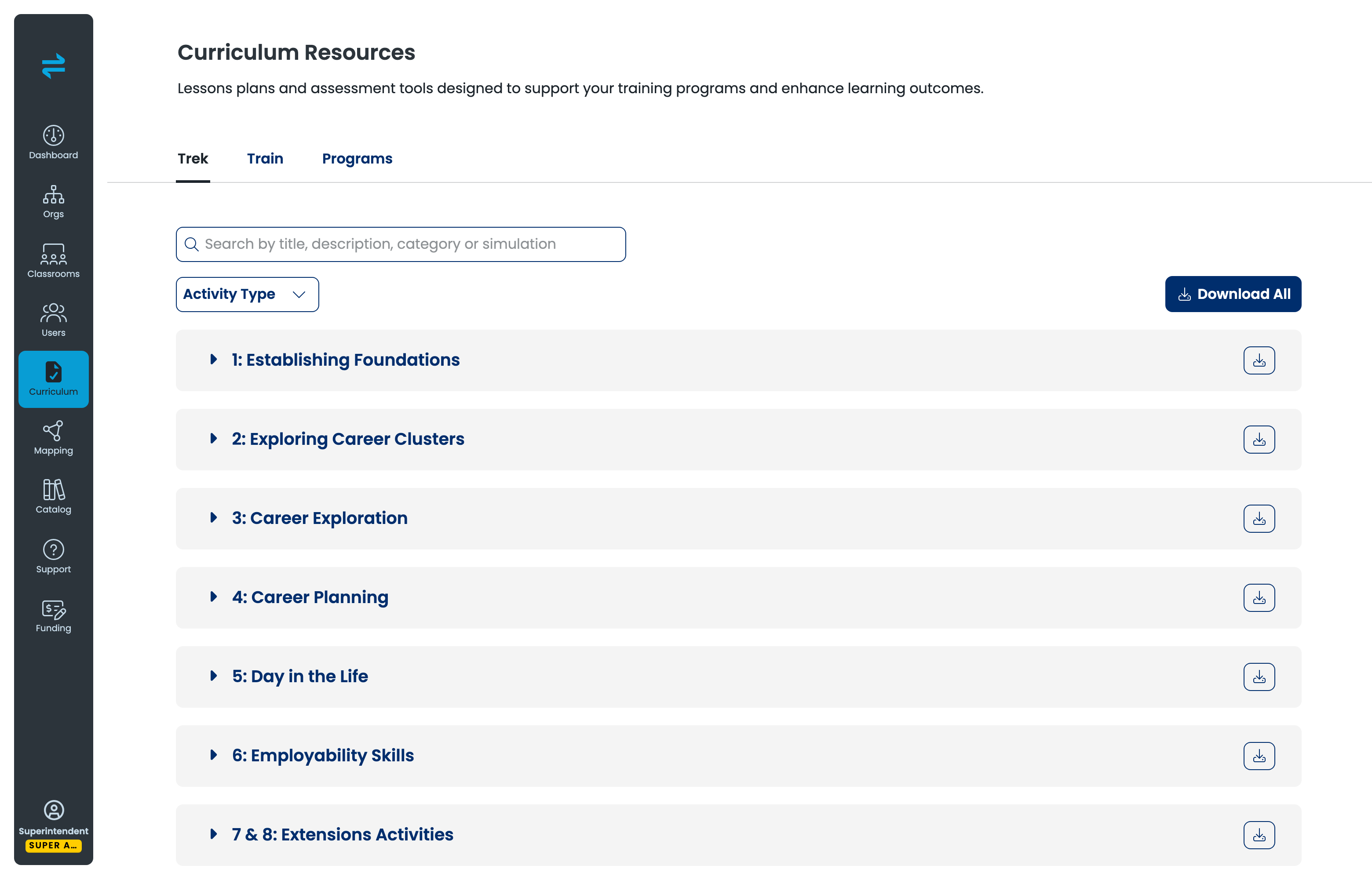
Trek is the default tab when you open Curriculum Resources. It has one filter, Activity Type, and its rows are organized as seven sequential units rather than by topic or industry:
- 1: Establishing Foundations
- 2: Exploring Career Clusters
- 3: Career Exploration
- 4: Career Planning
- 5: Day in the Life
- 6: Employability Skills
- 7 & 8: Extensions Activities
Expand a unit to see its resources. Resource types include a Unit Overview and VR SIM Worksheets; a given unit may include one or both, along with other materials. Use the Activity Type filter if you're looking for one kind of resource — worksheets only, for example — across multiple units.
Train resources and the Train Curriculum Planner
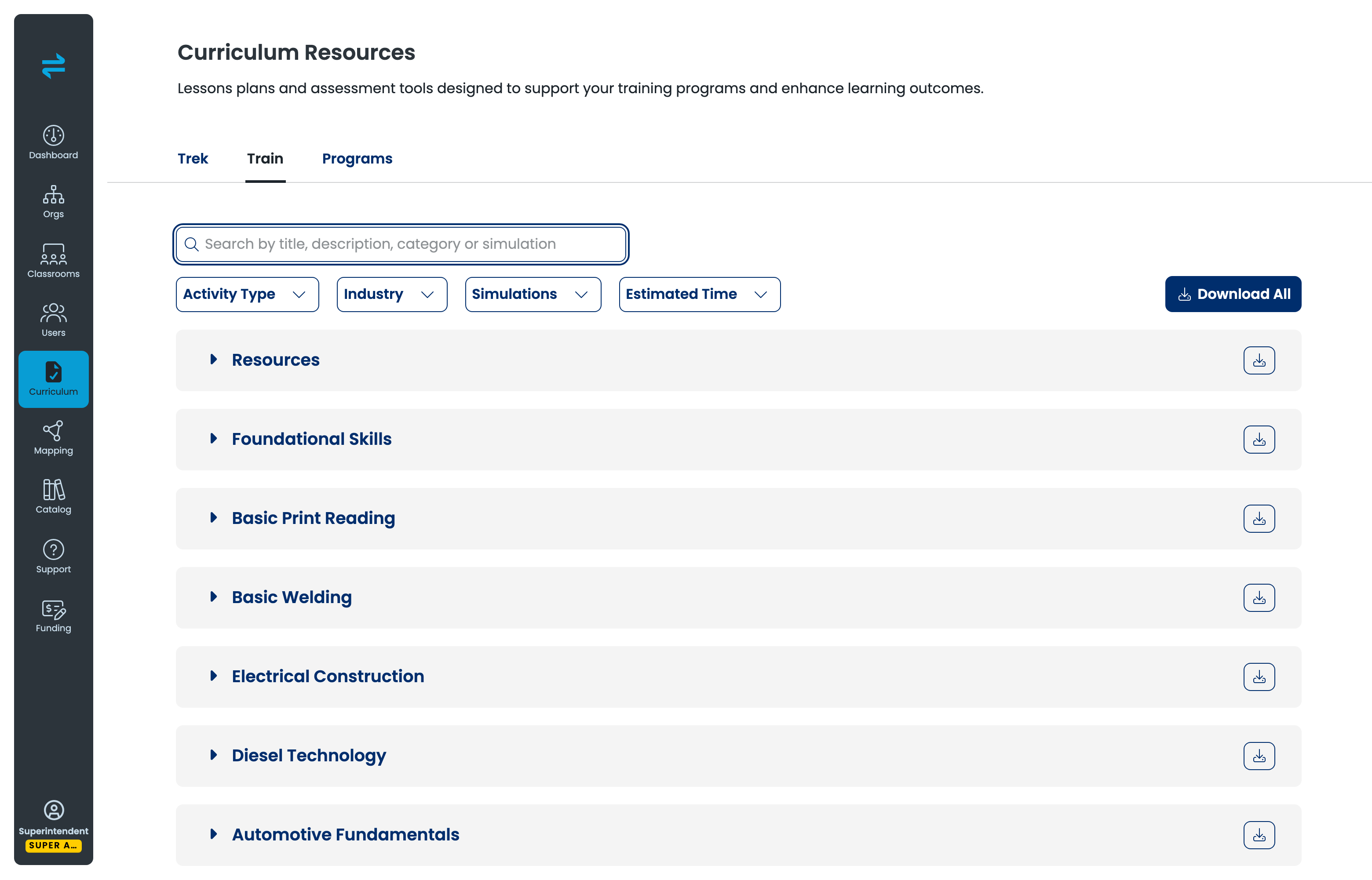
Select the Train tab. This tab is the Train Curriculum Planner — if someone has pointed you to the Planner by name, this is where it lives. It holds supplemental activity plans aligned to the Train sims, so you can build an instructor-led course around the VR work.
The Train tab is organized differently from Trek. Trek is a numbered unit sequence you work through in order. Train has no sequence — you open the subject you teach and pull what you need.
How the Train tab is organized
- Select a subject group — for example Basic Welding.
- Select a sub-topic inside it.
- Read the resource table. Success looks like a list of rows with the columns FILE, NAME, ACTIVITY TYPE, INDUSTRY, SIMULATION, and EST TIME.
Each sub-topic shows the number of resources it contains, so you can see how much material a subject holds before you open it.
The subject groups are Foundational Skills, Basic Print Reading, Basic Welding, Electrical Construction, Diesel Technology, Automotive Fundamentals, Paint Robot Maintenance, and Aviation Maintenance. Foundational Skills holds the cross-trade sub-topics — Workplace Safety, Applied Math and Measurement, Safe Materials Handling, Hand Tools, Power Tools, and Electrical Fundamentals.
Foundational Skills here is a folder, not a Program. Transfr also has a Program called Fundamental Skills, which is what you assign to a Programs classroom. Both labels are live and both are correct — one is a resource folder on this tab, the other is a Program. See What is a Transfr Program?
Where to start in a new subject
Every sub-topic includes two planning documents. Open these first:
- Activity Overview — named Activity Overview: [sub-topic], with an ACTIVITY TYPE of Overview. It maps the sims and activities for that sub-topic.
- Pacing Guide — named [sub-topic] Pacing Guide, with an ACTIVITY TYPE of Resource. Use it to spread the sub-topic across your calendar.
The remaining rows are the activities themselves. Their ACTIVITY TYPE tells you how each one is meant to run — General for a mainstream group, and Higher-Order Thinking for deeper reading, writing, and synthesis. Most activities list an EST TIME, so you can match one to the class time you have left.
Filtering the Train tab
The Train tab has four filters — Activity Type, Industry, Simulations, and Estimated Time — plus a search box that reads Search by title, description, category or simulation.
Two things worth knowing before you filter:
- The Industry filter is broader than the subject groups. It offers Automotive, Aviation Maintenance, Diesel Technology, Electrical Construction, and Manufacturing & Construction — five industries covering the eight subject groups. Filtering by Industry is not the same as opening a subject group.
- Estimated Time filters to a specific length rather than a range: 10, 15, 20, 25, 30, 45, 50, or 60 minutes.
If you are planning around one particular Train sim, the Simulations filter or the search box gets you there faster than opening subject groups one at a time. To take a whole set offline, select Download All.
Programs resources
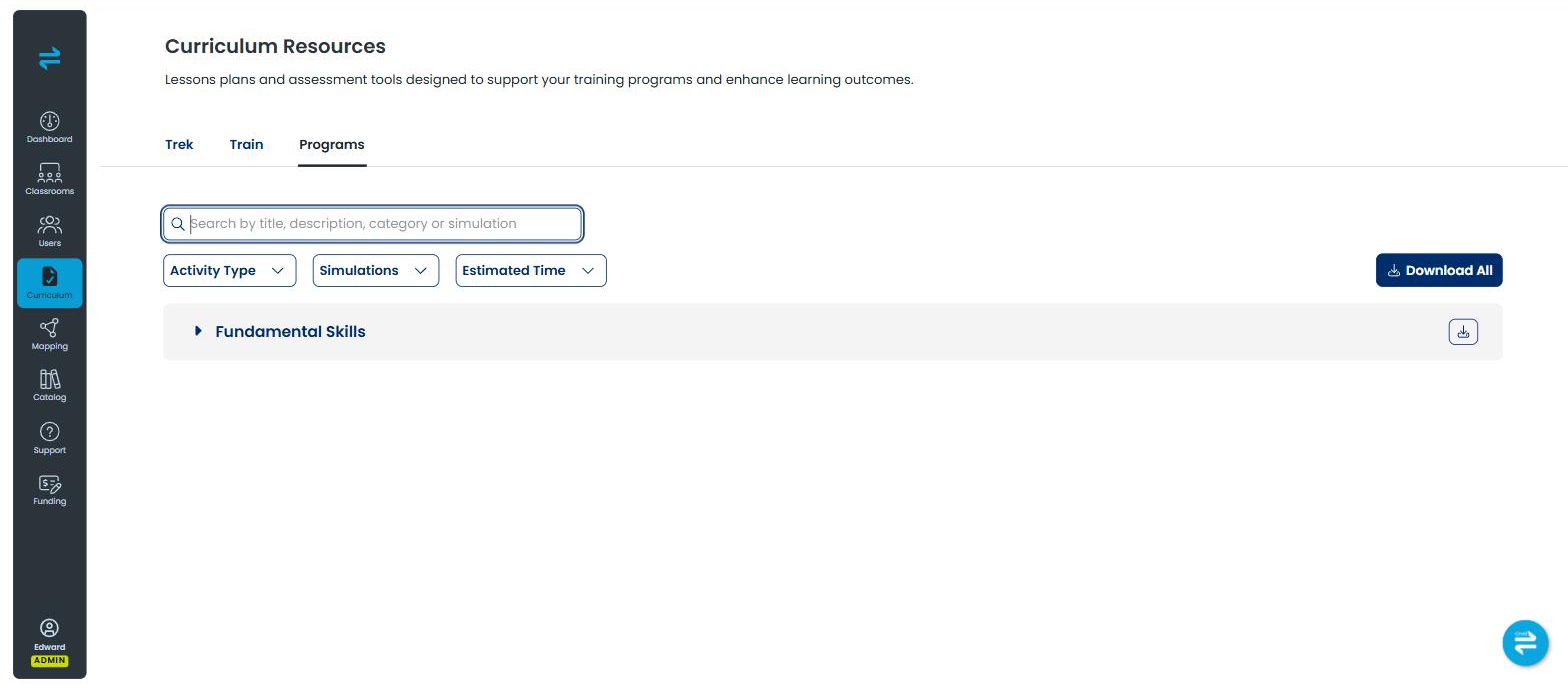
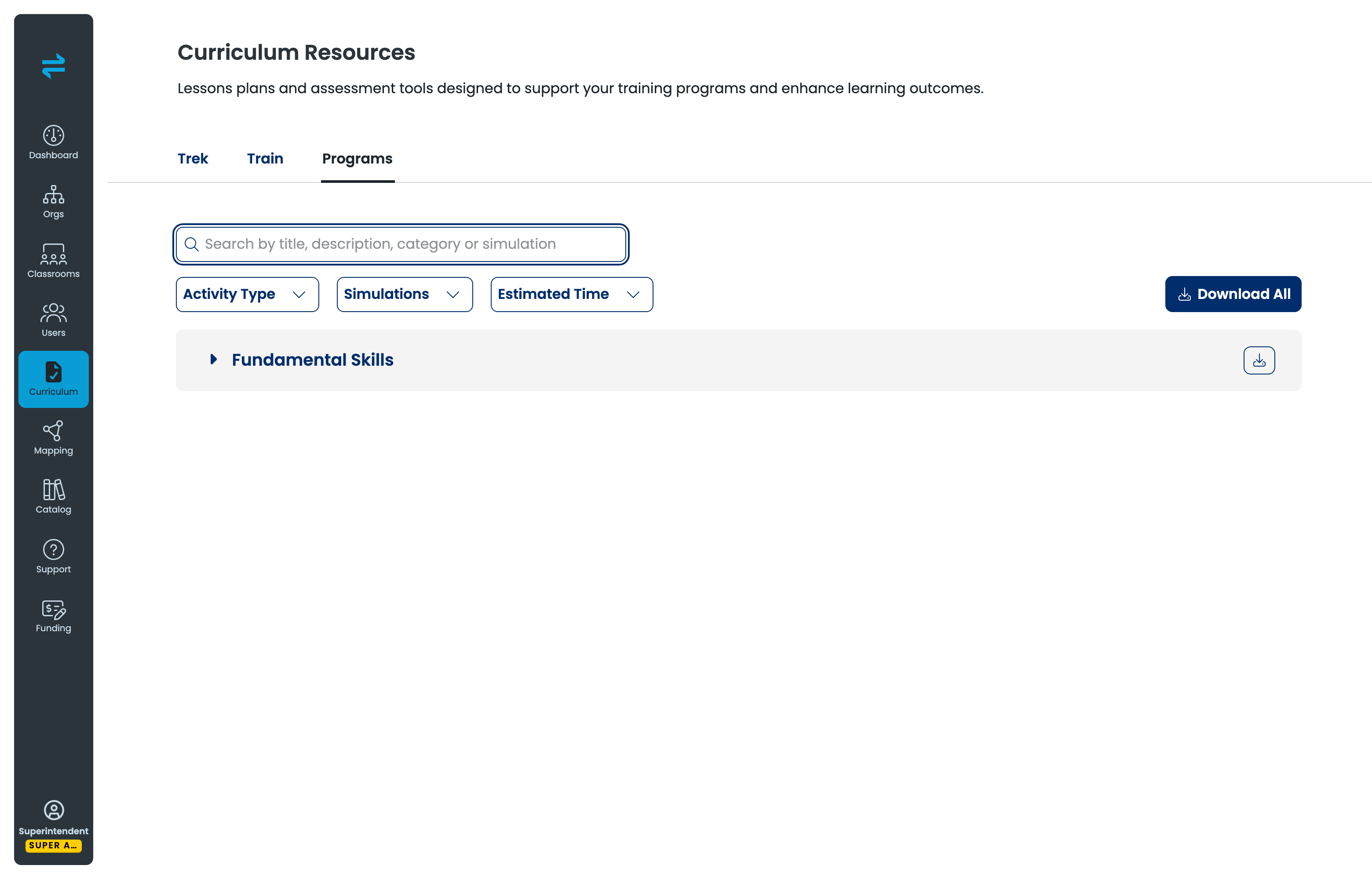
A Programs tab also exists on Curriculum Resources, alongside Trek and Train. It uses the same search box and download controls described above.
If the page or a tab is missing
If Curriculum doesn't appear in your left nav at all, your organization isn't licensed for Trek, Train, or a Programs package — contact support to confirm what your organization has.
If you can open Curriculum Resources but a tab you expect (Trek, Train, or Programs) isn't there, or a resource you're looking for doesn't turn up under search or the filters, contact support rather than assuming it doesn't exist — tab and resource availability follows your organization's product package.
Related articles
- Transfr Dashboard Guide
- Using Menu Builder to Customize a Classroom's Sim Menu
- How do I create a course in Course Builder?
- What is a Transfr Program?
Still need help?
Contact our support team — Monday–Friday, 8am–8pm ET, 646-466-2600, technicalsupport@transfrvr.com.
Last updated: July 31, 2026
