


How do I create a course in Course Builder?
Build units, lessons, and activities into a Course for a Programs classroom.
For: Instructors and Admins
Use Course Builder to configure the content your learners will see on their dashboard. A course is organized into units, lessons, and activities — activities are either sims or curriculum resources — so you can build a full learning path instead of assigning content one piece at a time.
The Course Builder tab appears on every Programs classroom, but you can only build a course on one that uses the Build your own program. On the other Programs it's a read-only view of a course Transfr already built.
You'll need: an Instructor or Admin account on the Transfr dashboard.
Which classrooms have Course Builder?
Every classroom whose Product is Programs carries a Course Builder tab, whichever program it uses. What you can do on that tab is what changes.
- A Transfr-built program — Fundamental Skills, Construction Laborer PEP, or Mechanical Industrial Maintenance Technician PEP. Course Builder shows the course's units, lessons, and activities so you can see exactly what learners will work through, plus Activity Log — the controls that change the course aren't there, so the course is fixed.
- The Build your own program — Course Builder adds the authoring controls: Reset Course, Create Lesson, and Apply. Everything from “Add a unit” onward in this article needs a Build your own classroom.
Course Builder doesn't appear on Trek or Train classrooms at all — a Trek classroom shows Mission Control and Menu Builder in its place.
Set up a classroom for Course Builder
If you already have a Programs classroom that uses “Build your own,” skip to Open Course Builder.
In the left sidebar, select Classrooms.
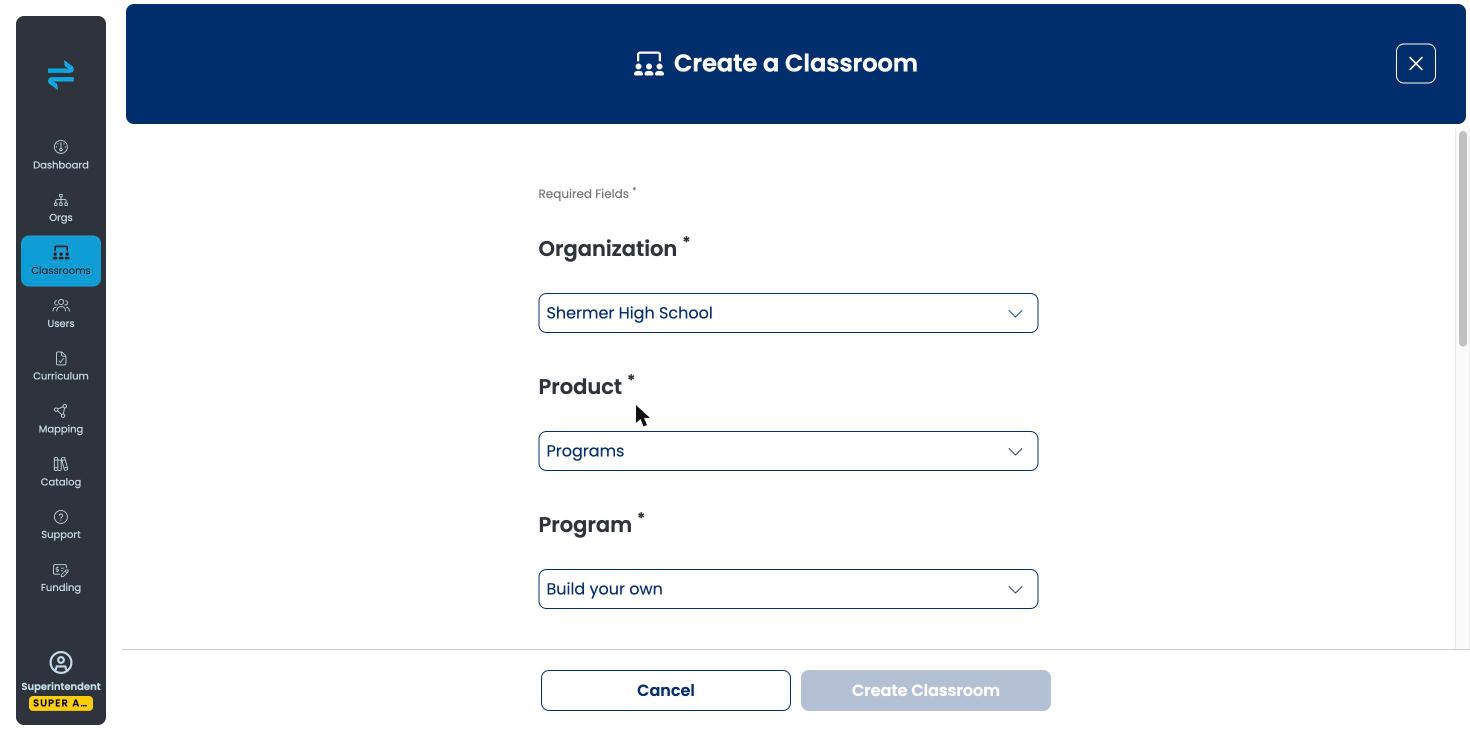
At the top right of the Classrooms list, select the Create Classroom control — a plus icon that opens the Create a Classroom window.
Under Product, select Programs.
Under Program, select Build your own.
Under Classroom Details, enter a name for the classroom.
(Optional) Add an instructor or learners.
Select Create Classroom — the classroom appears in your Classrooms list.
If you're a super admin: the window asks you to pick an Organization first, before Product. Choose the organization this classroom belongs to, and the remaining fields appear. Instructors and admins managing a single organization won't see this field — Product is the first thing they set.
Open Course Builder
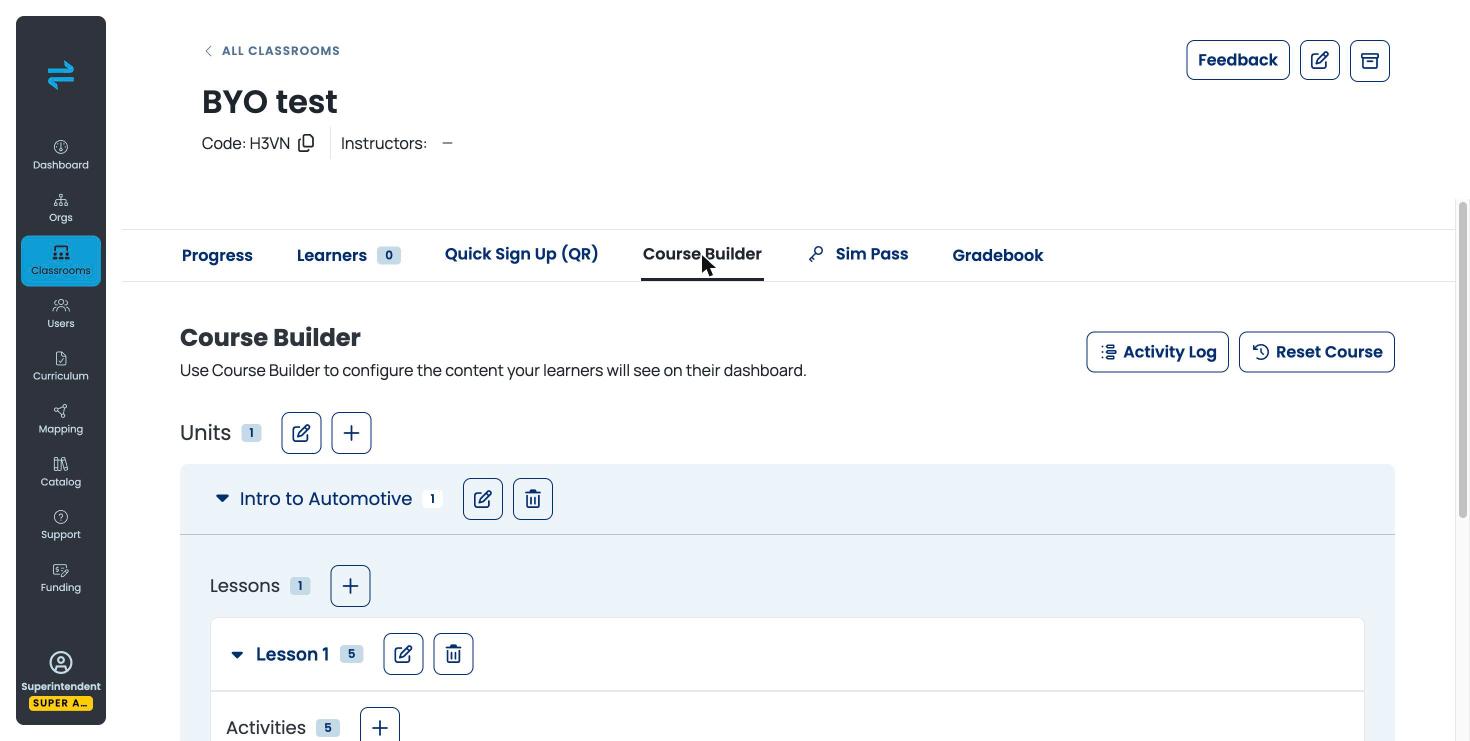
In your Classrooms list, select the Programs “Build your own” classroom you want to build a course in — the classroom opens to its Progress tab.
Select the Course Builder tab — the Course Builder screen opens, showing “Add a unit or lesson to get started” if the course is empty, or your existing units and lessons if you've already started.
Add a unit
Next to Select Type, select + — a menu opens with Unit and Lesson options.
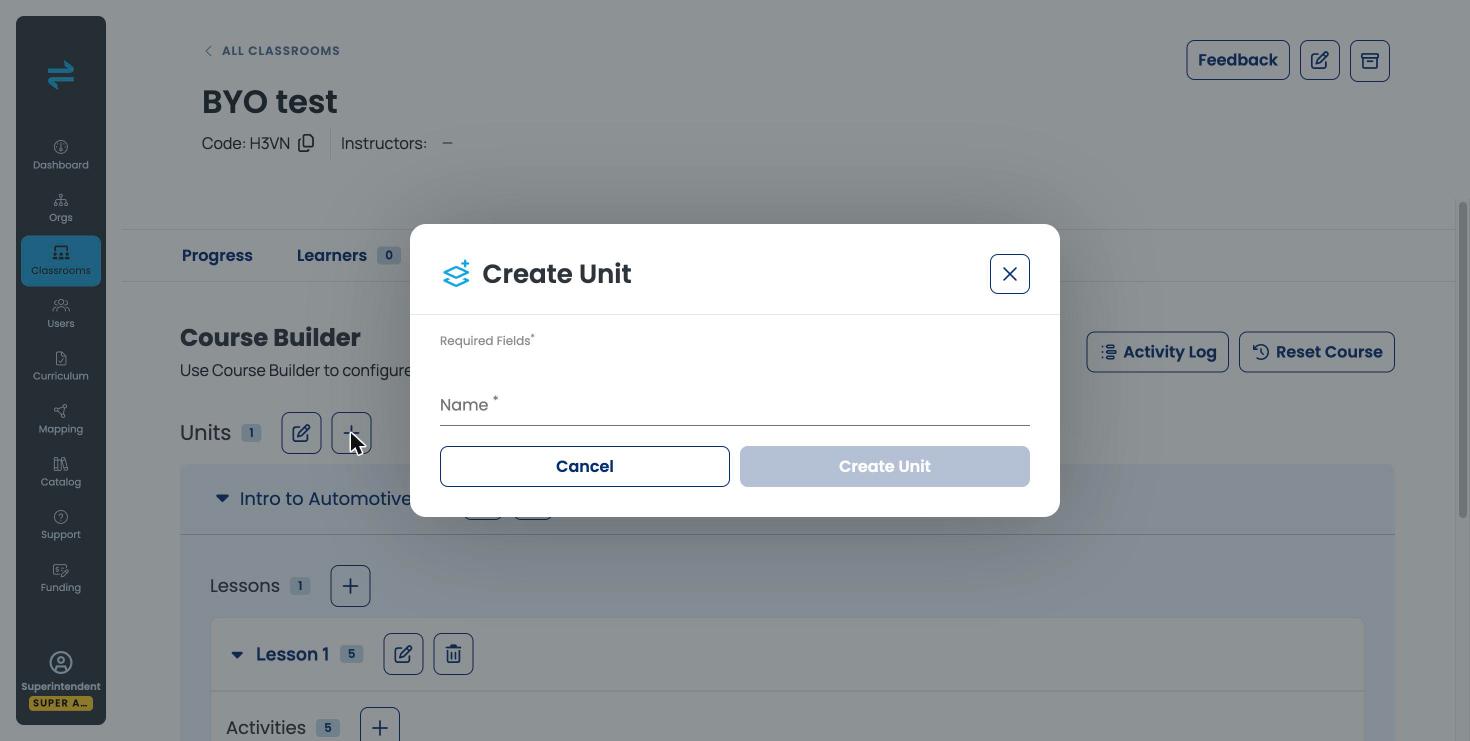
Select Unit — the Create Unit dialog opens.
Enter a name for the unit.
Select Create Unit — a “Unit created” confirmation appears, and the unit shows under Units with a count badge.
Add a lesson
In the unit you want to add a lesson to, find the Lessons section.
Select the + in the Lessons section — the Create Lesson dialog opens.
Enter a name for the lesson.
Select Create Lesson — a “Lesson created” confirmation appears, and the lesson shows under Lessons with a count badge.
You can also start a lesson directly from the Course Builder screen: next to Select Type, select + and choose Lesson instead of Unit.
Add an activity
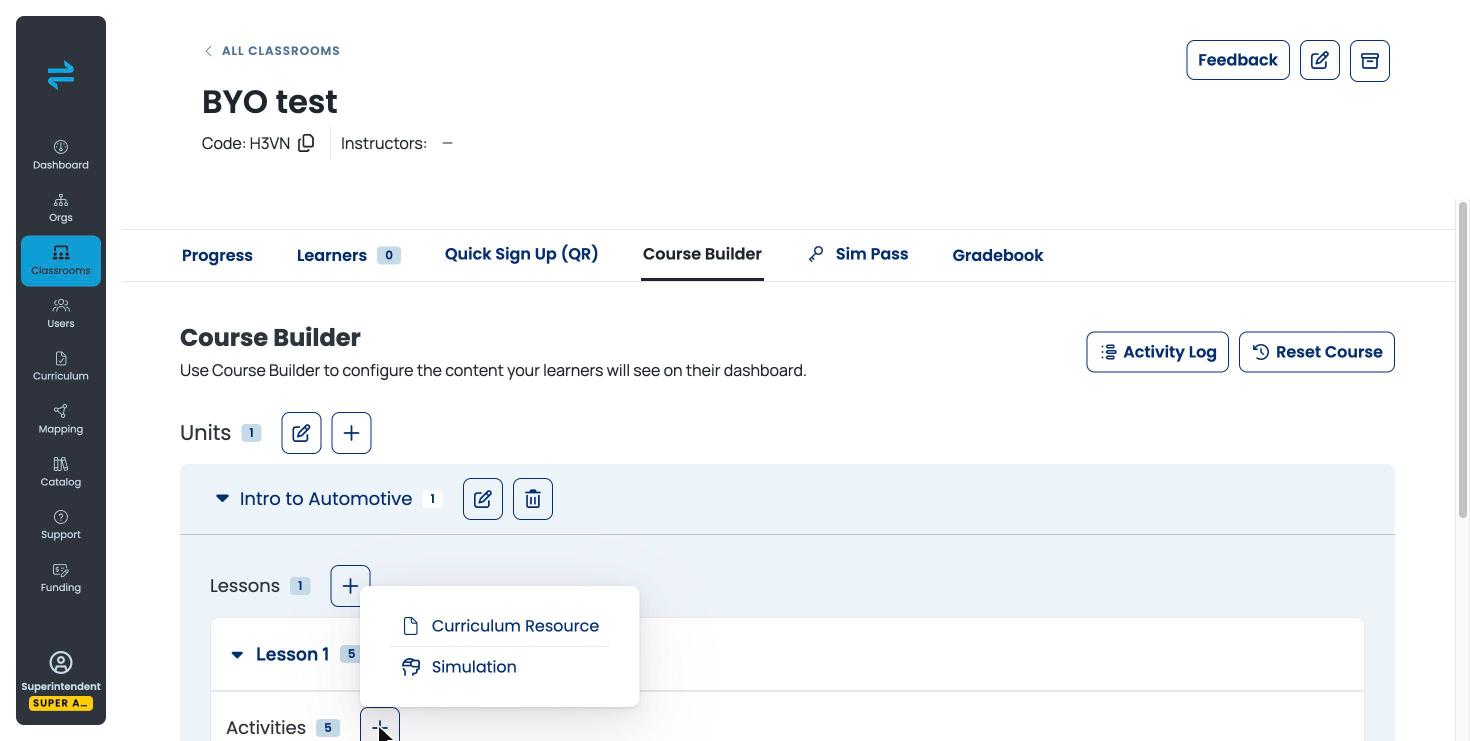
In the lesson you want to add content to, find the Activities section.
Select the + in the Activities section — a menu opens with Curriculum Resource and Simulation options.
Select Curriculum Resource or Simulation.
Complete the picker for the option you chose — the activity appears in the lesson's Activities list, and the Activities count badge updates.
Edit, reorder, and remove units and lessons
To rename a unit or lesson, select its pencil icon.
To delete a unit or lesson, select its trash icon.
To collapse or expand a unit or lesson, select its chevron.
Track changes and reset a course
- In the top right of the Course Builder tab, select Activity Log to see a history of changes made to the course. This one is available on every Programs classroom, including the Transfr-built programs.
- In the top right of the Course Builder tab, select Reset Course to clear the course. Build your own classrooms only.
Still need help?
Contact our support team — Monday–Friday, 8am–8pm ET, 646-466-2600, technicalsupport@transfrvr.com.
Last updated: August 6, 2026
