


How do I turn on captions or change the language in Trek?
Captions and language are both set from the Settings panel on the Trek launch screen. Set the language before the simulation starts.
For: Learners and instructors
Transfr Trek can show captions for everything the coach says, and it can run in English or Spanish. Both are set from the Settings panel on the Trek launch screen, before a learner logs in. Captions can also be turned on part-way through a simulation. Language can't — that one has to be set before the simulation starts.
How do I open Settings in the Trek app?
- Put on the headset and open the Transfr Trek app.
- On the launch screen, point at the gear icon at the bottom of the screen and press the trigger button. The gear sits next to the clock, below the three login choices.
What success looks like: the Settings panel opens along the left side of the view, listing Downloads, Info, Troubleshooting, Language, Music, and Closed Captioning. The app version appears at the bottom of the panel.
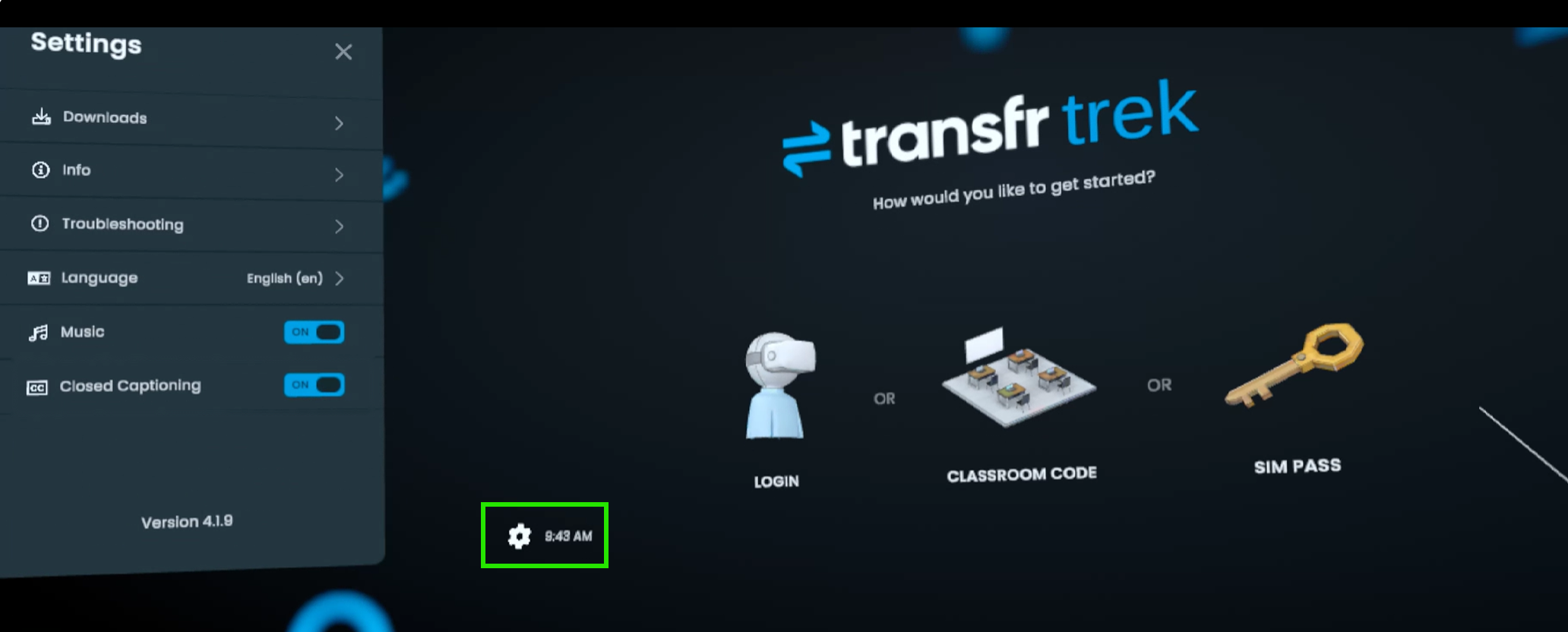
You don't need to log in first. Settings is available on the launch screen, so you can set captions and language on a headset before you hand it to a learner.
How do I turn on captions?
- Open Settings from the launch screen.
- Point at the toggle beside Closed Captioning and press the trigger button.
What success looks like: the toggle reads ON and turns blue. Selecting it again turns captions off.
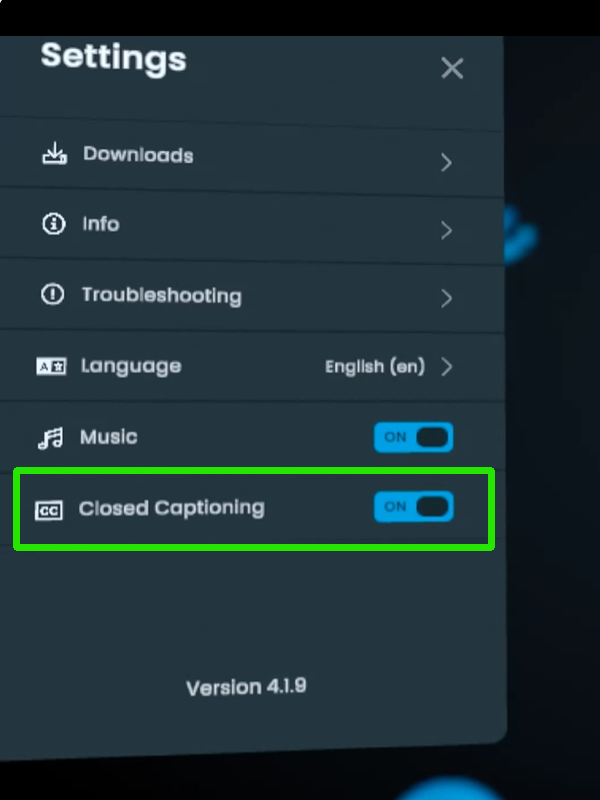
Captions are a per-headset setting, so turning them on for one learner doesn't change anyone else's headset. Captions appear in whichever language the app is set to.
How do I change the language?
- Open Settings from the launch screen.
- Select Language. The row shows the current language — for example, English (en).
- Select the language you want from the list.
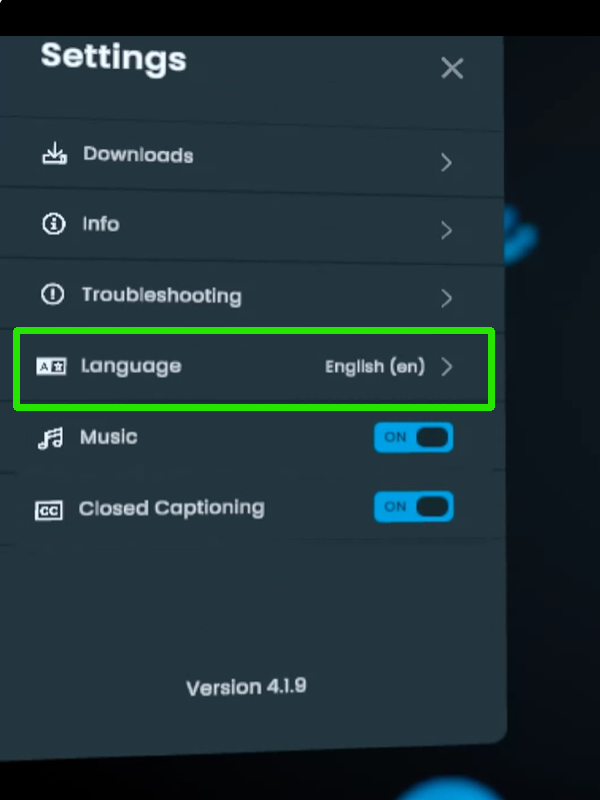
What success looks like: the Language row shows the language you picked. If you switch to Spanish, the app's own labels change too — Language reads Idiomas, and the rest of the menu appears in Spanish.
Set the language before the simulation starts. A learner can't change languages part-way through a simulation. If the wrong language is running, the learner exits to the main menu, changes it in Settings, and starts the simulation again.
How do I turn off the background music?
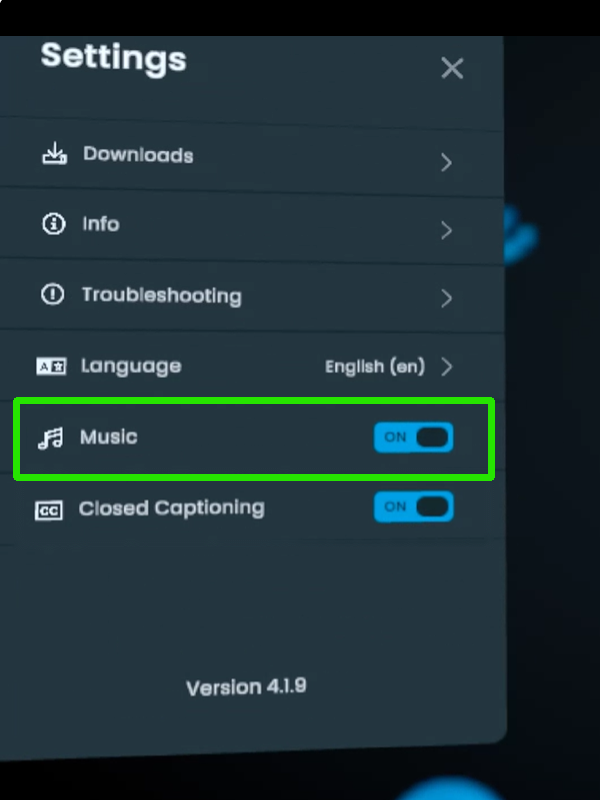
The same panel has a Music toggle. It silences the background music only — the coach's voice still comes through, and so do the simulation's own sounds. It's useful in a room running several headsets at once.
Can a learner turn captions on part-way through a simulation?
Yes. Captions can be turned on and off from inside a simulation, so a learner who decides they want them doesn't have to start over.
- Look around the simulation until you find the menu shown below. Here it shows Closed Captioning turned off.
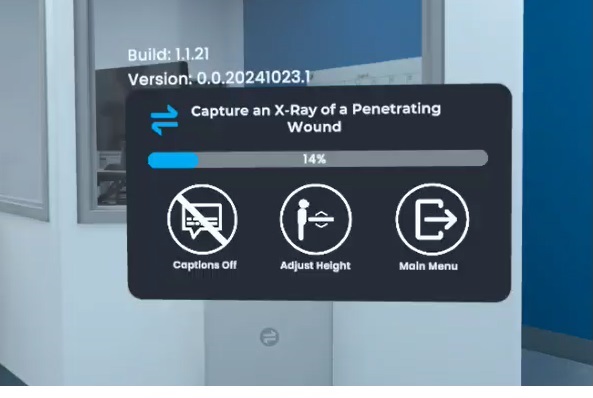
- Reach out and push the button with your hand. It turns blue once your hand is close enough to register the press.
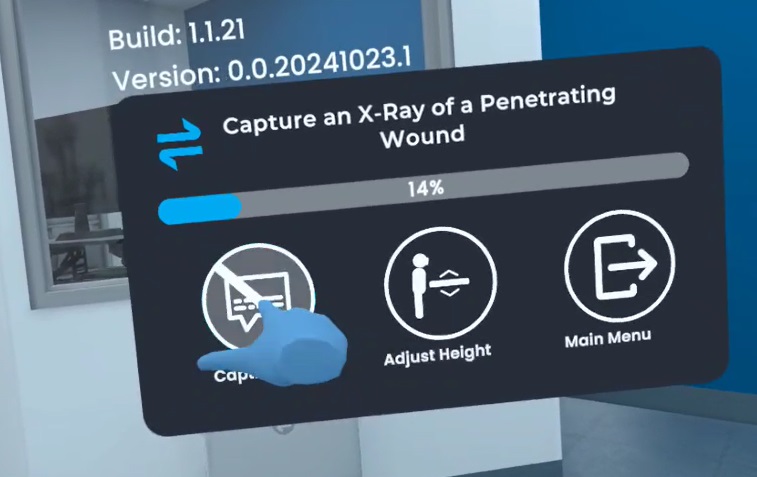
Unlike the launch screen, this is a button you press with your hand rather than a toggle you point at.
Language is the exception — that one can't be changed mid-simulation. To change it, exit to the main menu and use Settings. See How do I change the language? above.
Which languages does Trek support?
Trek runs in English and Spanish. Captions follow the language the app is set to.
This is a difference between our two products: Transfr Train is English-only. See What's the difference between Transfr Trek and Transfr Train?
Related articles
- How do learners log in to the Transfr Trek app?
- Transfr Trek: Learner Quick Start Guide
- How do learners use Transfr Train in the headset?
- What's the difference between Transfr Trek and Transfr Train?
Still need help?
Contact our support team — Monday–Friday, 8am–8pm ET, 646-466-2600, technicalsupport@transfrvr.com.
Last updated: August 3, 2026
