


How do learners sign in with SSO?
What a learner sees when your district signs in through Clever, ClassLink, or NYC DOE — from the portal to My Work to their first sim, on the web and in the headset.
For: Instructors and Program Administrators
When your district connects Transfr to Clever, ClassLink, or NYC DOE, learners sign in through your district's portal. This covers what they see, and how they get from there into Trek or Train.
Important: SSO replaces usernames and passwords. Once SSO is turned on for the Dashboard and the VR apps, learners and instructors can no longer sign in with a username and password. SSO becomes the only way into the Dashboard, and a Sim Pass the only way into a headset.
Signing in
There are two ways in. Learners use one or the other, and both land in the same place.
Option 1 — from your district's portal
Select the Transfr app in Clever or ClassLink. That signs the learner straight in.
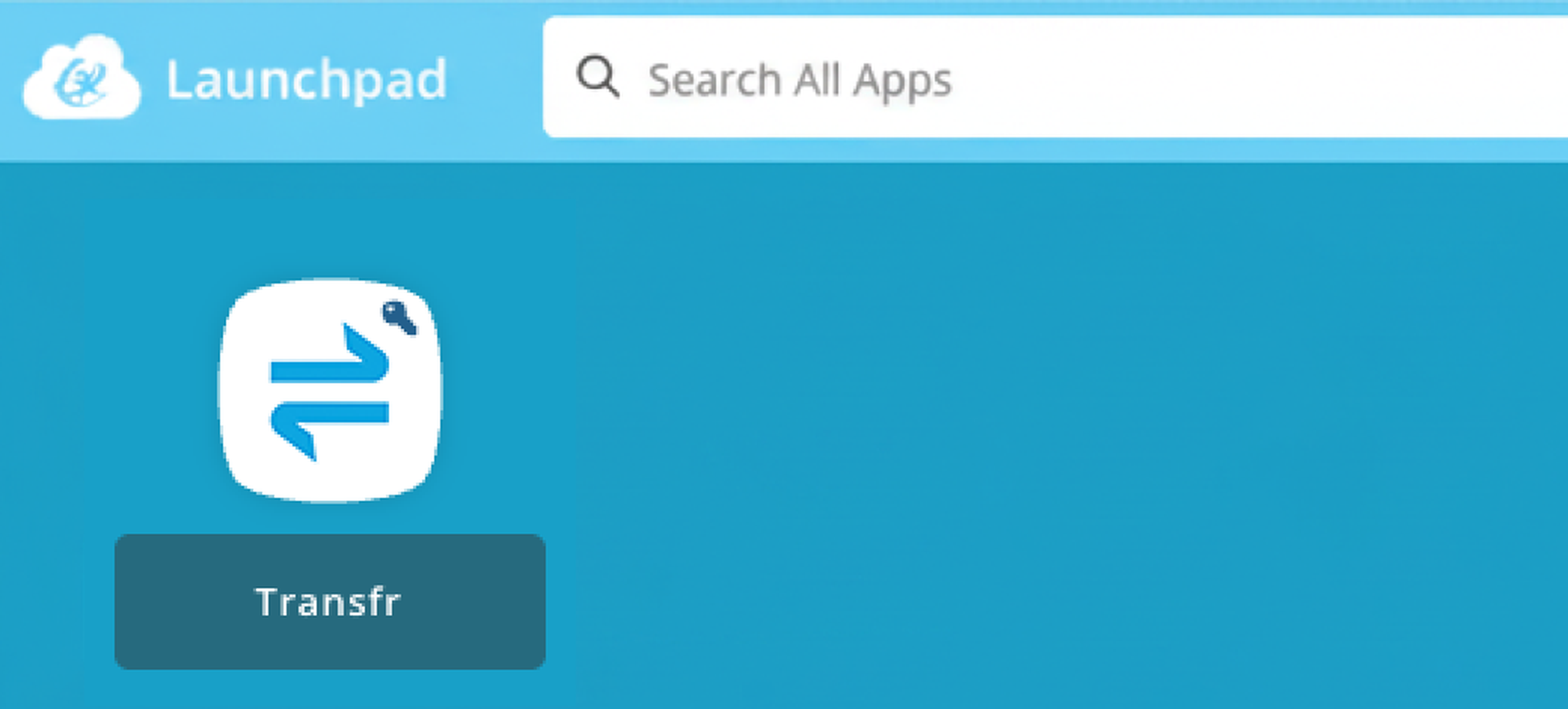
ClassLink LaunchPad shown here. Clever and NYC DOE portals look different, but the Transfr app works the same way.
Option 2 — from the Transfr sign-in screen
Go to dashboard.transfrinc.com and select Sign in with Clever, Sign in with ClassLink, or Sign in with NYC DOE. Sign in with district credentials.
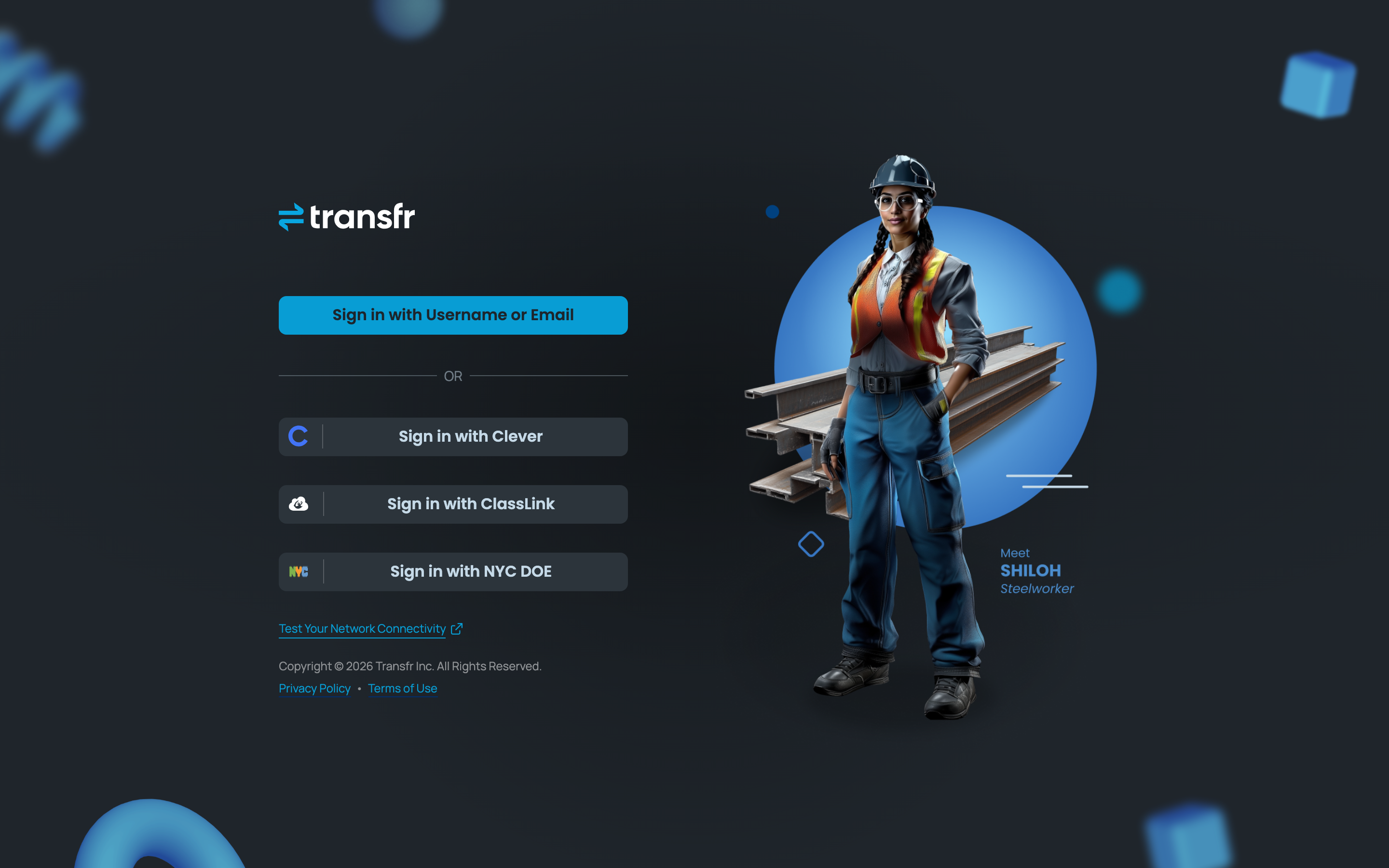
Sign in with Username or Email sits at the top of that screen, but won't work in an SSO district — point learners past it to their district's button.
The Learner Dashboard
Signing in lands the learner on My Work — the entry point for everything else. Each classroom gets its own tab, and the tab they pick determines what they're doing: Trek, Train, or a Pre-Employment Program.
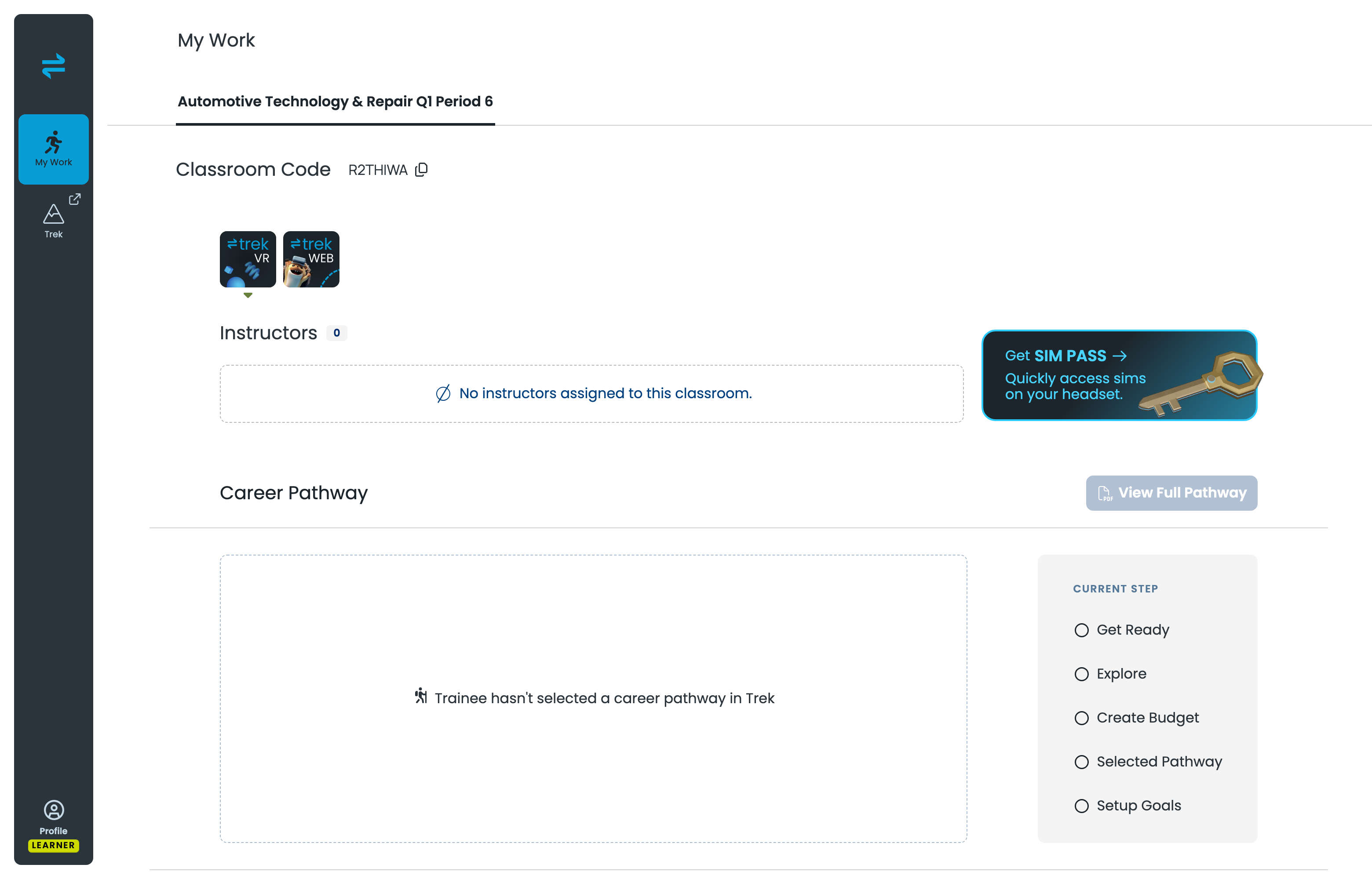
Two things on this page matter for signing in:
- Trek in the left menu, under My Work, opens Trek on the web.
- Get SIM PASS generates a Sim Pass without waiting for you.
Trek Mobile, Trek VR, and Train
| What it is | How they get in | |
|---|---|---|
| Trek Mobile web, tablet, Chromebook | Career exploration — browse careers, take the interest inventory | Already signed in. Select Trek in the left menu |
| Trek VR in the headset | Career exploration in VR, guided by an in-headset coach | Sim Pass |
| Train in the headset | Hands-on job-skills practice in VR | Sim Pass |
A headset can't open your district's sign-in portal, so SSO doesn't reach it. A Sim Pass is how a named learner gets in instead — it signs in one person, so their work is attributed to them.
A Classroom Code still works for Trek and isn't affected by SSO, but it signs learners in anonymously and their work isn't tied to a name. Full comparison: Codes, logins, and PINs explained.
Getting a Sim Pass
A Sim Pass is a 5-digit code that gets a learner straight into a sim. It's single-use, expires 3 days after it's generated, and works for Trek and Train. A pass made on Friday won't work on Monday.
Learners generate their own: on My Work, select Get SIM PASS. The code and its countdown appear in place, so a learner who's stuck doesn't have to wait for you.
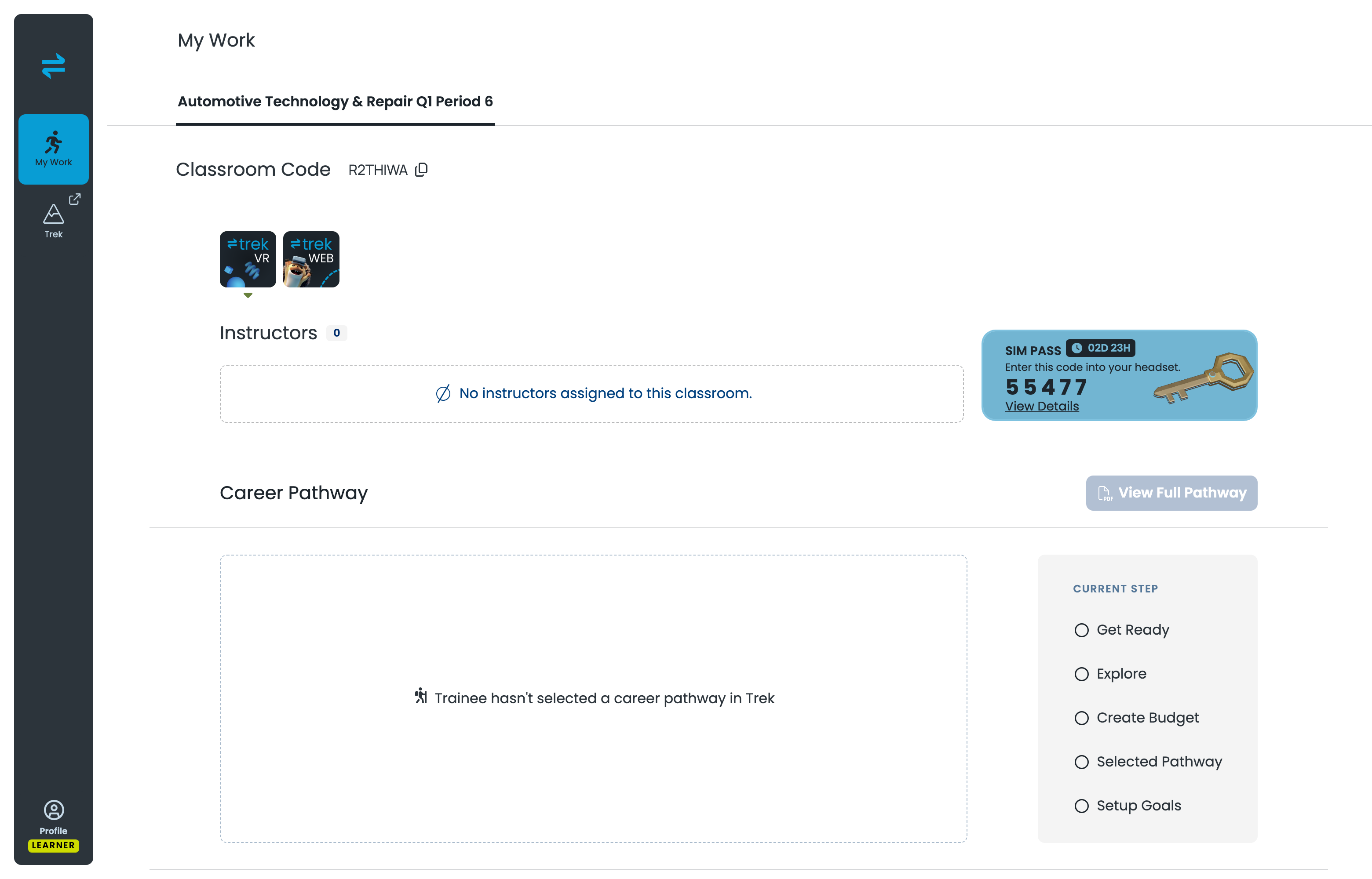
To generate passes for a whole class from the Dashboard, see What is a Sim Pass?
Pre-Employment Programs
A Pre-Employment Program — like the Industrial Maintenance Pre-Employment Program — has its own classroom tab on My Work. Signing in doesn't change. The VR sims inside the program need a Sim Pass, generated the same way as above.
When sign-in doesn't work
- No Transfr app in Clever or ClassLink — contact your Clever or ClassLink admin and ask them to share data with Transfr.
- Signed in, but no classroom tab — the sync hasn't placed the learner in a classroom yet. Check the roster in the Dashboard.
- The headset won't take a username and password — expected in an SSO district. Use a Sim Pass.
- A Sim Pass is rejected — it's expired, already used, or the headset is offline. Generate a fresh one, or see What is a Sim Pass? for more detail.
- Slow to load — select Test Your Network Connectivity at the bottom of the sign-in screen.
Setting up the connection itself is a different job: Clever · ClassLink.
Related articles
- How does rostering work with Clever and ClassLink?
- How do I access Trek using SSO?
- What is a Sim Pass?
- Trek Learner Dashboard Guide
Still need help?
Contact our support team — Monday–Friday, 8am–8pm ET, 646-466-2600, technicalsupport@transfrvr.com.
Last updated: September 18, 2026
