


Updating Transfr Trek App
Trek updates itself over Wi-Fi. What the headset shows during a download, and how to run a sim meanwhile.
For: Instructors and IT Admins
Transfr Trek updates itself over Wi-Fi, so most of the time you don't have to do anything. This covers what the headset shows while an update downloads, how to use Trek before the update finishes, and how Transfr rolls updates out.
Downloading the app
- Turn on the headset.
- In the toolbar below the app library, select the Wi-Fi settings button and confirm the headset is connected to a network.
- Wait. Transfr Trek starts downloading the newest version on its own.
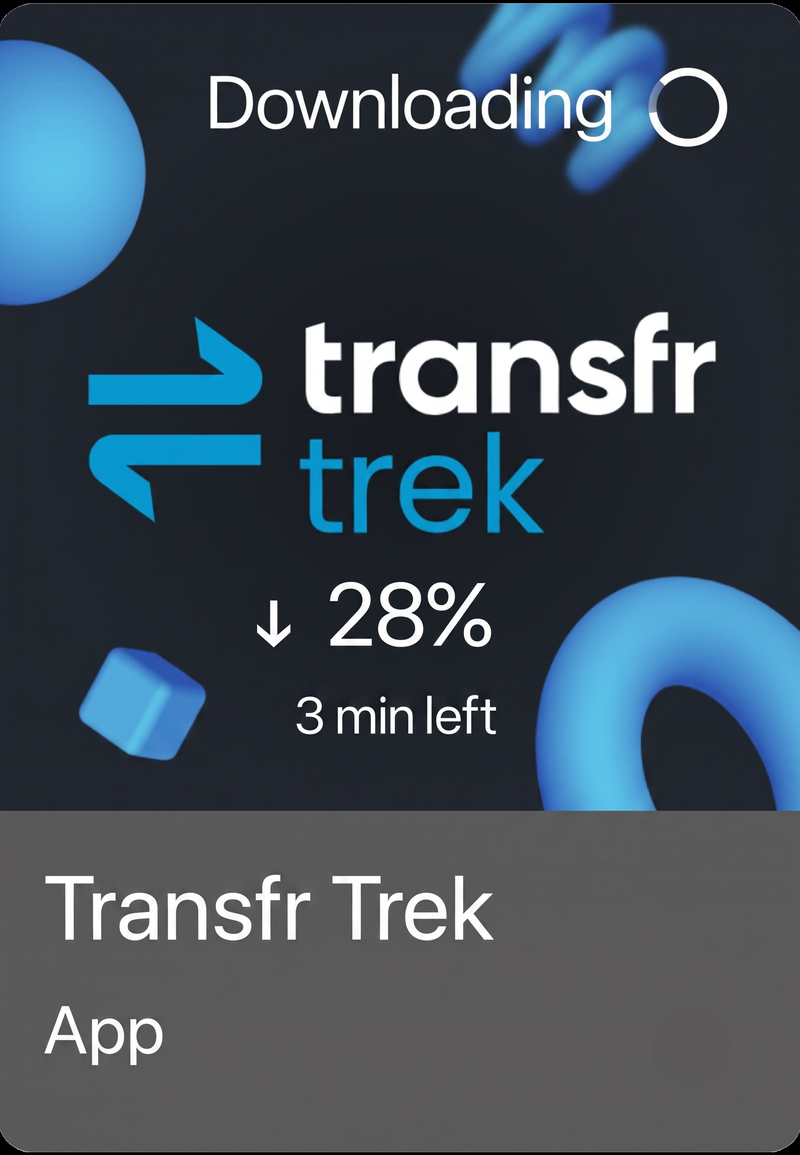
- In the app library, check the Trek tile. It shows Downloading, the percentage complete, and an estimate of the time left, so you can tell how much longer the headset needs.
You can set the headset down at this point. It stays awake and keeps downloading. If you're leaving it overnight to finish a large update, plug it in.
Note: Simulations now download alongside the app, so you no longer have to log into the Transfr Trek app and wait for the simulations to download while wearing the headset. Once the app download finishes, you can open the app, log in, and the simulations will be ready to go.
What success looks like: the download overlay disappears from the tile and you see the normal Transfr Trek icon again.
Using Trek while the update downloads
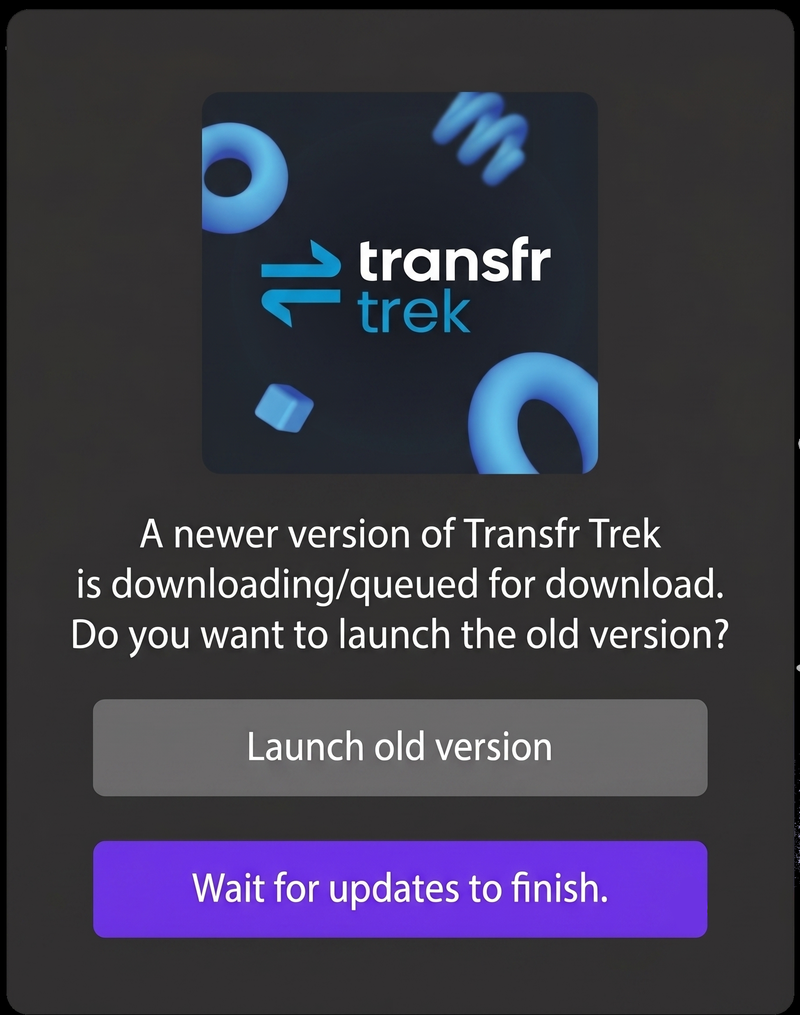
You don't have to wait for the download to finish before running a sim. In the app library, select Transfr Trek while the update is still downloading and the headset asks whether you want to launch the version you already have.
- Select Launch old version to use the current version now. The new version keeps downloading in the background, and it installs when you exit the app.
- Select Wait for updates to finish to hold off until the new version is installed.
If a download gets interrupted
Interrupted downloads retry on their own, so a Wi-Fi connection that drops usually clears itself. Failures are rare. If a download does get stuck, select the Trek app in the app library and the headset walks you through troubleshooting it.
How Trek updates are released
Transfr rolls out Trek updates in stages rather than pushing every headset at once, so any issues can be caught early. Timing varies from release to release, and Transfr lets customers know about upcoming updates by email — watch for a heads-up from your Transfr contact.
Still need help? Contact our support team — Monday–Friday, 8am–8pm ET, 646-466-2600, technicalsupport@transfrvr.com.
Last updated: July 29, 2026
