


How do I add, edit, or remove users?
Manage instructor, admin, and staff accounts from the Users area. Learners are added elsewhere.
For: Super Admins and Admins
Your account has different types of staff users — Super Admins, Admins, Instructors, and Reporters. You can add a new user, edit someone's details, or remove a user who has left, all from the Users area of the Dashboard.
Adding learners? Learners aren't added here — they're added in bulk with Roster or a rostering integration. See How do I add and manage learners?
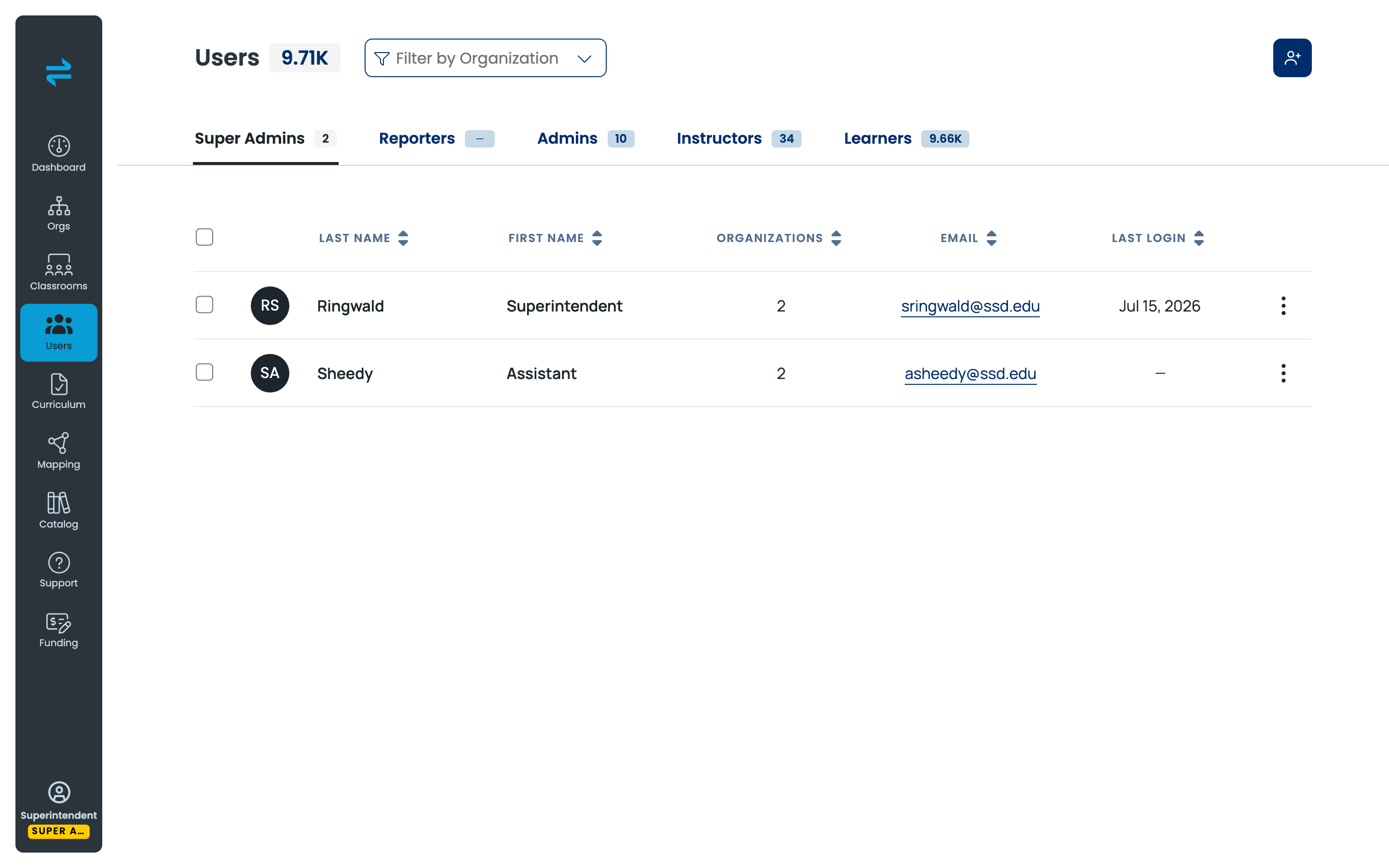
Add a user
- In the left menu, select Users.
- Select the add-user button in the top-right corner.
- In the Create a User panel, choose a Role — Super Admin, Reporter, Admin, or Instructor.
- Select the Organization the user belongs to.
- (Optional) Select a Classroom to assign them to.
- Under User Details, enter the user's First name, Last name, and Email.
- Select Create User.
The new user gets an email inviting them to set a password and sign in. Until they do, their Last login stays blank.
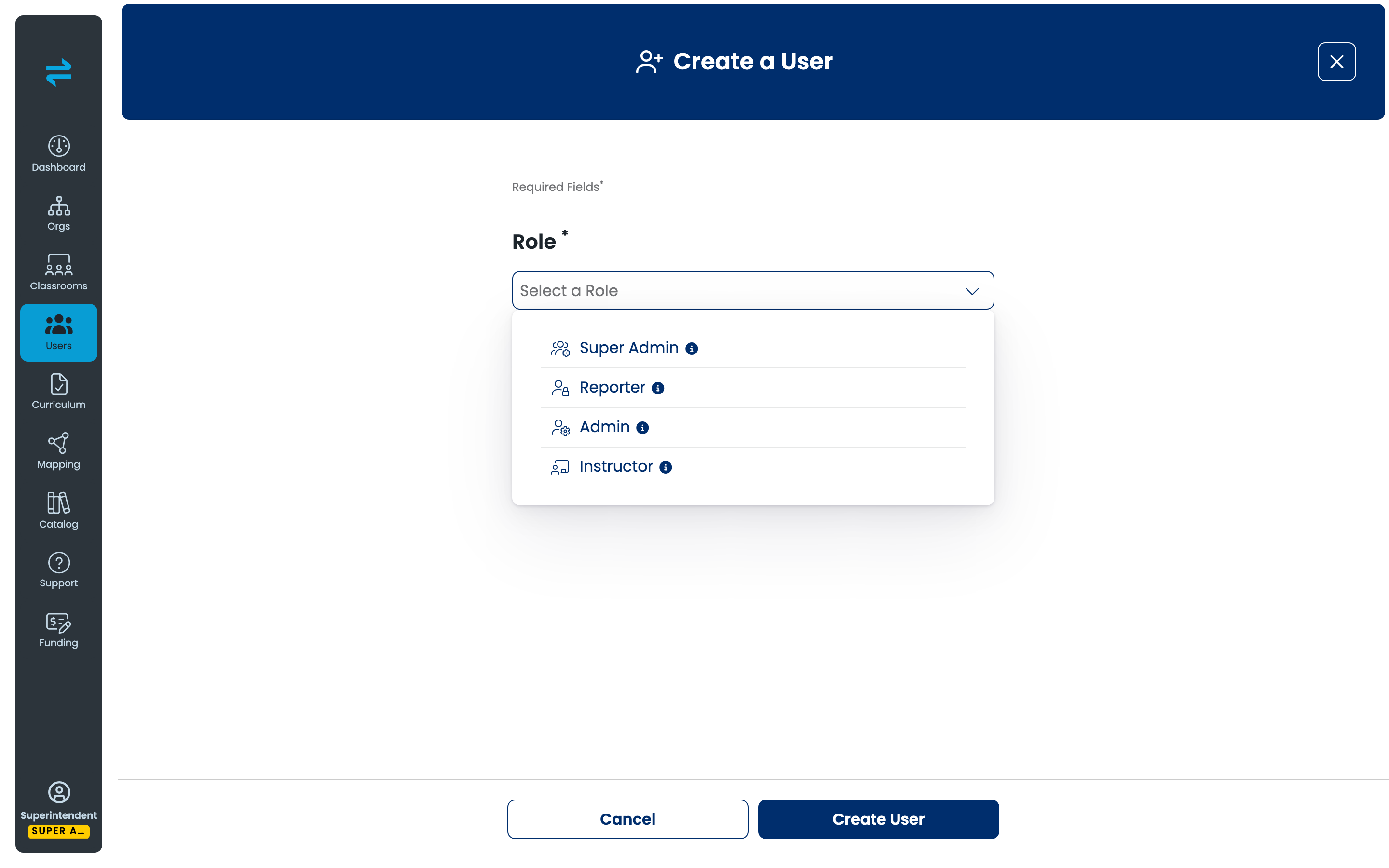
Edit a user's details
- In the left menu, select Users, then open the tab for that user's role (for example, Instructors).
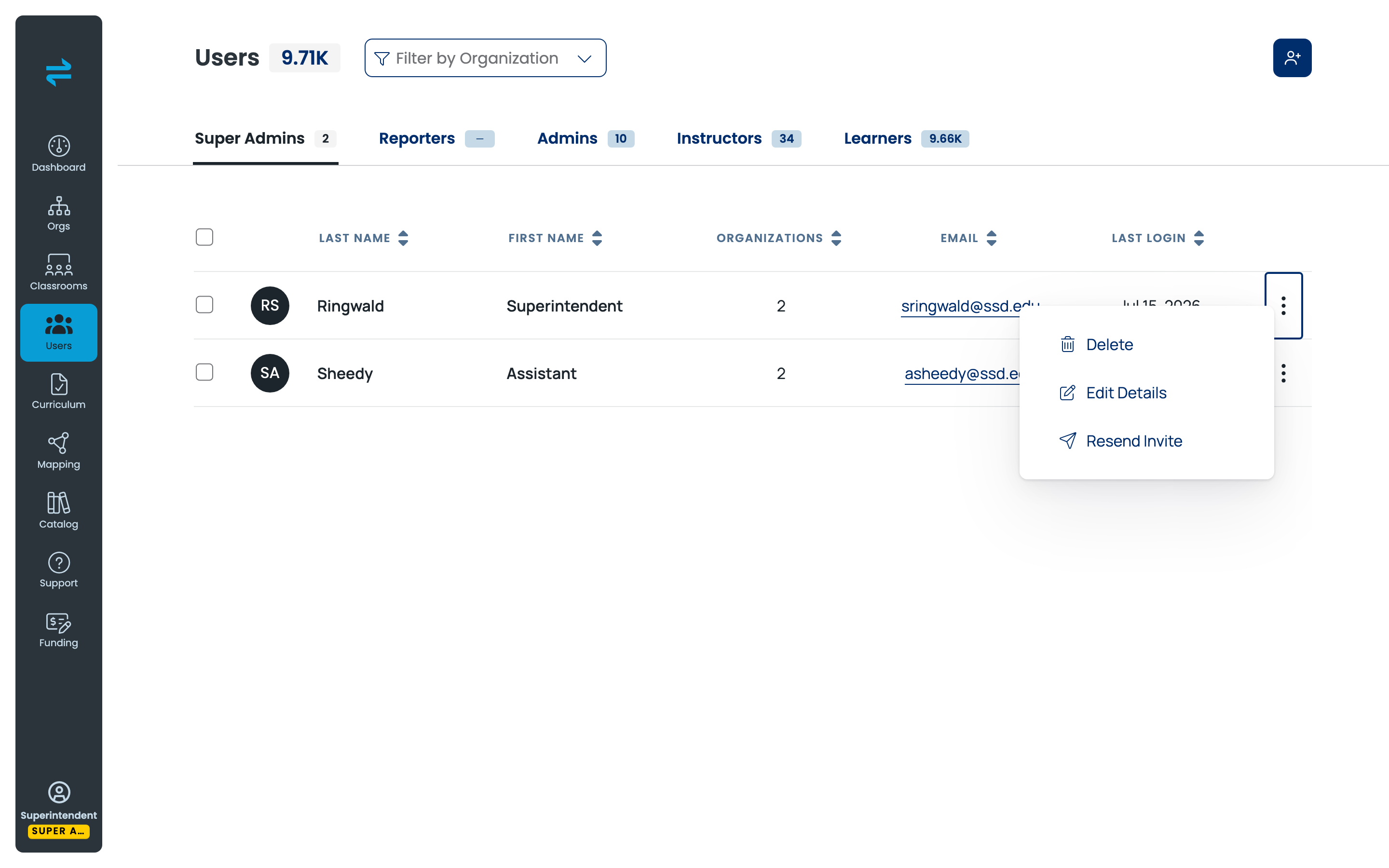
- Find the user's row and select the three-dot menu on the right.
- Select Edit Details.
- Update the fields, then save.
Remove a user
- In the left menu, select Users, then open the tab for that user's role.
- Find the user's row and select the three-dot menu.
- Select Delete.
Removing a user takes away their Dashboard access. It does not delete a learner's completed sim history.
Resend an invite
If a user never received or acted on their invite, select the three-dot menu on their row and choose Resend Invite. They'll get a fresh email to set their password.
The user roles at a glance
- Super Admin — full access across every organization in the account.
- Admin — manages a single organization: its users, classrooms, and curriculum.
- Instructor — runs classrooms and sees their own learners' progress.
- Reporter — view-only access to reporting.
(Learners — the people who use the sims in the headset — are managed separately. See How do I add and manage learners?)
Managing learners
Learners aren't added from the Users page. You add them in bulk with Roster on your Dashboard home, or let a rostering integration (Clever or ClassLink) sync them automatically. See How do I add and manage learners? for the steps.
Still need help? Contact our support team.
