


The Transfr Dashboard Homepage
See the outcomes you choose, drill down to individual learners, and export reports from your Dashboard homepage.
For: Super Admins, Reporters, Admins, and Instructors
Note: The new Dashboard homepage turns on for all organizations on October 26, 2026. Until then, your homepage may still look like the current version.
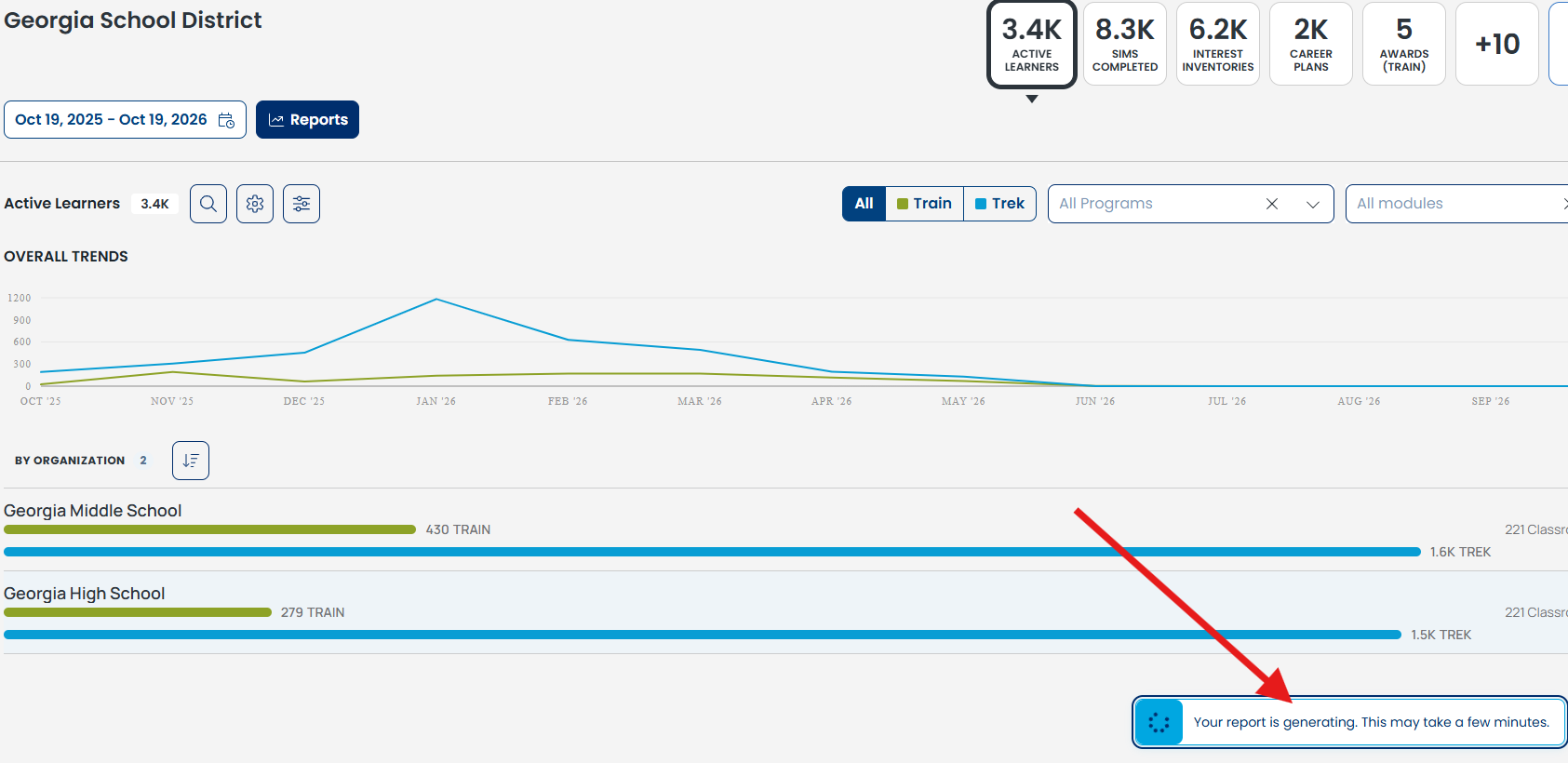
The Dashboard tab is the main page you see when you log in. It shows how your learners are doing across Transfr in one place. You can pick the metrics you want to review and export detailed reports.
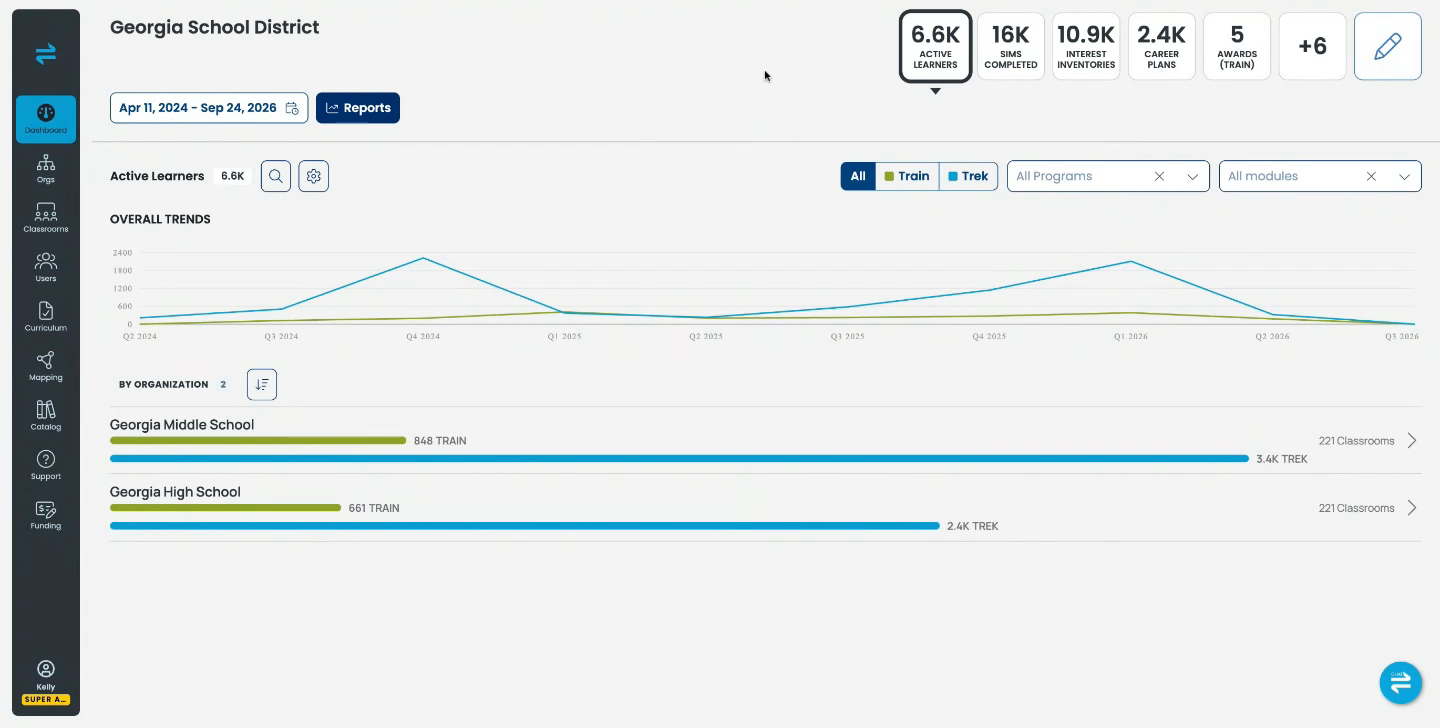
How to choose the metrics you see
Clicking the pencil icon in the top right corner will open the Outcome Selector modal. Here you'll be able to select which metrics you want to see on your dashboard, hide the metrics that are not relevant, and change the order they appear in. You can set the order in which they appear on your dashboard by using the up and down arrows to reorder the list.
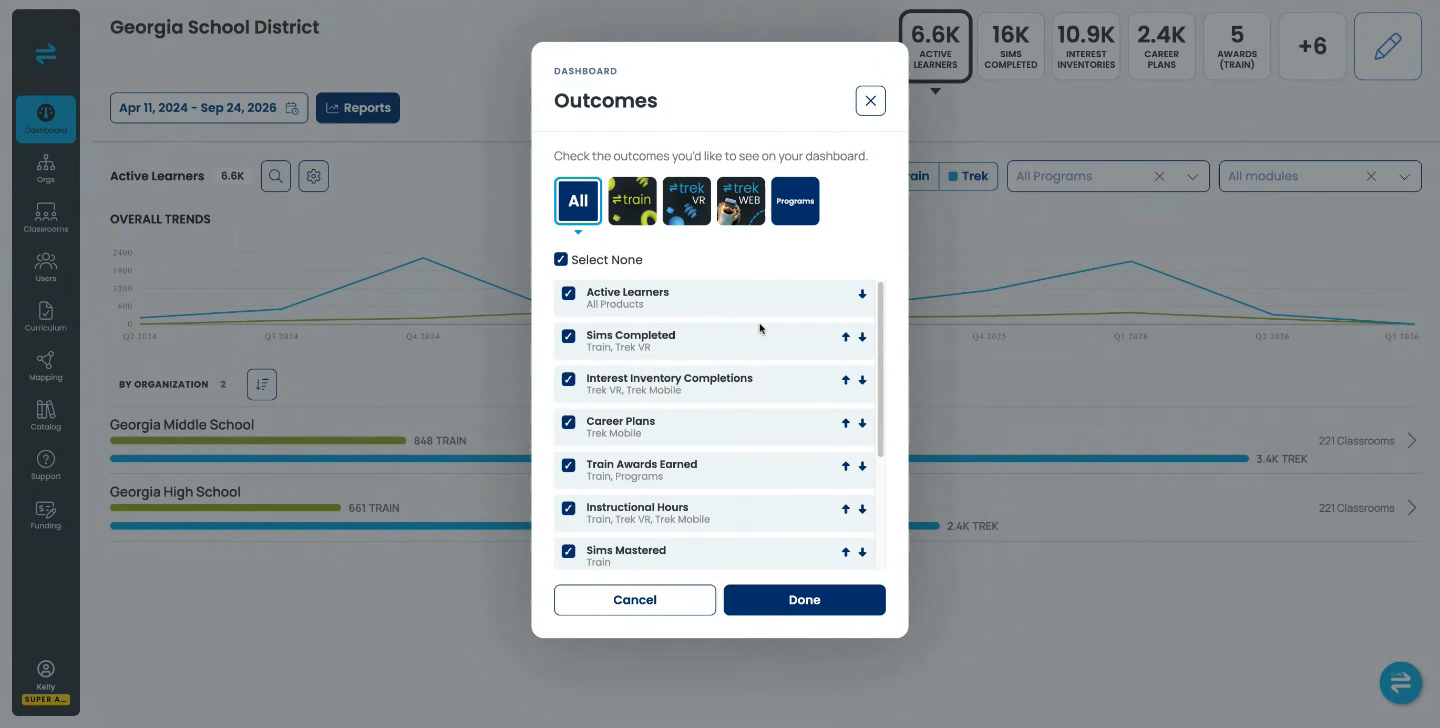
The available career exploration metrics in Transfr Trek you can choose from are:
- Interest Inventory Completions NEW
- Career Plans NEW
- Instructional Hours NEW
- Active Learners
- Sims Completed
- Sims Started
- Sims per Learner
- Budgets Created
- Top Careers
- Top Career Clusters
- Top Career Plans
The available career training metrics in Transfr Train you can choose from are:
- Sims Mastered NEW
- Measurable Skill Gains NEW
- Instructional Hours NEW
- Active Learners
- Sims Completed
- Sims Started
- Sims per Learner
- Skill Mastery Rate
- Train Awards Earned
We suggest picking the 3 or 4 outcomes that matter most to your program. Your choices are saved to your account, so they follow you to any device. They don't change anyone else's homepage.
Your chosen outcomes appear as tiles, in your order, across the top of the homepage. The first 5 outcomes show as tiles. Any others you've turned on sit behind the + button at the end of the row (for example, +6). Select it, then pick an outcome to view it.
Drill down into classroom and learner views
Clicking into classrooms or learners will open a page to review the level you selected. In the example below, we are looking at Active Learners in the Automotive Technology & Repair Q1 Period 6 classroom.
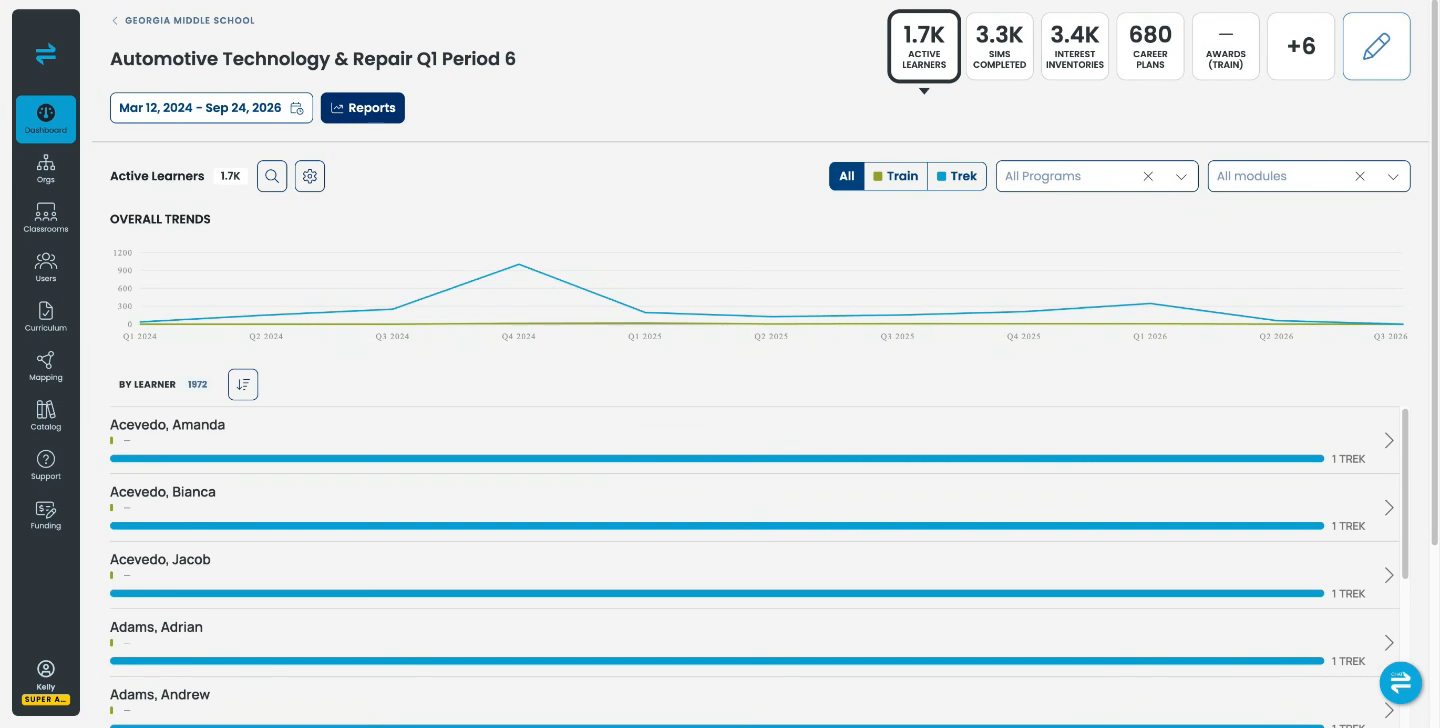
To go back up a level, select the name in the breadcrumb above the page title. To find a specific row, select the Search icon next to the list and type a name.
Changing the Date Range
You can change the date range of the displayed data in the top left corner of the page, under your organization name.

How to export a report
You can export detailed data from the top of your organization instead of one classroom at a time. The filters you set on the homepage apply to the report.
Select the Reports button on the Dashboard home page and you will be presented with options for which level of granularity you would like. The options available to you will be based on your user role.
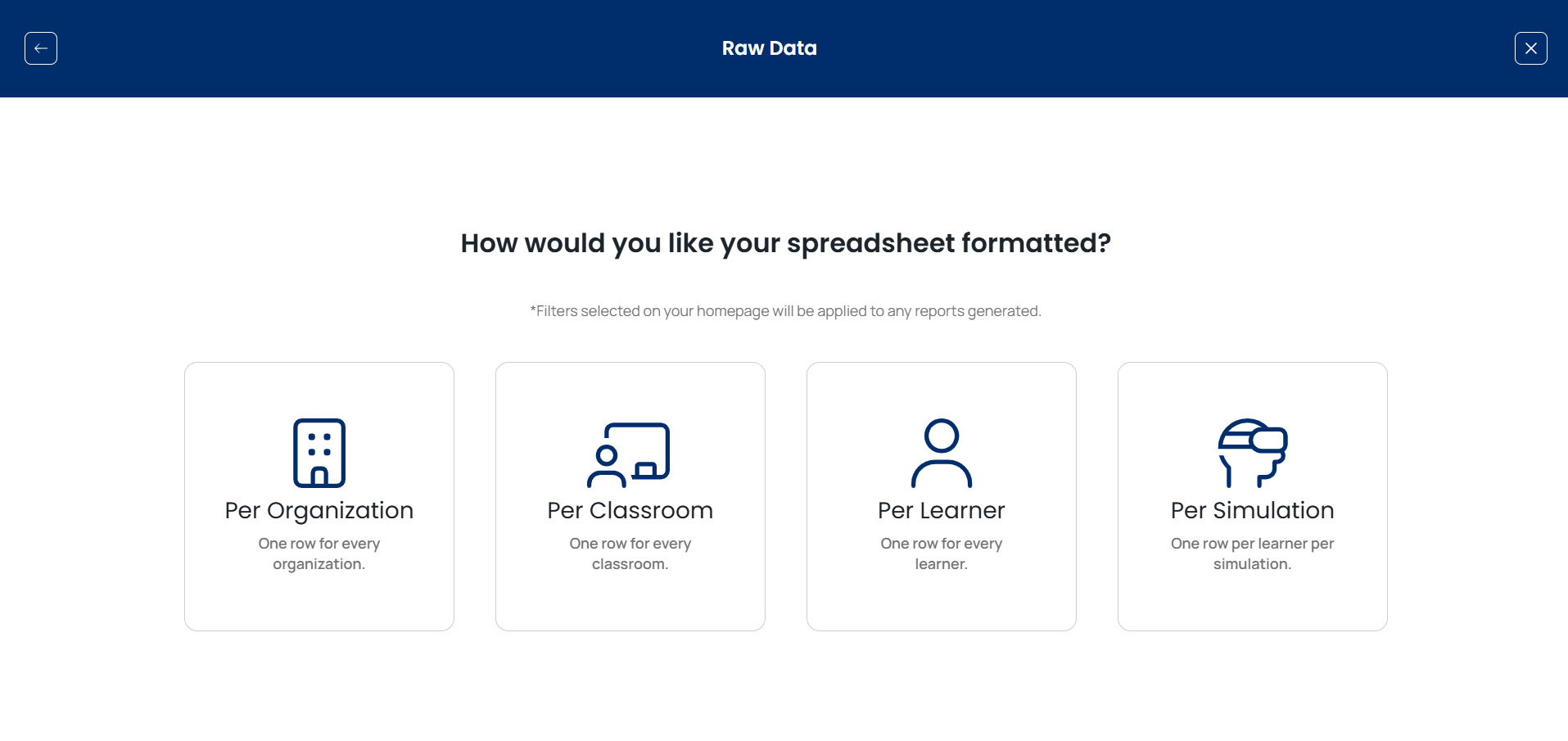
Transfr starts generating your report. A popup shows when it’s generating and when it’s ready, with button to download when ready.
Still need help?
Contact our support team — Monday–Friday, 8am–6pm ET, 646-466-2600, technicalsupport@transfrvr.com. You can also reach out to your Customer Success Manager (CSM) for a walkthrough of the new homepage.
Last updated: October 19, 2026
