Updates and improvements to Transfr.
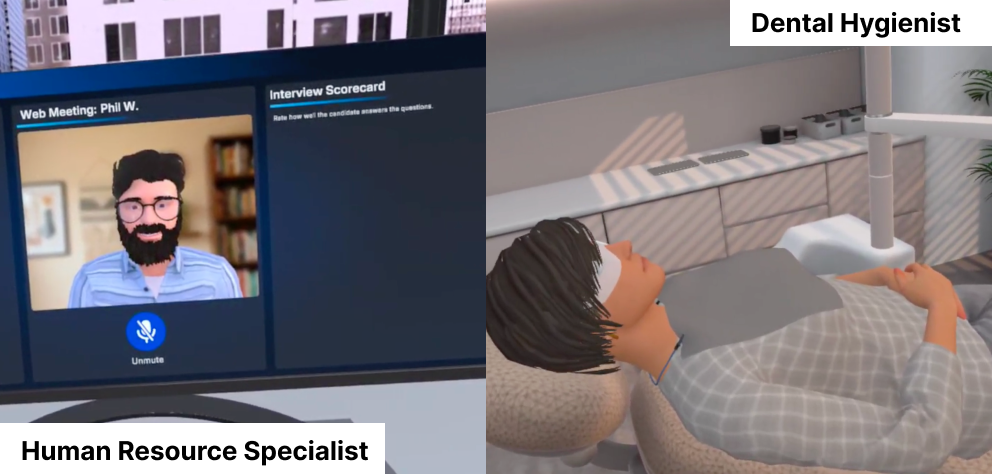
Learners can now explore two new careers in Trek VR: Dental Hygienist and HR Specialist. They can step into a dental office and an HR department to see what these roles look like day to day, opening even more paths to explore in healthcare and business.
Sim Pass codes generated at the classroom level are now valid for 365 days instead of expiring after a single use. Learners can use the same code to log in all year, so instructors spend less time generating new codes and more time teaching. Sim Passes created for a specific career match in Trek Mobile are unchanged and remain single use. Learn more about Sim Passes.
Curriculum Resources now include worksheets for all Trek VR simulations, so instructors can pair any simulation with a ready-made activity and extend learning before or after the headset comes off.
Trek Mobile now recommends an updated set of simulations and shows new thumbnails for the latest careers, making it easier for learners to find something that sparks their interest and jump right in.
Learners now receive their badges and certificates as soon as they complete the required work, with no extra login needed. Every learner gets credit for what they've accomplished, and your team has accurate credentials to share and report on.
This release also includes reliability improvements across the Gradebook, Mission Control, rostering, and device support in the Dashboard.
We updated a batch of training simulations in the Fundamental Skills program to give learners a smoother, more reliable experience from start to finish. Headsets need the latest app version to pick these up, so reach out to your Transfr Customer Success Manager or Technical Support to coordinate the update. Additionally a round of stability improvements and fixes across the Dashboard were made.
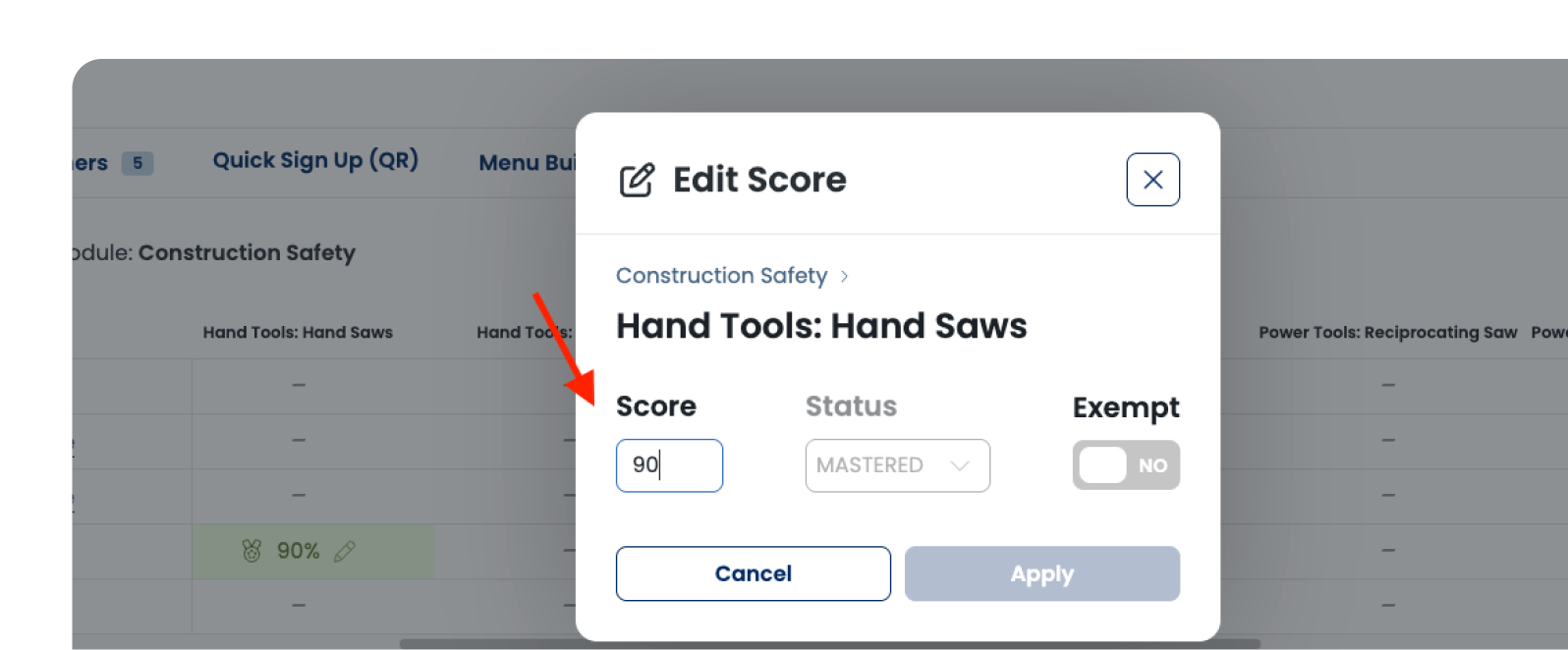
Instructors can now exempt a learner from an activity or enter a score by hand in the Training gradebook. A learner who was absent, tested out, or completed the work another way no longer skews your class data or forces you to keep a separate spreadsheet. Every manual entry is clearly marked as an override for instructors and admins, while learners see a single score.
If your organization has a Virtual Health Clinic license, you now have access to lesson materials to support career exploration in the Dashboard. To access the resources, visit the "Curriculum" tab on the main navigation and select "Trek".
Admins can now pause automatic roster syncing from organization settings, so if your SIS data isn't ready or a sync is bringing over learners you don't want yet, you can stop it without opening a support ticket. Works with both Clever and ClassLink. Turn it back on when your data is ready and nightly syncing picks right back up. You can still run a manual sync any time, even while automatic syncing is paused.
Additional updates include a round of stability improvements and fixes across the Dashboard and Trek VR reporting.
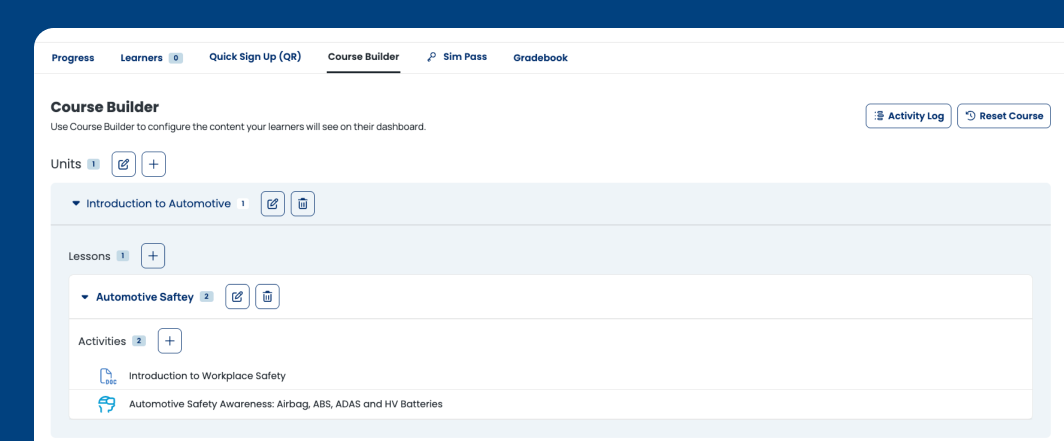
You can now build your own courses from Transfr's full library of activities, worksheets, and resources alongside Trek and Train simulations. Assemble exactly what your learners need and shape each course to fit your career education and workforce training goals.
Here's how to get started:
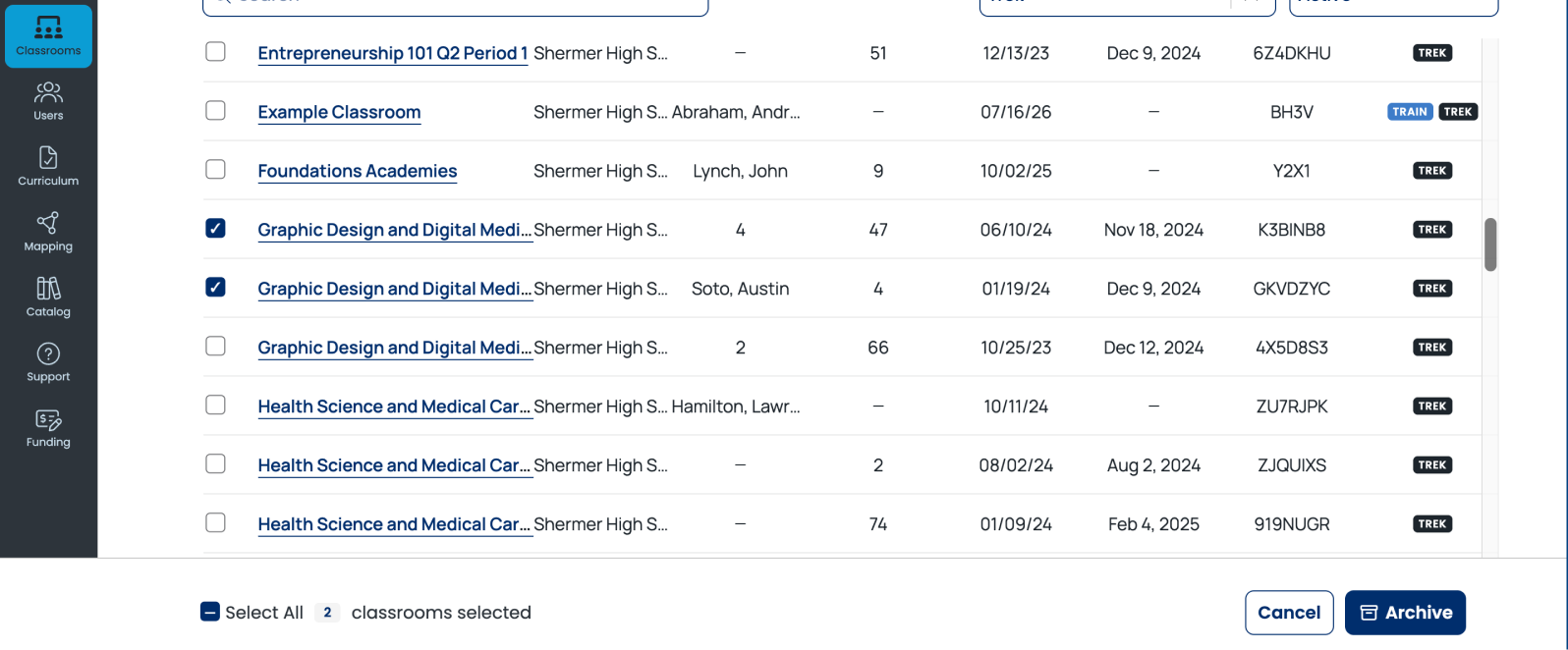
Admins and Instructors can now archive classrooms and learners they're no longer actively using, removing clutter from the classroom and learners view while preserving all historical data for reporting. Archived items can be reactivated at any time from either the list view or the detail view.
We can now turn on a setting that sends learners straight back to sim selection when a simulation ends, instead of selecting the default "I'm Done" and logging out. This makes using Trek at events smoother between handoffs of multiple learners.
This setting is enabled by the Transfr team for your organization on request. Reach out to your Transfr CSM and we'll set it up.
You can now tag your headsets on the Devices tab. Label them by kit, campus, or room, then filter or group the list by those tags. Instead of scanning device names, you can see at a glance which group needs charging or a firmware update.
Tags are shared across your organization and stick between sessions. Once a device is labeled, everyone managing devices sees the same organized view, so there is less setup hassle at the start of a session or semester.
Admins can add or remove products from an existing classroom, so a class no longer needs to be distinctly for career exploration or training.
This release resolves a handful of Dashboard bugs to improve reliability across Sim Pass generation, classroom and program management.
Several existing Trek VR simulations are updated with bug fixes to improve captions, interactions, and visuals, giving learners a smoother, more reliable experience.
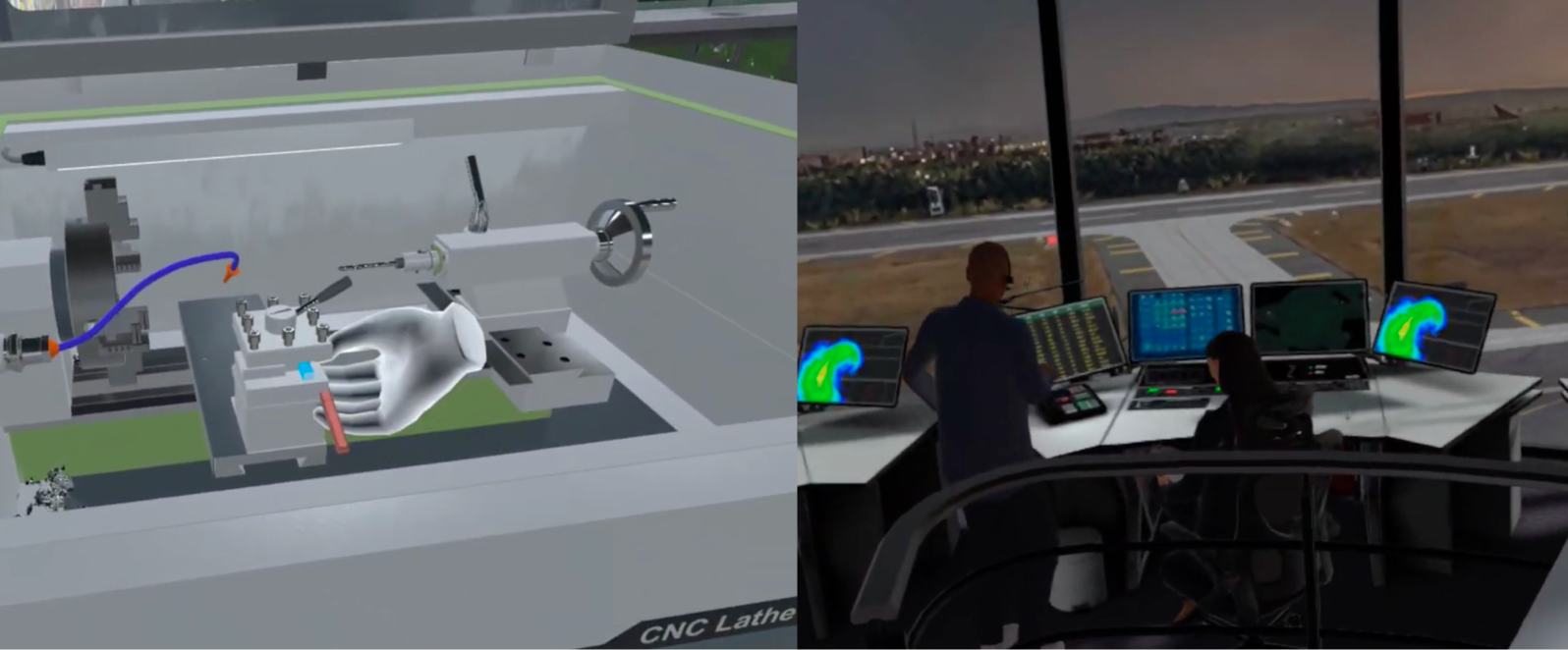
Learners have two new careers to explore:
Trek Mobile now shows refreshed simulation recommendations and new thumbnail images, making it easier for learners to discover and choose the next simulation to try.
This release resolves a few small bugs in the Dashboard to improve usability and reliability across learner management, mission control, and data exports.



