


Quest headset frozen or stuck loading?
Force a frozen Quest 2, 3, or 3S to restart with the headset buttons and the Boot device option. Nothing is erased.
For: Instructors and IT Admins
If a Quest headset is frozen, stuck on a loading screen, or won't respond to the controllers, you can force it to restart from a hidden menu called USB Update Mode. This restart doesn't erase anything on the headset.
These steps work on Meta Quest 2, Quest 3, and Quest 3S.
Turn off the headset
If the headset is already off, skip to the next section.
- Press and hold the Power button on the headset for about 30 seconds. If a power menu appears instead of the screen going dark, select More options, then Power off.
- Let go when the screen goes dark.
Success looks like a dark display and no sound from the headset.
Open USB Update Mode
You don't need to wear the headset for these steps. Hold it in front of you and look through the lenses to see the screen, if you prefer.
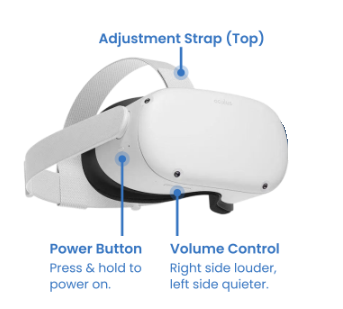
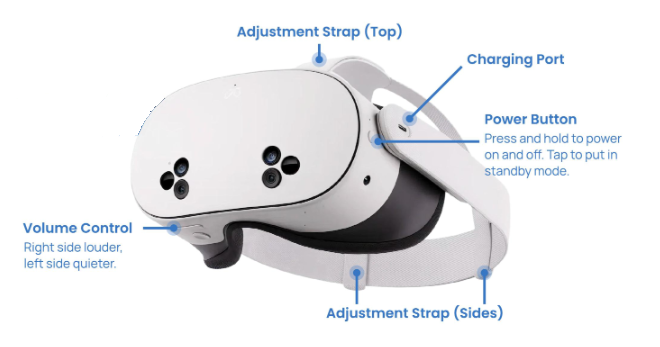
- Press and hold the Power button and the Volume Down (–) button at the same time.
- Keep holding both buttons until the Meta logo begins to appear in the headset.
- Let go of both buttons once you see the Meta logo begin to appear.
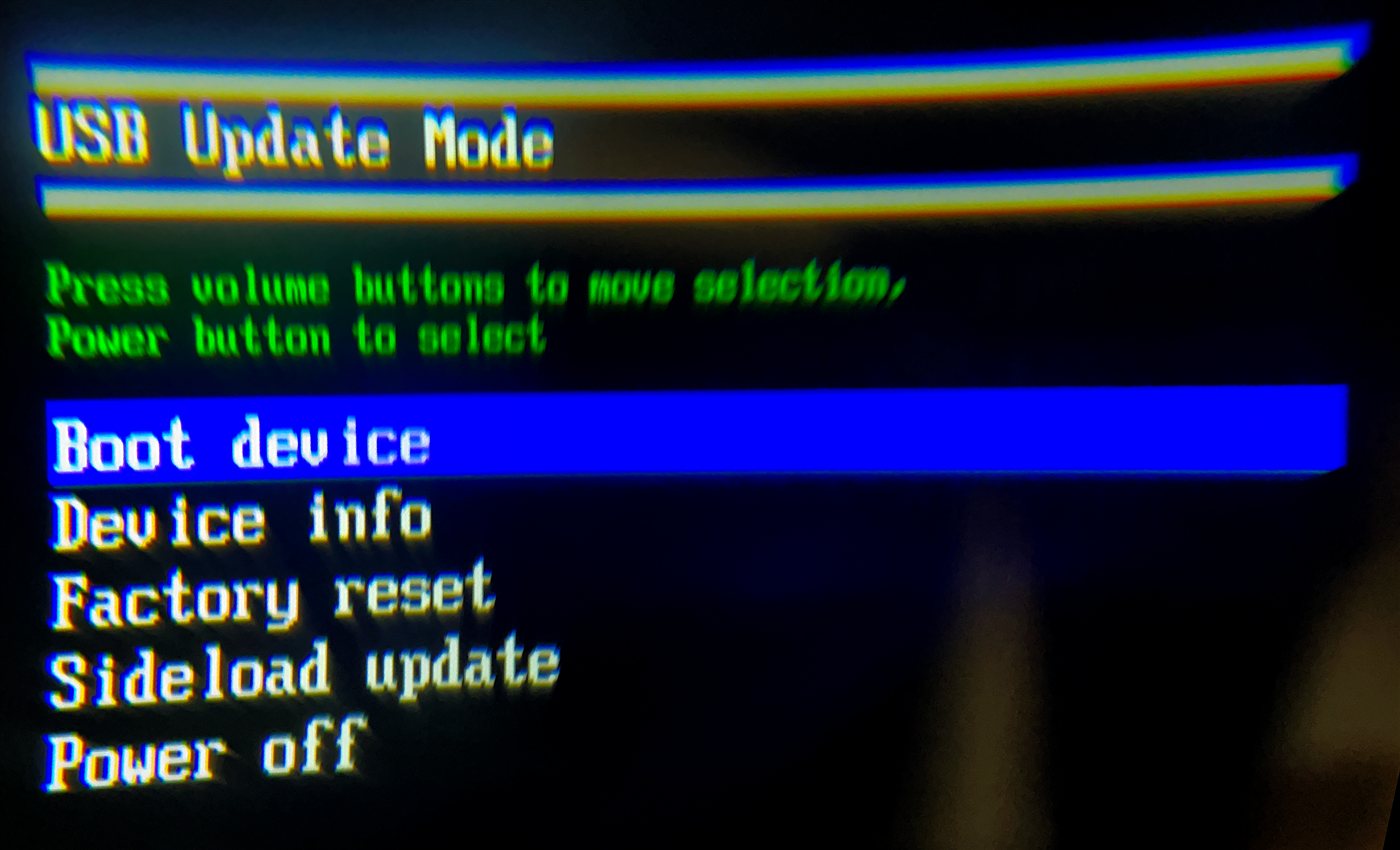
Success looks like a text menu with a list of options, including Boot device. If the headset starts up normally instead, turn it off and try again, holding both buttons together from the start.
Select Boot device
In this menu, the controllers don't work. Use the Volume Up (+) and Volume Down (–) buttons to move the highlight and the Power button to select.
- In USB Update Mode, press the volume buttons until Boot device is highlighted.
- Press the Power button once to select it.
Success looks like the Meta logo, then the headset's home screen. If the Meta logo stays on screen for more than 20 seconds, start over from Turn off the headset.
If the headset freezes again
If the headset doesn't start up normally, or it freezes again, contact Technical Support.
Don't choose Factory reset or any other option in the USB Update Mode menu without contacting Technical Support first. A factory reset erases the headset and disconnects it from your organization.
Still need help?
Contact our support team — Monday–Friday, 8am–6pm ET, 646-466-2600, technicalsupport@transfrvr.com.
Last updated: November 4, 2026
