


How do I accept Transfr apps in ManageXR?
If your organization manages its own headsets, Transfr sends you a share code by email for each app. These are the steps to redeem that code in ManageXR so the app can be deployed to your headsets.
For: IT Admins
If your organization manages its own headsets in ManageXR, Transfr doesn't install apps for you. Instead, Transfr emails you a share code for each app. You redeem that code in your own ManageXR instance, and the app then becomes available to deploy to your enrolled headsets.
This applies to organizations using customer-owned hardware. If Transfr provides and manages your headsets, the apps arrive already installed and you can skip this article.
Before you start you'll need
- Access to your ManageXR instance, with permission to add content to the library.
- The share code email from Transfr. There is one code per app. If you can't find it, contact our support team rather than guessing at a code.
- Headsets enrolled in ManageXR. Accepting an app makes it available to deploy; it doesn't install it anywhere on its own.
Open VR Content
- Sign in to your organization's ManageXR instance at managexr.com.
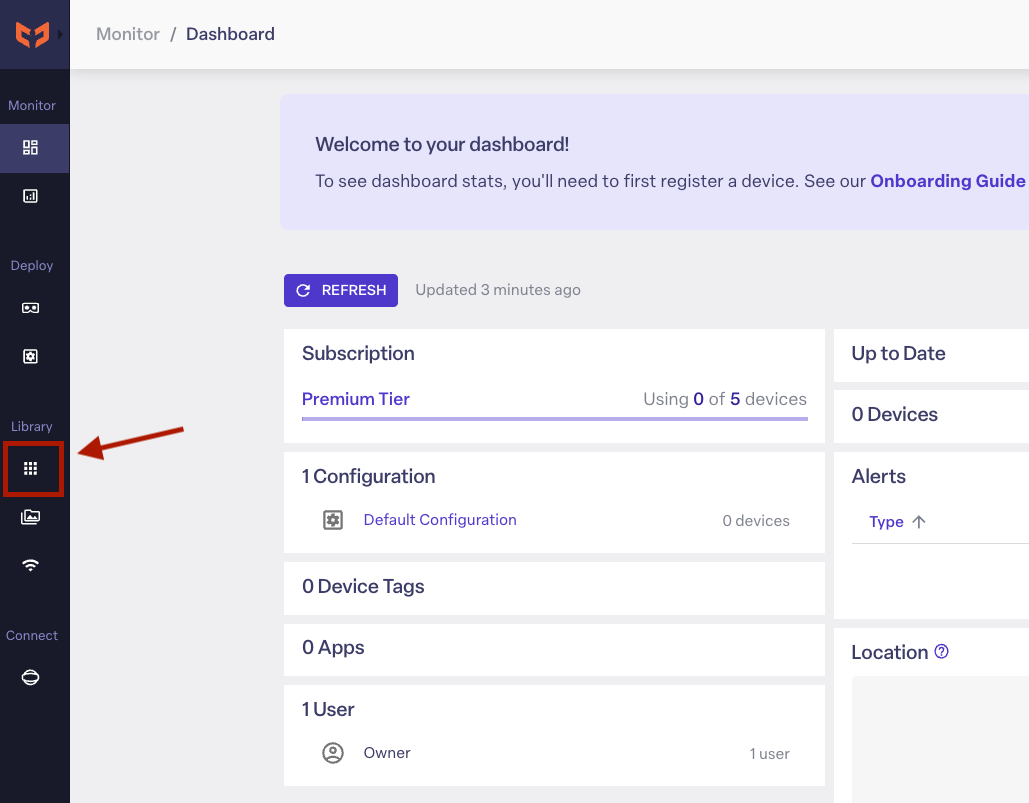
- In the left menu, under Library, select VR Content.
- Select + Add content, then choose App.
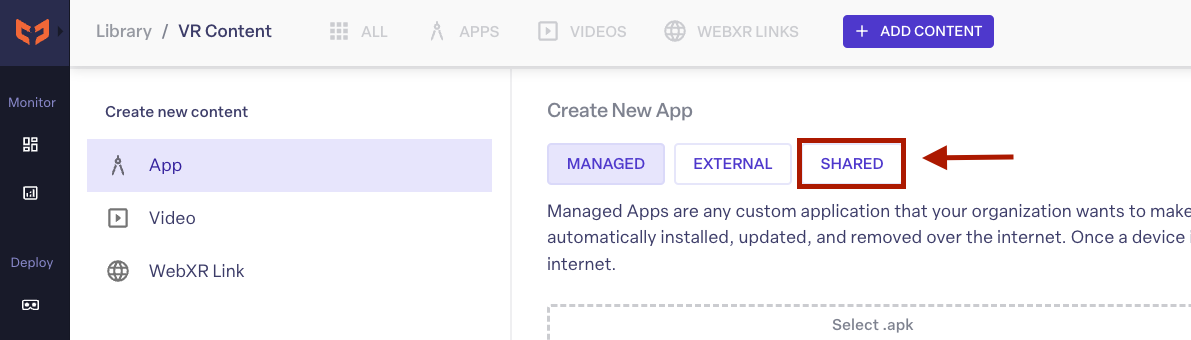
Choose the Shared tab
Under New App you'll see three tabs: Managed, External, and Shared. Select Shared. Shared apps are ones another organization has made available to you, which is how Transfr delivers its apps.
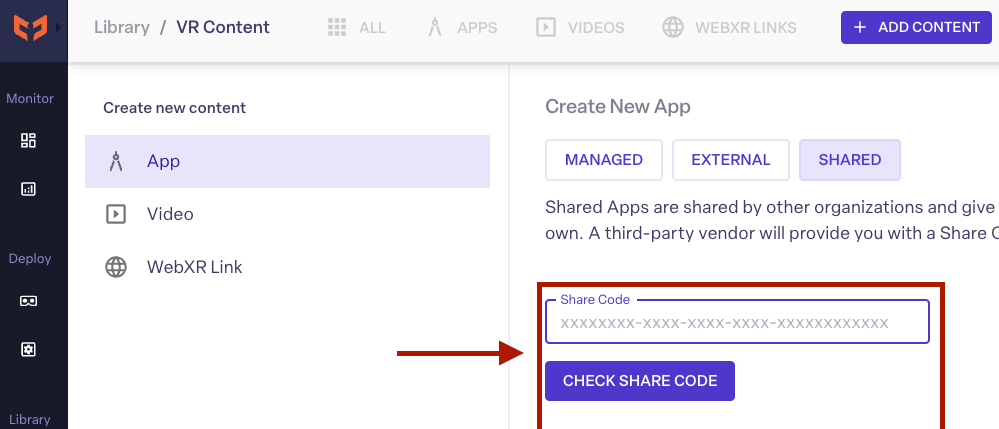
Enter your share code
- Paste your code into the Share Code field. Copy it straight from the Transfr email so nothing is truncated.
- Select Check share code. ManageXR looks up the code and shows you which app it belongs to.
Add the app
ManageXR shows the app's name, package name, release channel, and which organization shared it. Check that this matches the app you expect, then select + Add shared app.
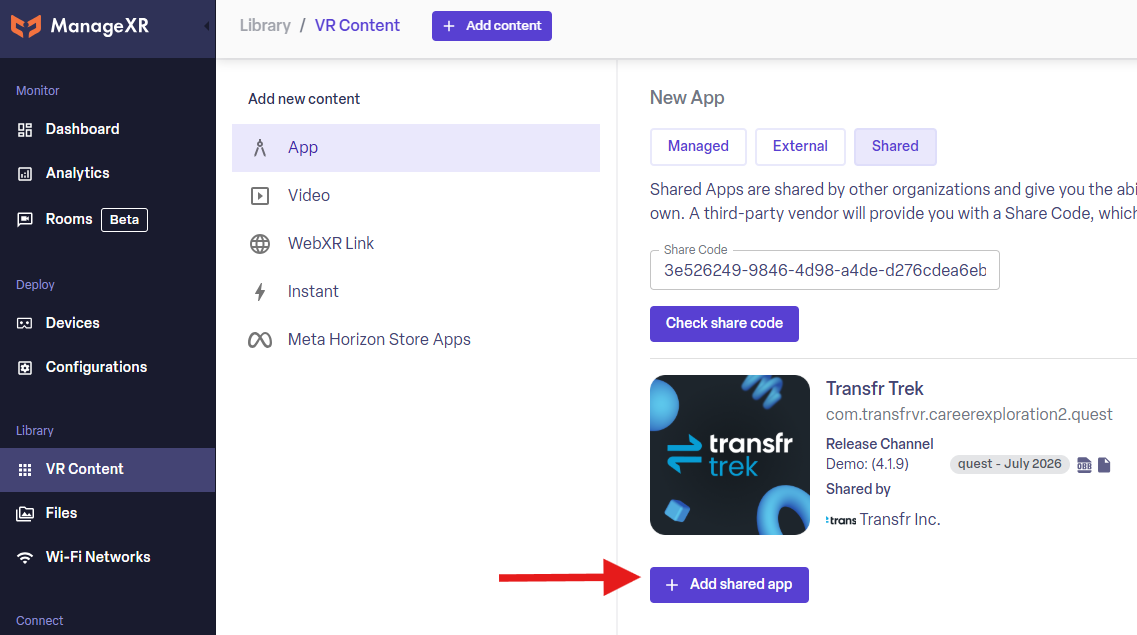
What success looks like: the app appears in your VR Content library and stays there. You only redeem each code once.
Deploy the app to your headsets
Accepting an app adds it to your library. It does not put it on any headset yet. To get it onto devices, add the app to the configuration your headsets use, then let them sync. Configurations are under Deploy in the left menu.
You can deploy to as many headsets as your agreement with Transfr covers. If you need more, talk to your Customer Success Manager before enrolling additional devices.
If the share code doesn't work
- Nothing found for the code. Codes are long and easy to truncate when copying. Copy it again straight from the email, with no leading or trailing spaces.
- The code has already been used. Each code is redeemed once per organization. If the app is already in your library, you're done — there's no need to redeem it again.
- The app appears but won't install on headsets. That's a deployment or connectivity problem rather than a share-code problem. Check that the app is in the right configuration and that your network allows the required endpoints — see Network Ports and URLs to Allowlist.
- The app is missing from a headset's library later on. See Transfr App Missing in App Library.
Still need help?
Contact our support team — Monday–Friday, 8am–8pm ET, 646-466-2600, technicalsupport@transfrvr.com. Have your organization name and the app you're trying to add ready.
Last updated: August 3, 2026
