


Troubleshooting issues within Trek VR?
Send Trek VR logs to Transfr technical support from inside the headset using the Troubleshooting tab, and what context to send with them.
For: Instructors, facilitators, and admins
When something goes wrong in a simulation, Transfr technical support can usually resolve it faster with the headset's own logs. You can send those from inside the headset — there is no need to pull files off the device or involve your IT team.
Send a bug report from the headset
- In the Transfr Trek VR Settings menu, select Troubleshooting.
- Select Send Bug Report.
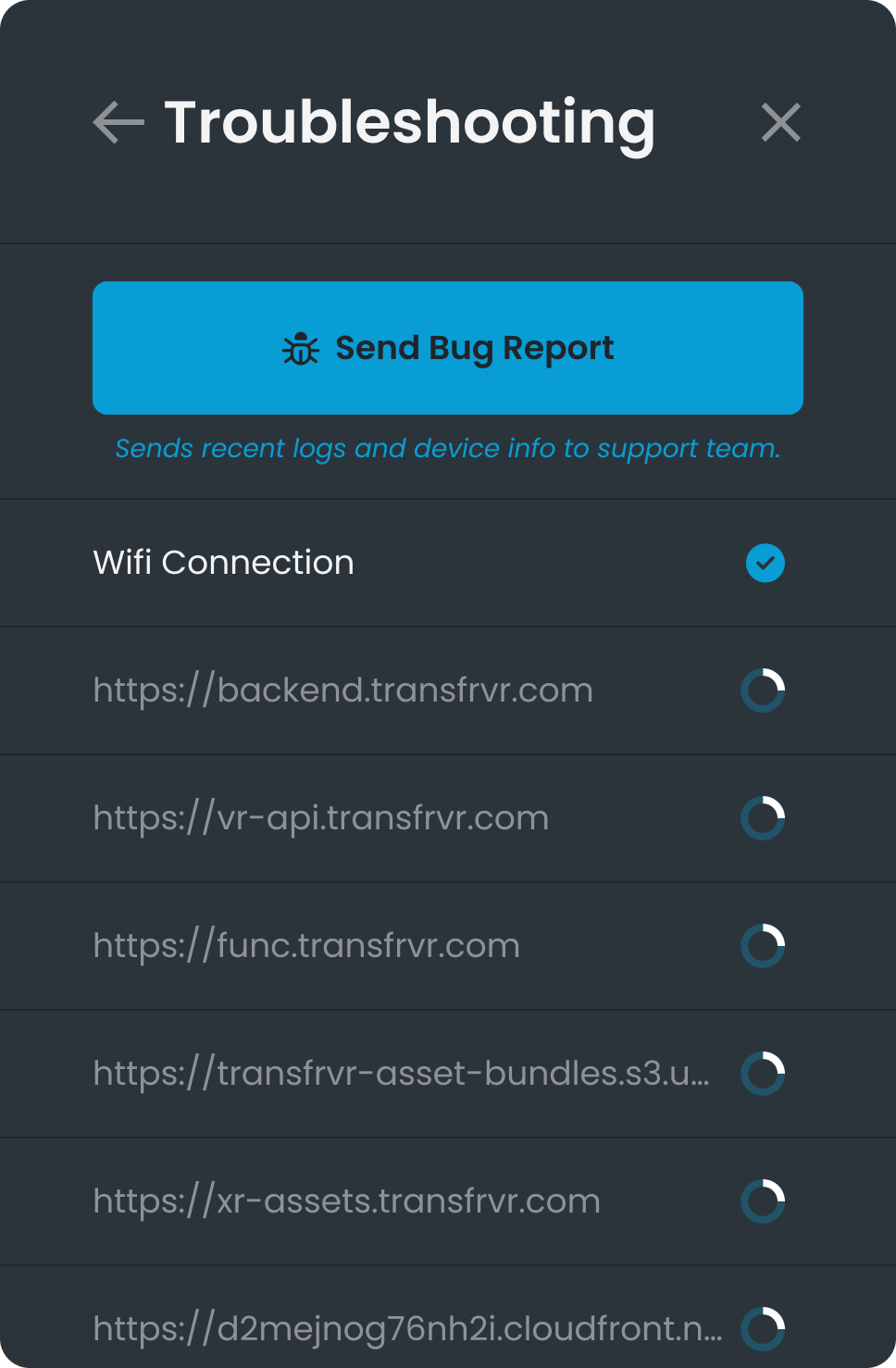
- Choose the time range that covers when the problem happened — 1 day, 1 week, or 2 weeks.
- Select Send.
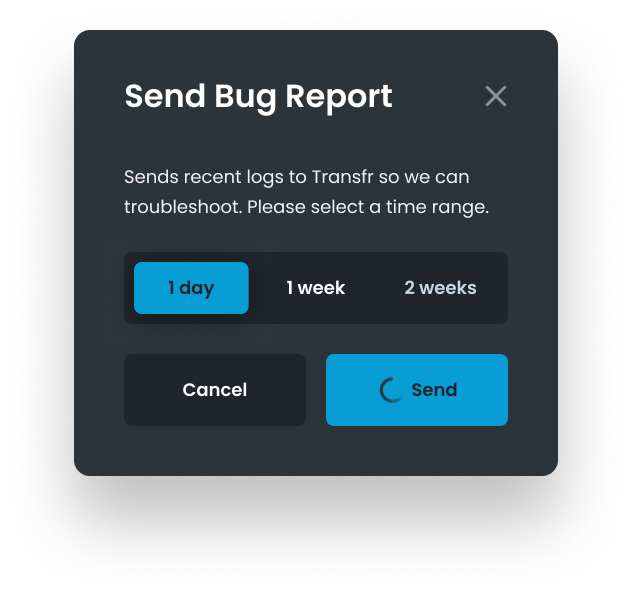
That forwards the app and VR logs for the window you chose straight to Transfr technical support.
What to tell us alongside the logs
Logs show what the app did, not what the learner saw. Send a quick email to Transfr technical support alongside the bug report to give some context around the issue you saw, which will help us resolve the issue alongside the logs:
- Which simulation, and how far into it.
- What the learner was trying to do, and what happened instead.
- Whether it happened once or repeatedly, and on one headset or several.
Still need help?
Contact our support team — Monday–Friday, 8am–8pm ET, 646-466-2600, technicalsupport@transfrvr.com.
